Reviewing program applications
This feature is only available on Business plans and above .
Where to find your program applications
In the program menu, open Applications under Partners. The count badge next to it shows how many applications are waiting for review.
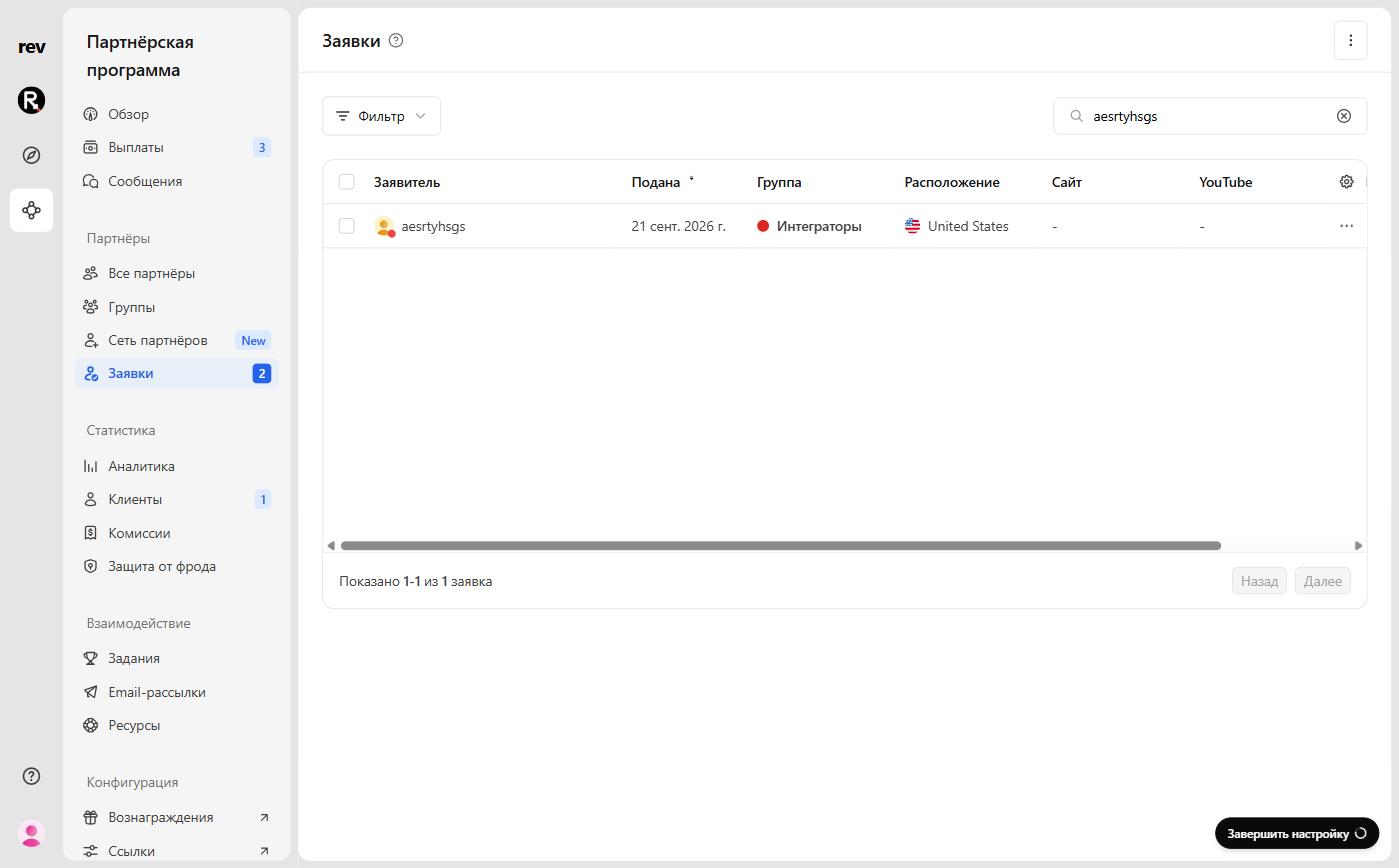
Applicant table
On your applications table, you’ll be able to view key information, including:
- The applicant’s name
- When they applied
- The group they applied to
- Their country
- Their website and social media profiles — e.g. YouTube and LinkedIn
Filter narrows applications down by group and country, and the search box finds an applicant by name, email, or company. Click on any of the rows to open the application.
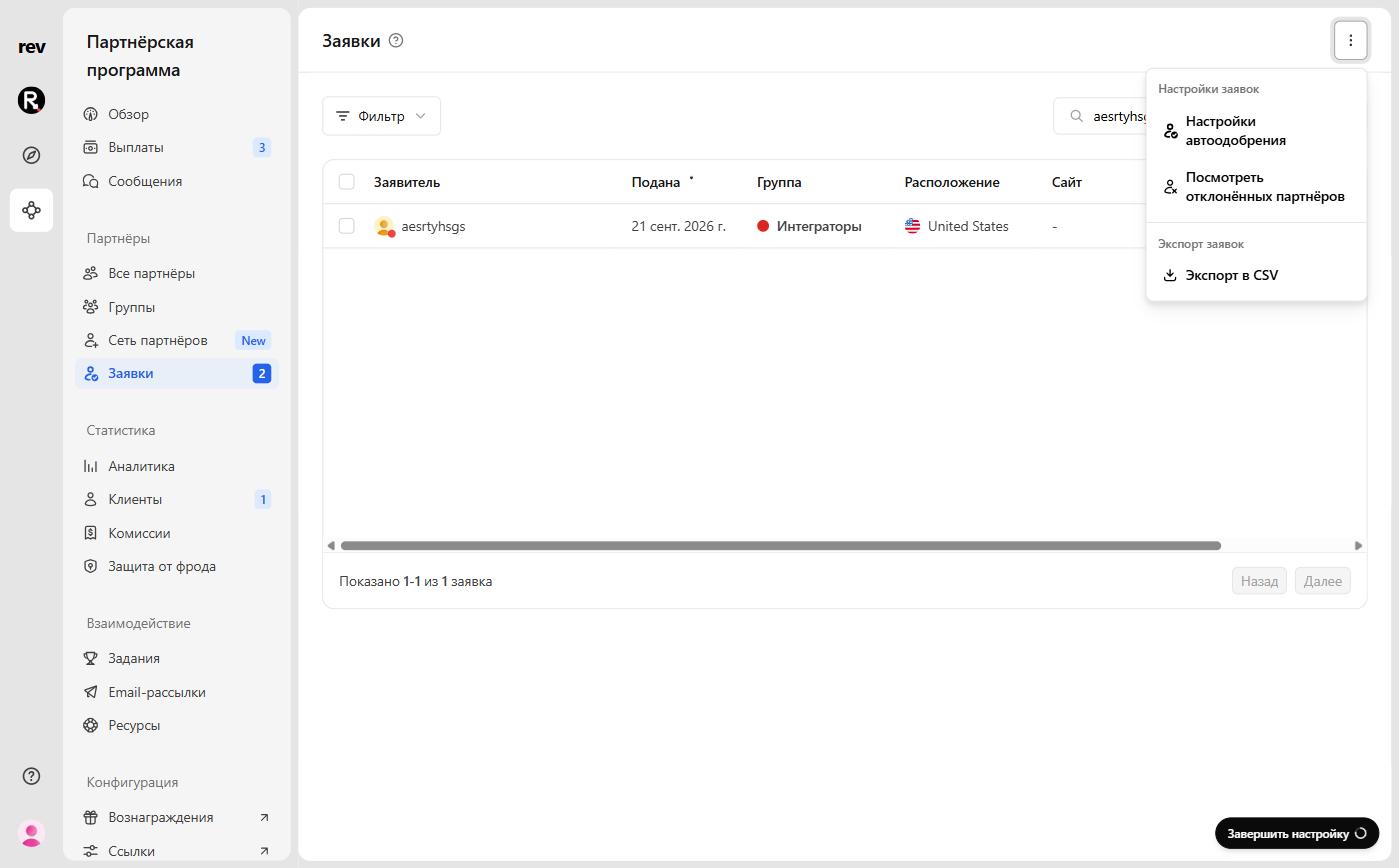
Applications menu
The ⋮ menu in the top right corner of the page has:
- Auto-approval settings — opens the default group’s settings (see Auto-approve);
- View rejected partners — the list of rejected applications (see below);
- Export as CSV — downloads the applications.
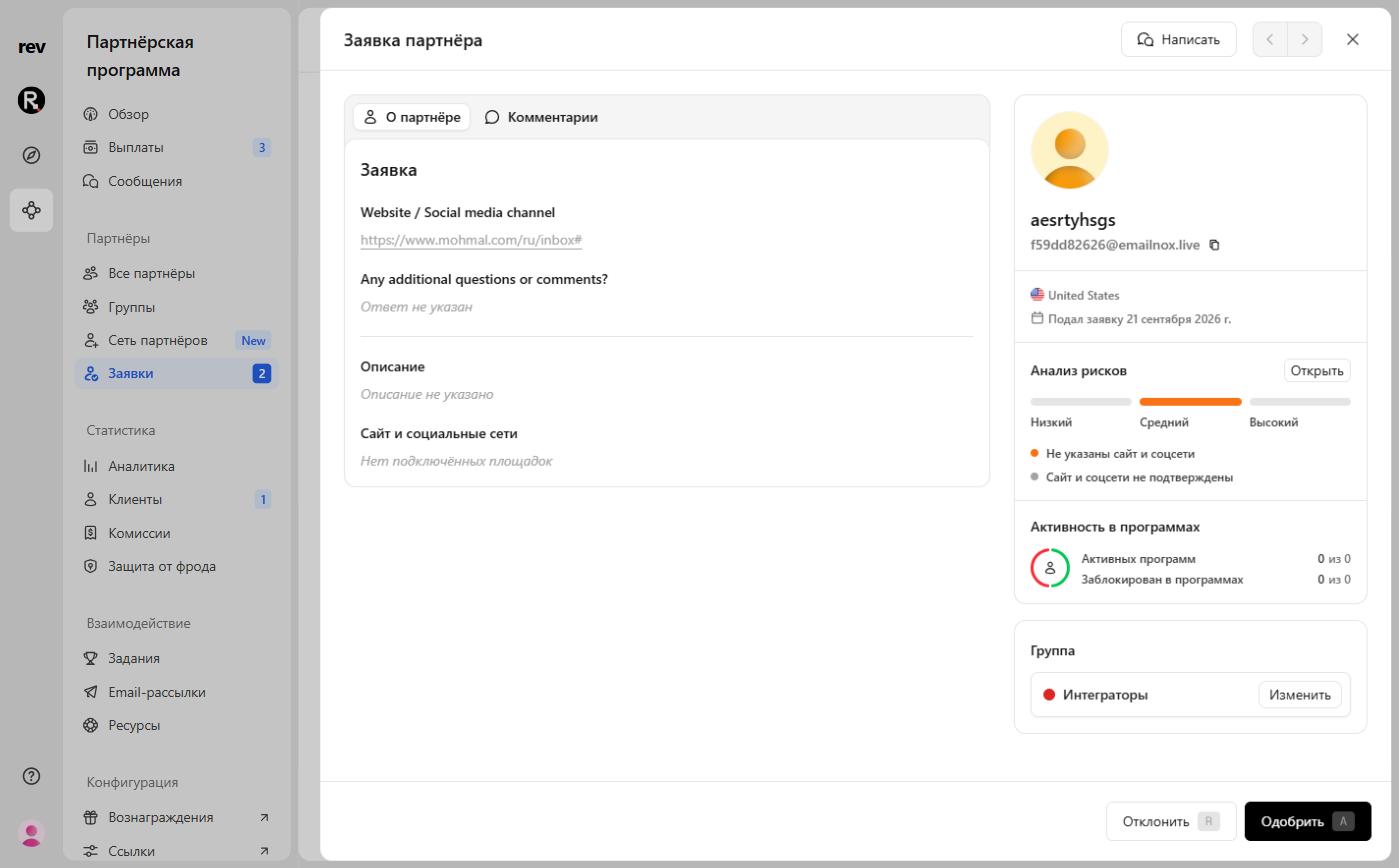
Partner application
The application sheet brings together everything the applicant shared:
- the About partner tab — answers to your application form questions, description, website, and social profiles;
- on the right — name, email, country, and application date;
- Risk analysis — see risk flags;
- Program activity — how many RevRoute programs the partner is active in and how many they are banned from;
- Group — the group they applied to; change it with Change.
On the Comments tab, your team can leave notes about the applicant — they’re visible only in your workspace. The Message button opens a conversation with the applicant in Messages, and the arrows at the top switch between applications.
Online presence
Partners add their website and social accounts to their profile and can verify that they own them. Verification is optional but speeds up review: if no platforms are added or verified, a matching risk flag appears in the risk analysis.
Applicant risk flags
Application risk analysis is available on Advanced plans and above .
We recommend reviewing flagged applicants and the information they’ve provided before making a final decision.
The Risk analysis block in the application sheet shows the overall risk level — Low, Medium, or High — and the flags behind it. The Open button shows all flags with explanations.
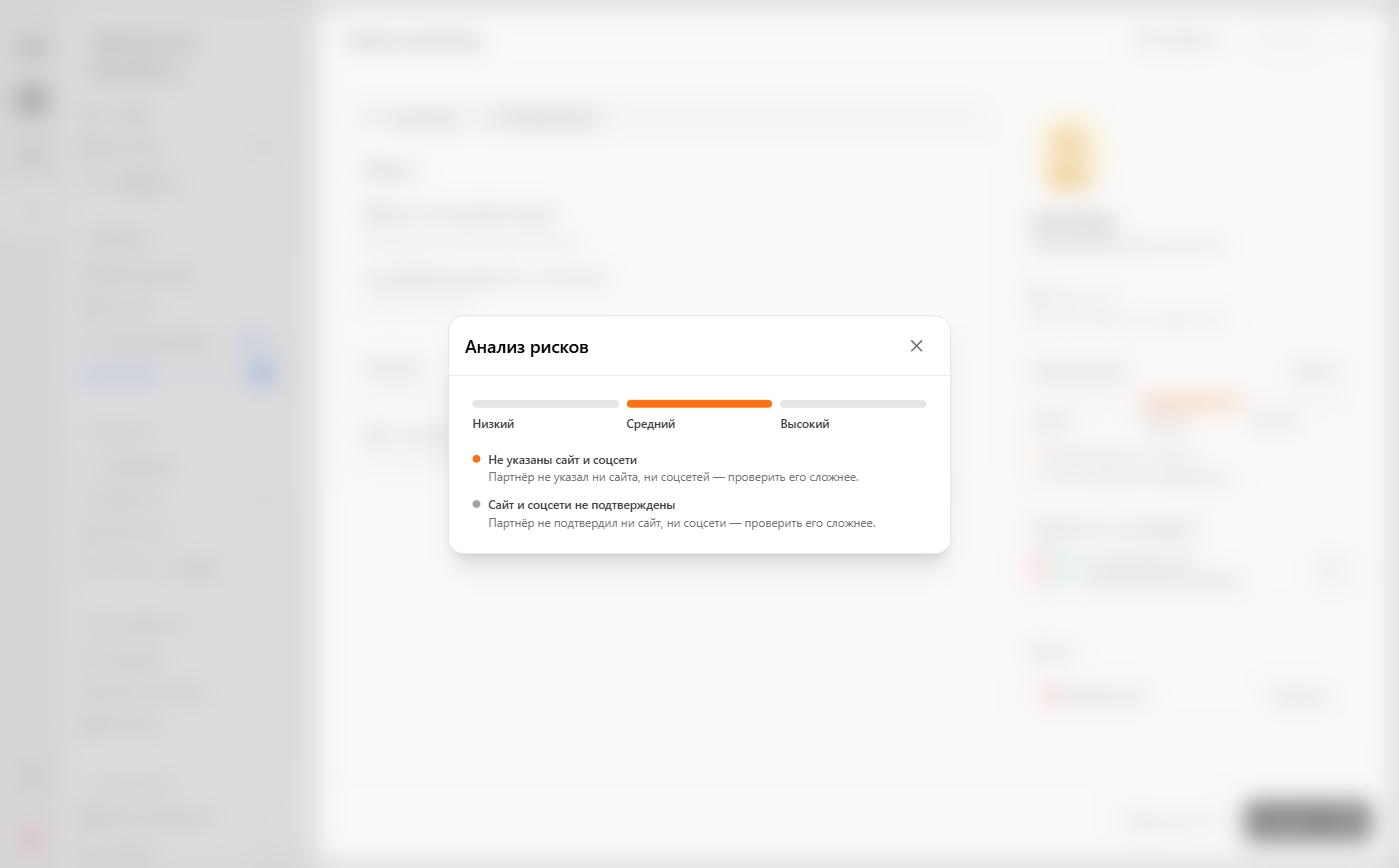
These signals are powered by fraud detection:
| Flag | Level | Description |
|---|---|---|
| Fraud report | High | This partner has been flagged for suspected fraud by another program. |
| Cross-program ban | High | This partner has been banned from one or more other RevRoute programs, indicating a potentially high-risk history. |
| Duplicate payout method | High | This partner is using a payout method already linked to another partner account, which may indicate duplicate accounts or fraud. |
| No website or social links added | Medium | This partner hasn’t provided any website or social links, making verification difficult. |
| Email domain mismatch with website | Low | The custom email domain doesn’t match the provided website. |
| Masked email address | Low | Uses an anonymized email address. Not harmful, but harder to verify and to contact directly. |
| No verified website or social links | Low | This partner hasn’t verified their website or socials, making verification difficult. |
Approving applicants
There are 3 ways to approve pending applicants into your program.
From the application sheet
Click Approve at the bottom of the application sheet (or press A) — the applicant joins your program right away.
Bulk approve
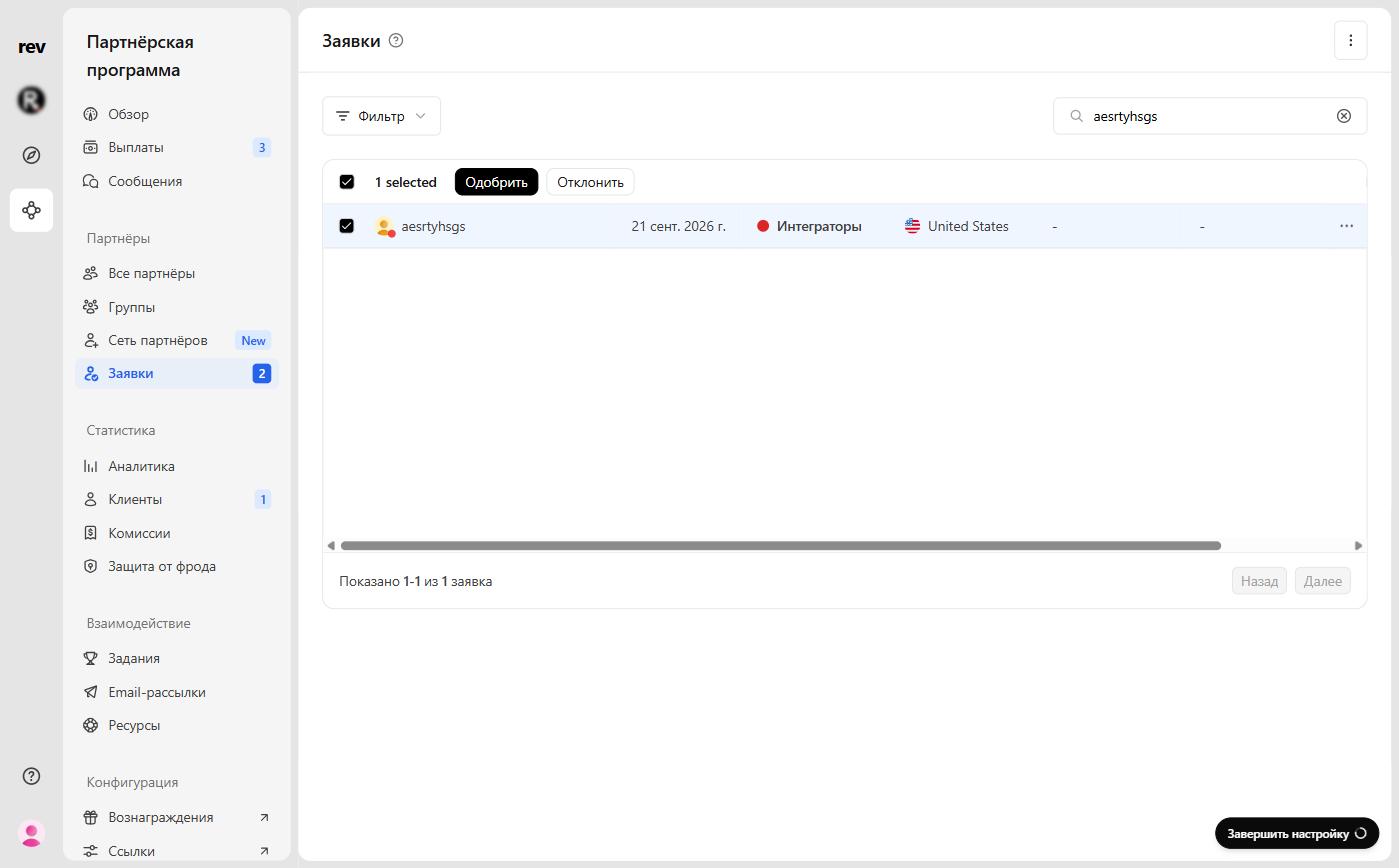
Select applicants with the checkboxes on the left (the header checkbox selects everyone) and click Approve above the table.
Auto-approve
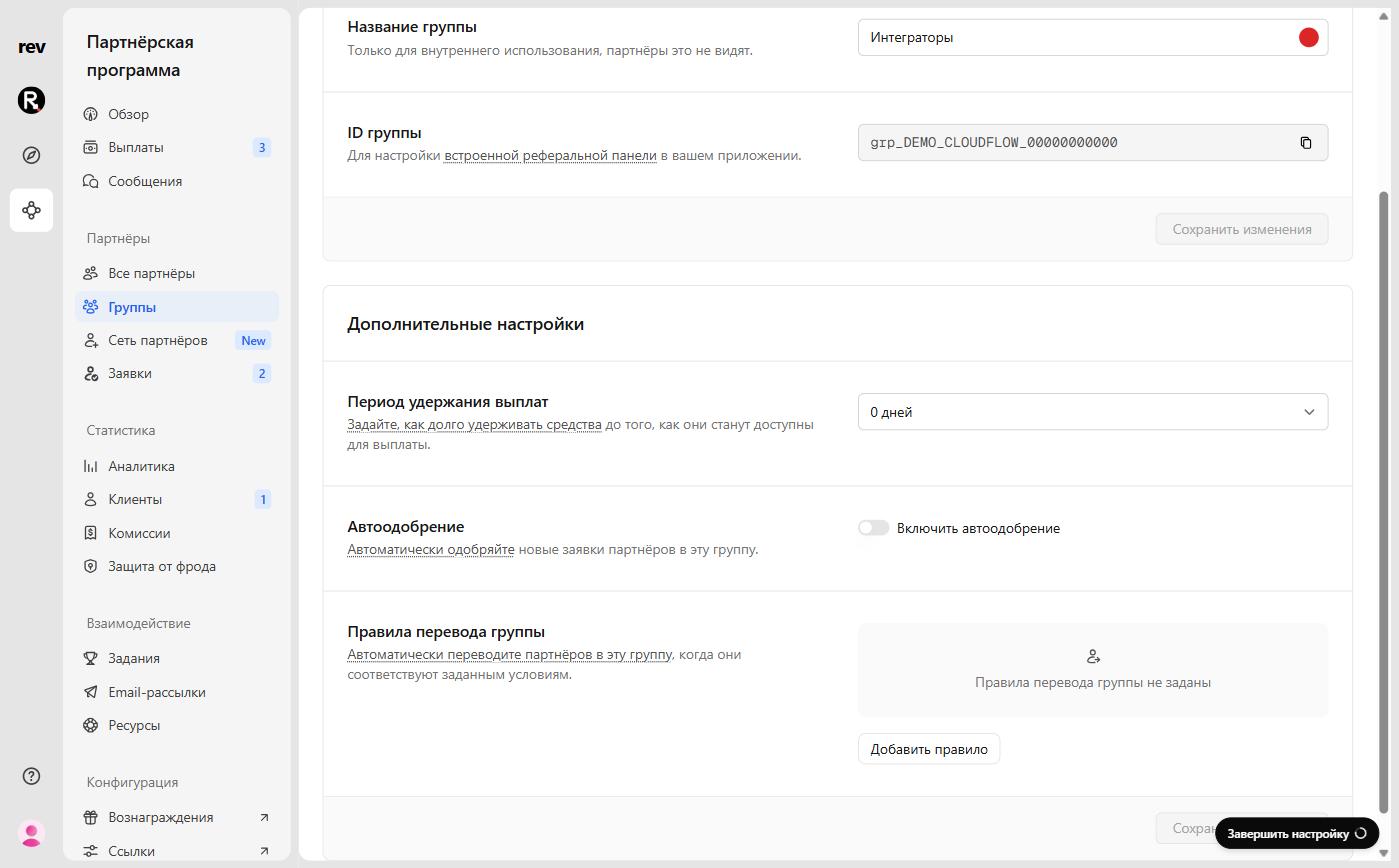
Auto-approve is set per partner group: open the group, go to the Settings tab, and turn on Enable auto-approve under Additional settings. For the default group, Auto-approval settings in the applications menu leads there too.
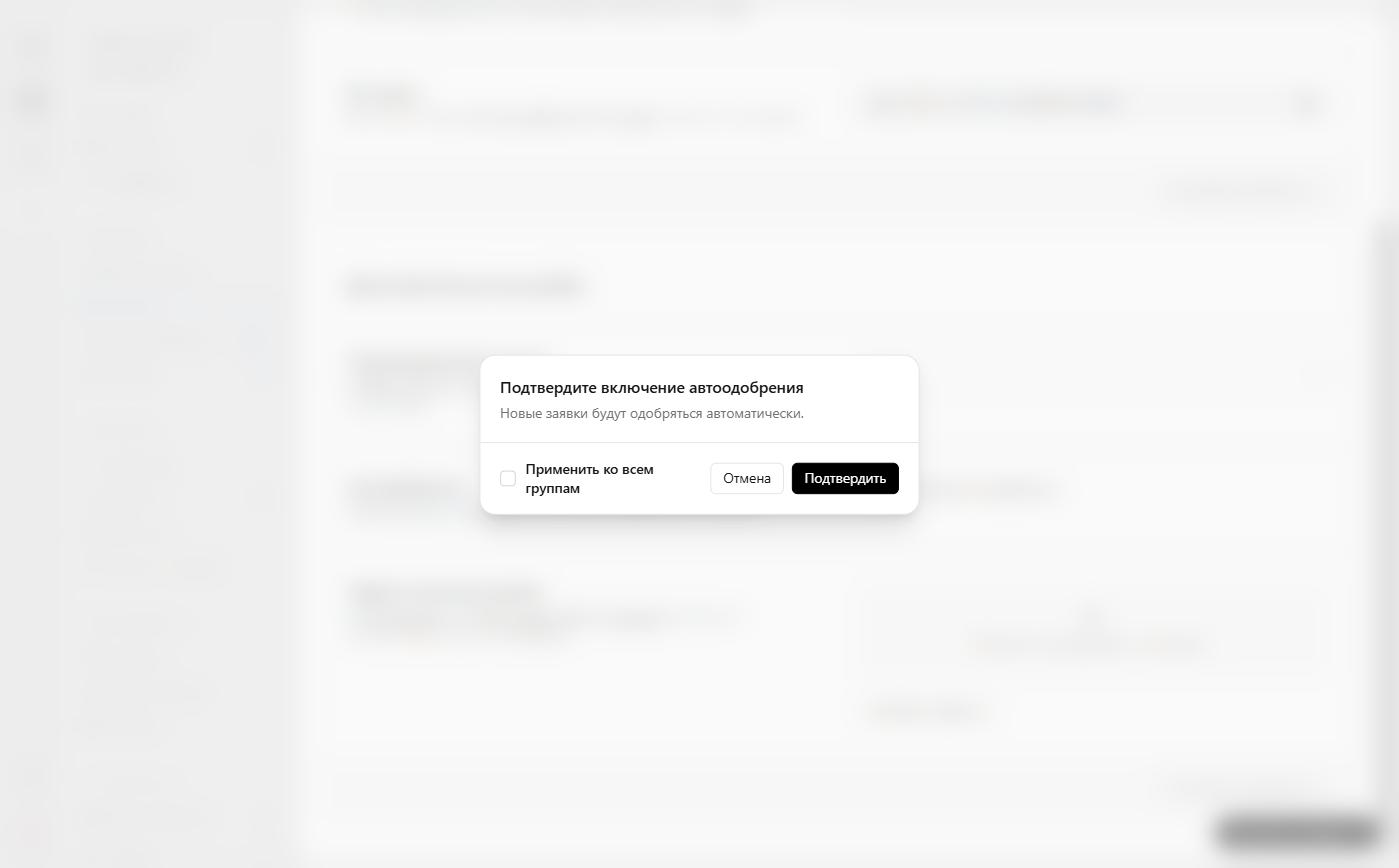
RevRoute asks you to confirm. Check Apply to all groups to enable auto-approve in every group of the program at once.
From then on, new applications to the group are approved automatically without review. Existing pending applications still need manual approval. Turning auto-approve off works the same way — with the toggle and a confirmation.
Rejecting applicants
You can reject an application from the application sheet — with Reject or the R key — or several at once by selecting them in the table.
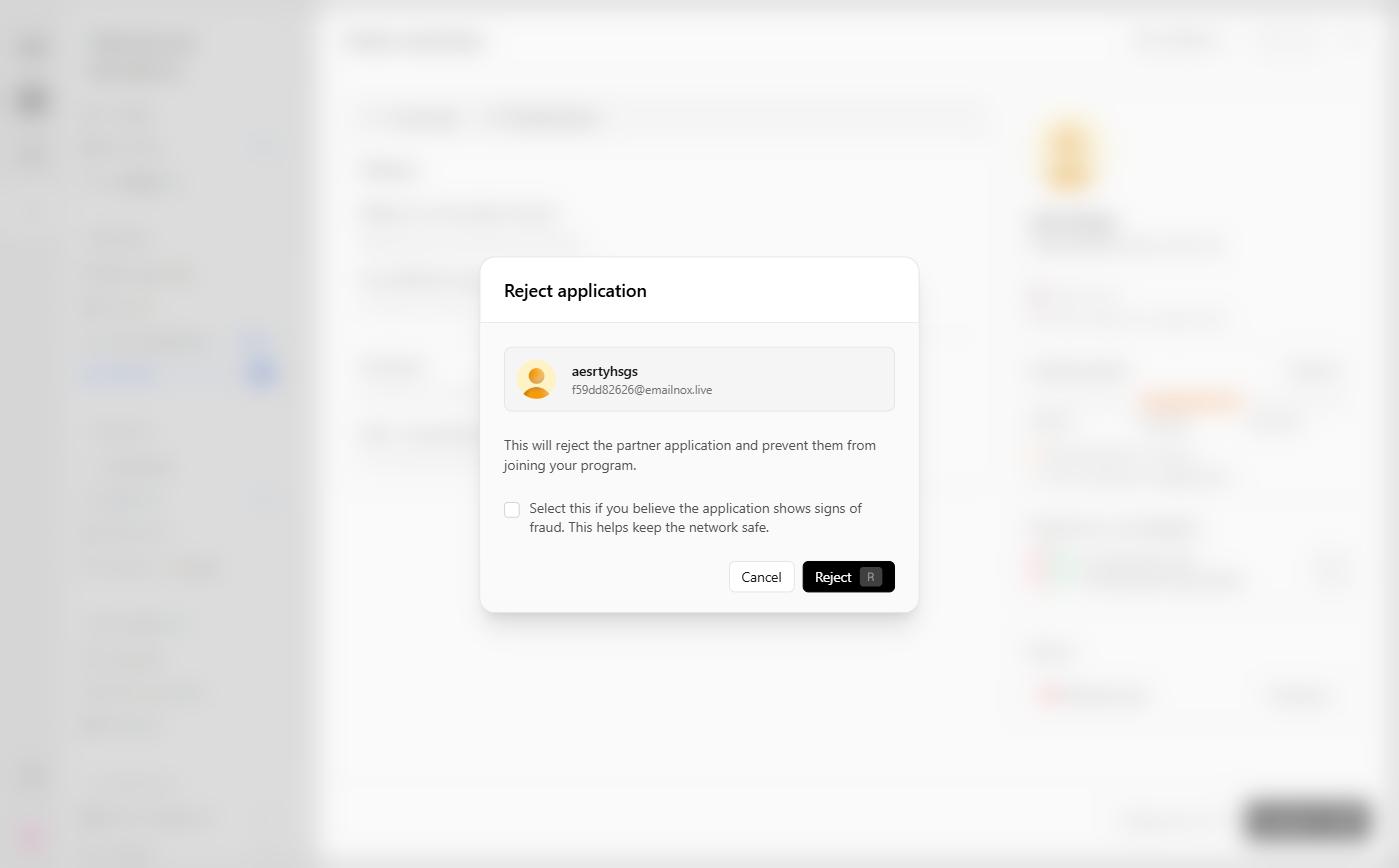
A Reject application confirmation dialog opens first. If you suspect fraud, check Select this if you believe the application shows signs of fraud: the report helps protect other RevRoute programs — the partner gets a “Fraud report” flag. Reject rejects the application, Cancel backs out.
A rejected applicant can’t join your program unless you approve their application yourself.
Approving a previously rejected partner
If you rejected a partner by mistake or changed your mind, open the ⋮ menu on the applications page and select View rejected partners. In the Rejected applications list, open the application and click Approve — the partner joins your program right away.
