How to export link analytics data from RevRoute
Analytics can be powerful in understanding how your audience is interacting with your content and to make data-driven decisions.
For RevRoute, it’s always been a top priority to provide world-class analytics to everyone.
To get more out of your analytics, you can export your analytics data to a CSV file. This can be useful if you want to analyze the data in a business intelligence (BI) tool, share it with your team, or import it into a spreadsheet.
Exporting link analytics data
To export data from your link analytics, follow these steps:
Go to the analytics page
Go to the RevRoute dashboard , log-in, and choose the project you want to export data from.
Open the Analytics item under the Statistics section of the left sidebar.
Download the data
Click on the ⋮ button in the top-right corner of the analytics page to open up the more options dropdown menu.
Click on the Download CSV option.
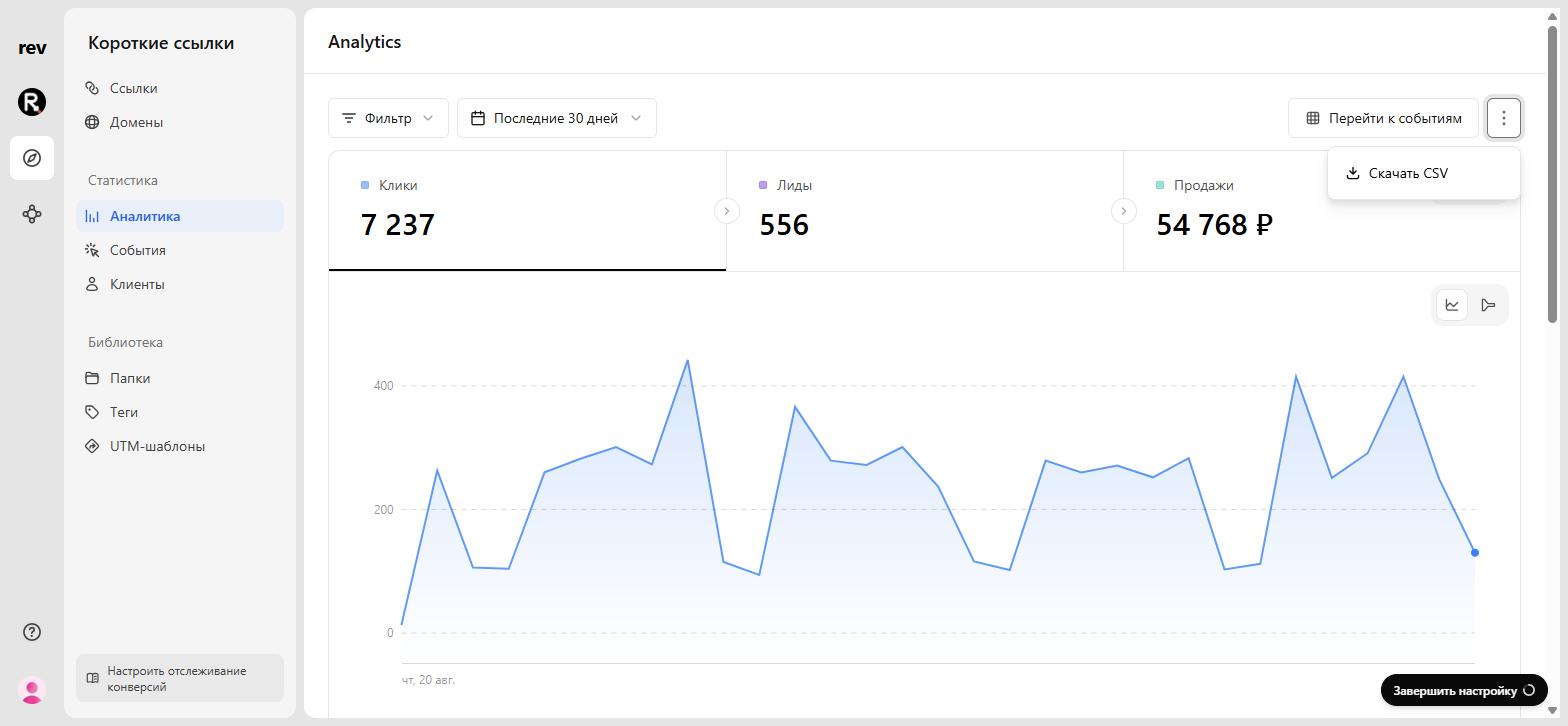
After a few seconds, an archive will be downloaded to your computer. It contains a CSV file for each analytics breakdown you know from the dashboard.