Program bounties
This feature is only available on Business plans and above .
Bounties let you reward partners for hitting goals or completing work — for example, a video review of your product or a blog post. This guide covers how to create bounties, set their criteria, and review partner submissions.
Bounties live in your program menu: the Bounties section under Engagement. Partners see the bounties available to them in their partner dashboard.
On the Bounties page, each bounty is a card showing its name, dates, reward, how many partners have already completed it or submitted work, and the groups it’s available to. If the reward is a custom amount, the card shows the reward description instead.

Creating a bounty
Click Create bounty (or press C) to open the Create bounty sheet. First, choose the type:
- Performance — a reward for reaching goals: leads, conversions, revenue, or commissions;
- Submission — a reward for completing a task, such as a post or an event.
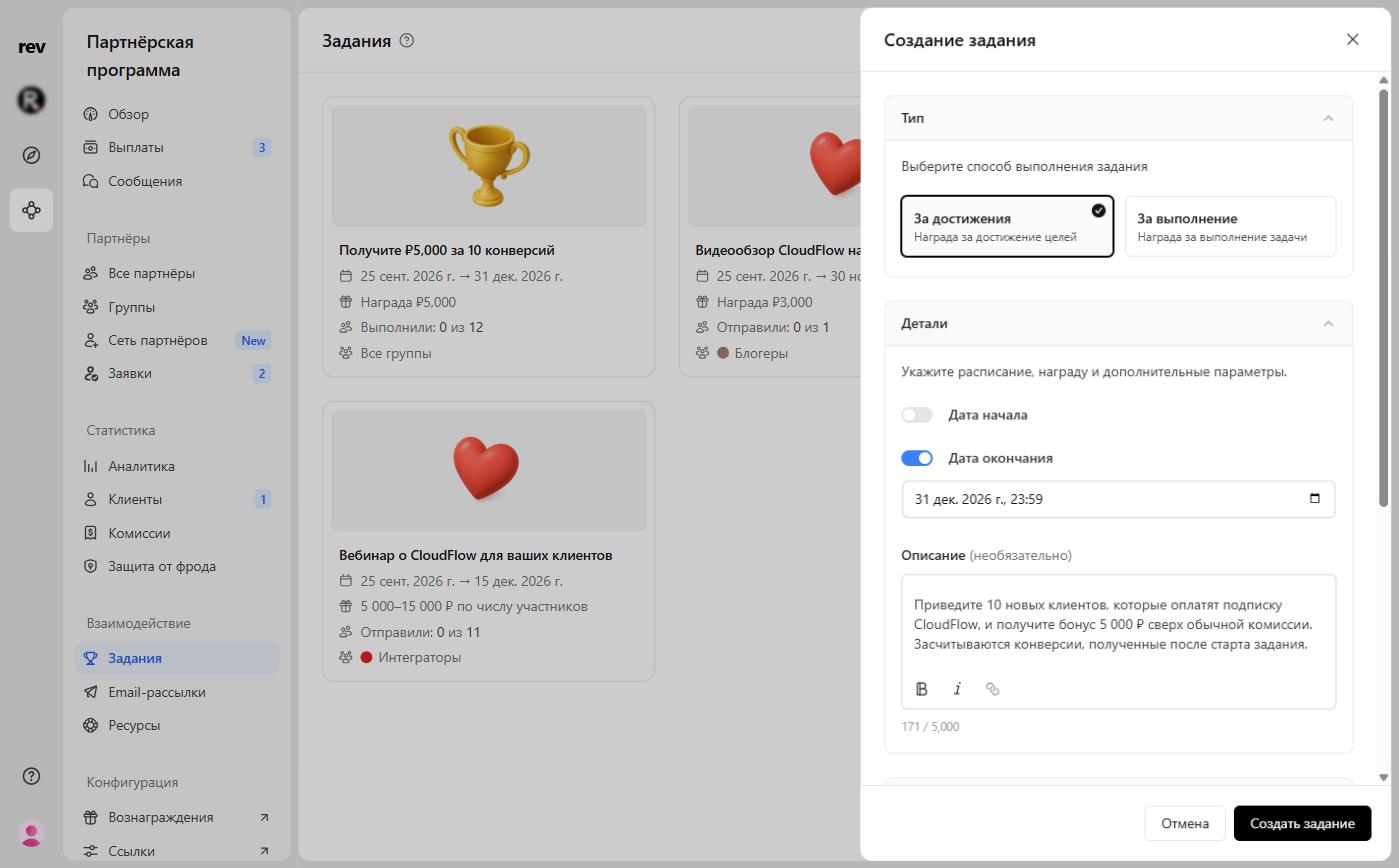
The Details block includes, for both types:
| Field | Description |
|---|---|
| Start date | Turn on the switch to launch the bounty later. Without it, the bounty starts right after creation |
| End date | The bounty ends after this date. It must be at least one hour after the start date |
| Description (optional) | Requirements for completing the bounty, up to 5,000 characters |
In the Groups block, choose who can access the bounty: All groups, or Select groups and check the partner groups you need.
Click Create bounty and confirm in the Confirm bounty creation dialog, which previews the bounty card. On Advanced plans and above, the Send notification to … checkbox in this dialog is on: RevRoute will email partners in the selected groups about the new bounty. If you don’t want to send the email, clear the checkbox before confirming.
Performance bounties
Performance bounties reward partners for measurable results: the number of leads or conversions, revenue, or commissions. Completion is tracked automatically and doesn’t need approval.
Examples:
- Drive 500 leads and earn an extra 100,000 ₽ bonus
- Generate 100,000 ₽ in revenue and earn an extra 25,000 ₽ bonus
- Earn 500,000 ₽ in commissions and get an extra 50,000 ₽ bonus
Set the condition in the Criteria block: “When a partner’s [new or lifetime] [leads, conversions, revenue, or commissions] reach at least [value]”, followed by “Then pay [amount]”. For revenue and commissions, the threshold is an amount in rubles. The name of a performance bounty is generated automatically from its condition and reward.
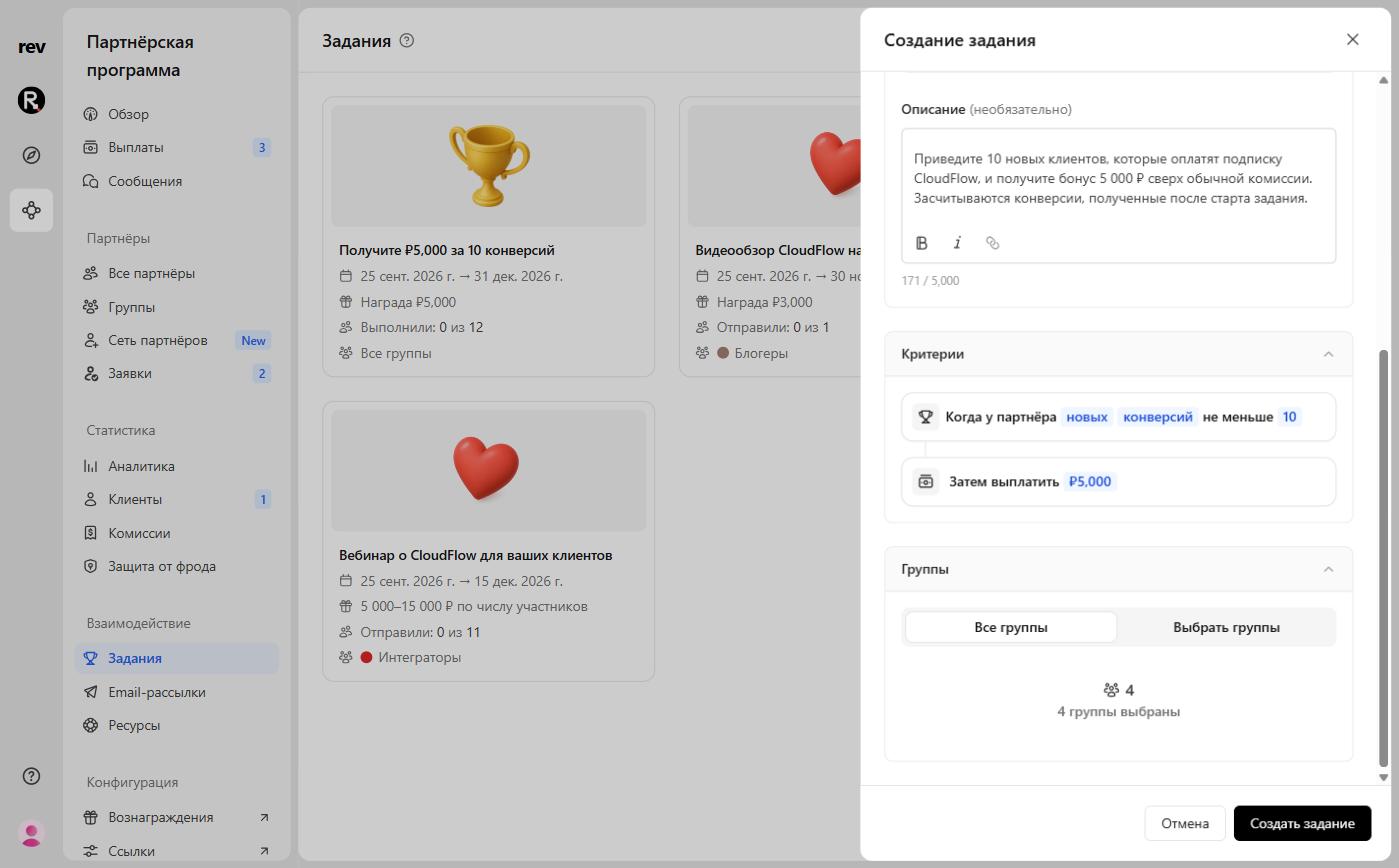
- New — only results earned after the bounty starts count. For example, if the bounty rewards 10 leads, every partner must drive 10 new leads after launch, regardless of how many leads they had before.
- Lifetime — results across the partner’s entire time in your program count. A partner who already has 10 leads qualifies for the reward right away.
Submission bounties
Submission bounties reward partners for actions that need review, such as a social media post, a blog article, or an event. The partner submits their work, and the reward is paid once you approve it.
Examples:
- Publish a YouTube video to raise awareness
- Write a blog post about your product
- Host an event (in person or online) to promote your brand
Submission bounties have two more fields in the Details block:
| Field | Description |
|---|---|
| Name | The bounty name partners see. Required, up to 100 characters |
| Submission window | Partners can submit only during the last 2–14 days before the end date. The switch is available once an end date is set |
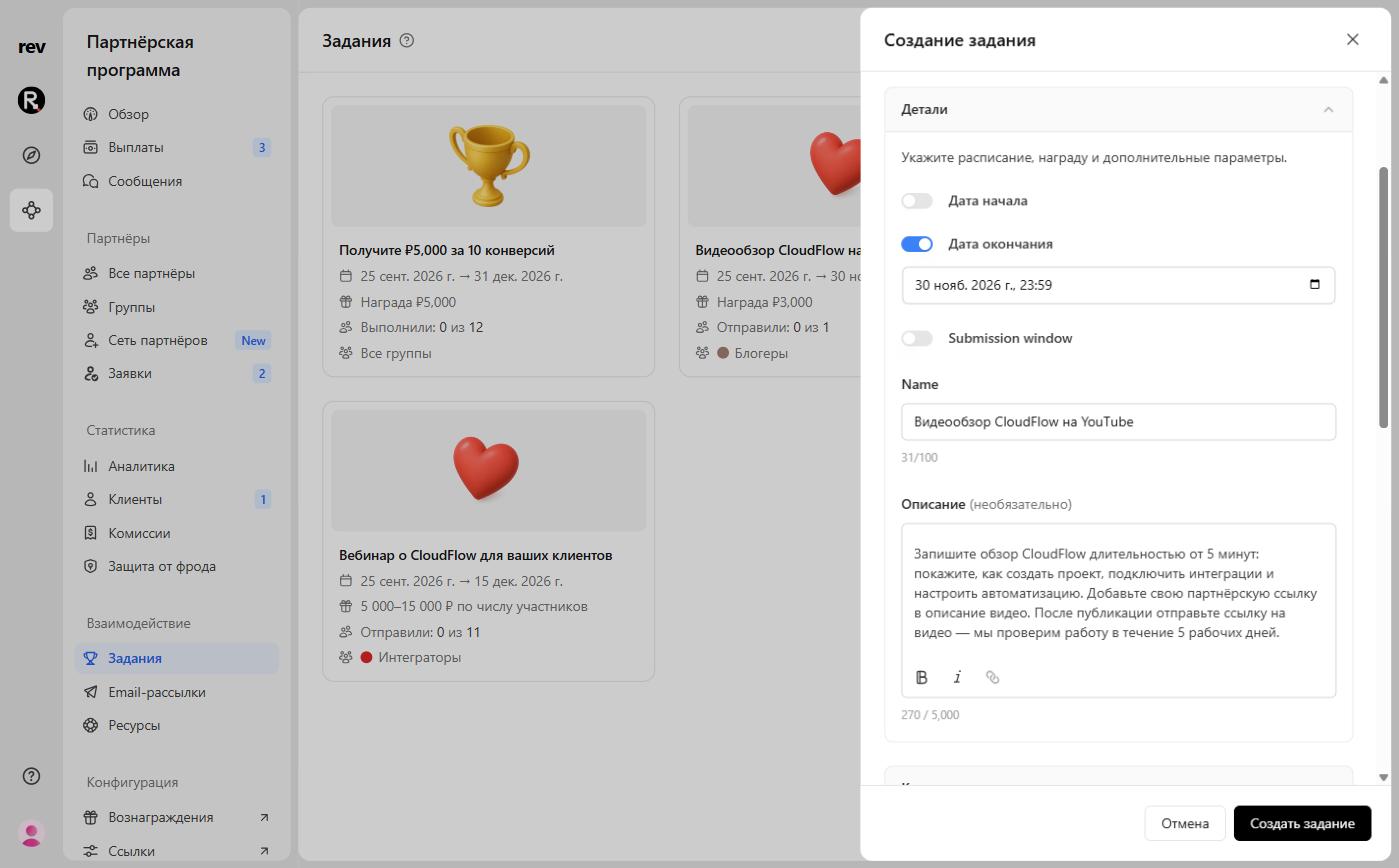
How partners prove completion is set in the Criteria block on one of two tabs: Manual submission or Social metrics.
Manual submission
By default, partners describe how they completed the bounty in a text field. You can also turn on:
- Require at least one image — and limit the number of images (4 by default);
- Require at least one URL — and limit the number of URLs (10 by default). In Allowed domains, you can list the domains the URLs must come from — for example, only your social accounts or blog. Enter a domain and click Add, then add the next one. Subdomains of the listed domains are accepted too.
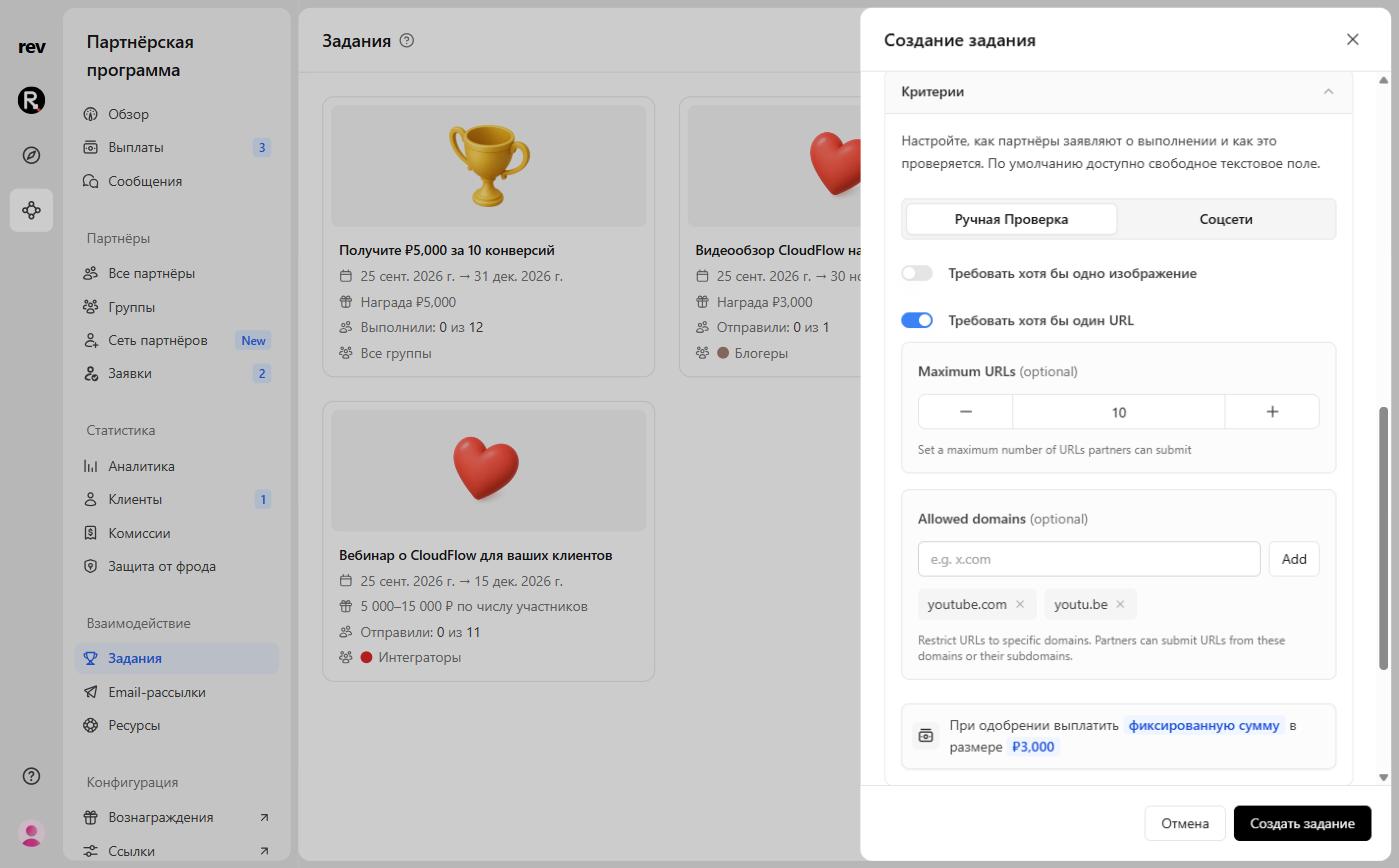
Below, set the reward: On approval, pay a flat amount or a custom amount. A flat amount is the same for every submission. A custom amount is set when you approve each submission — for example, if you pay for an event based on its size. In that case, describe the reward for partners: the description appears on the bounty card instead of an amount, for example “5,000–15,000 ₽ depending on attendance”.
Social metrics
The Social metrics tab is for bounties where the reward depends on how a post performs. The condition reads: “If a post on [channel] gets at least [value] [metric]”, followed by “Then pay [amount]”. Channels: YouTube, TikTok, Instagram, and X/Twitter; metrics: views or likes.
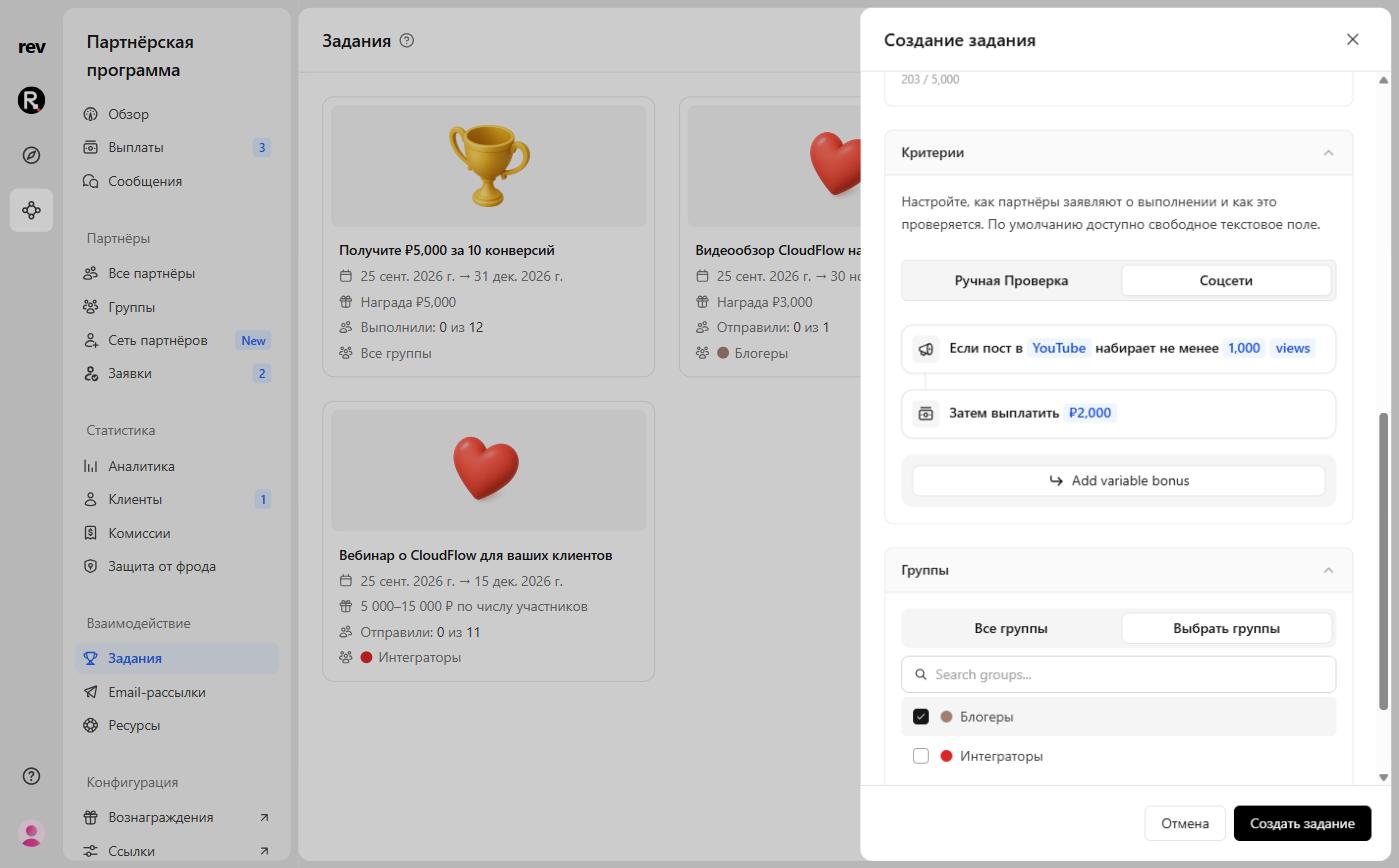
The Add variable bonus button adds a variable bonus: on top of the base reward, partners earn an extra amount for each additional increment, up to a cap. For example, an extra 500 ₽ for every 100 views, up to 1,000 views.
RevRoute updates post metrics on its own. The bounty page shows when they were last synced, and the Refresh stats button starts a sync manually.
Social metrics bounties are only available on Advanced plans and above .
Reviewing submissions
Submissions for submission bounties need to be reviewed before you approve or reject them. Open the bounty in the Bounties section: the top of the page shows the bounty terms and how many partners have submitted, and below is the submissions table with a filter. The table shows the partner, their group, the submission status, the submission and review dates, and progress. Submission statuses: Draft, Submitted, Approved, Rejected.
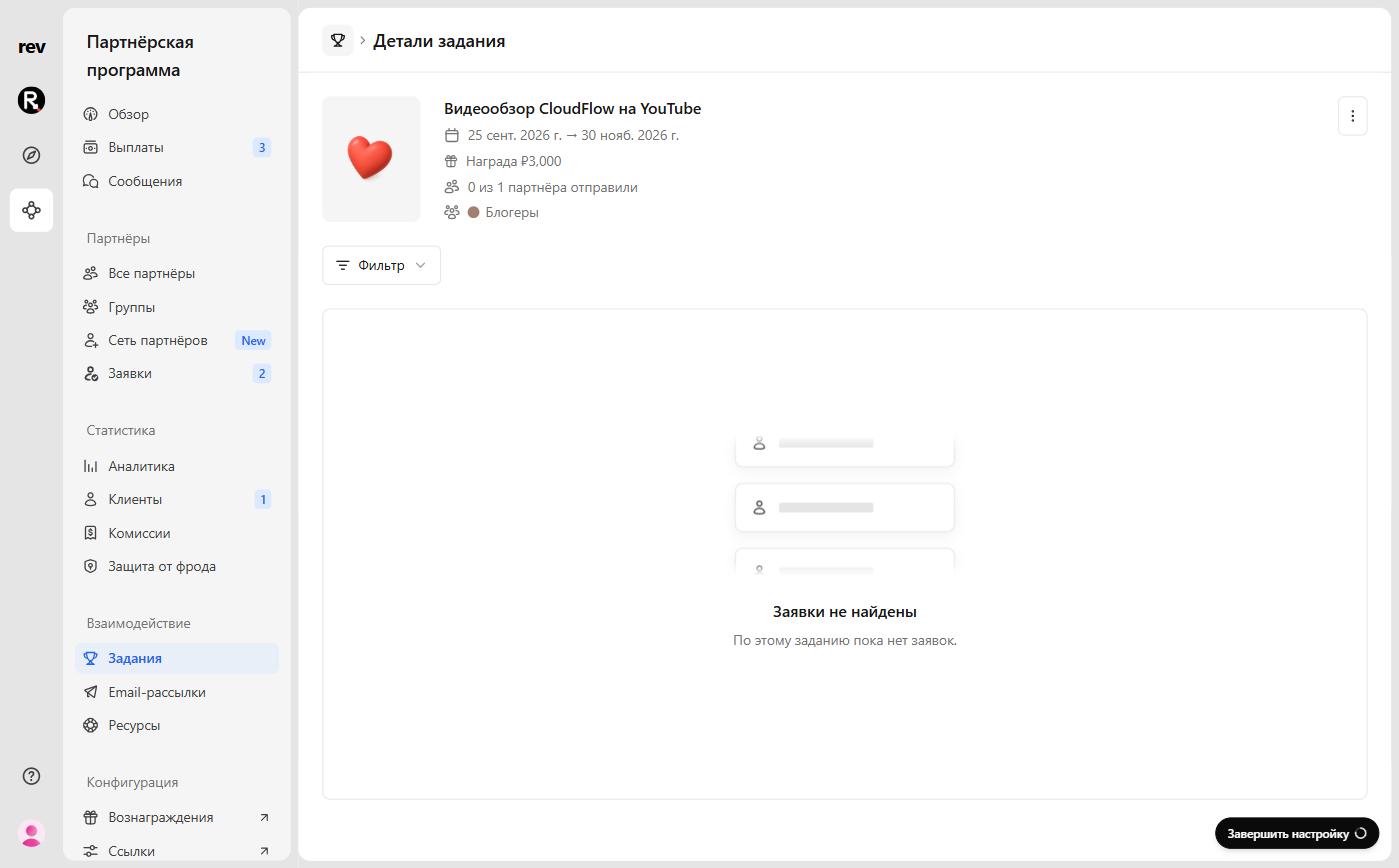
To open a submission, click its row or choose Review submission in the row menu. The Review submission sheet shows the partner info, the submission details, and the proof provided, along with the Approve and Reject buttons.
RevRoute notifies you about new submissions via email: turn on the New bounty submission notification in Settings → Notifications.
Approving submissions
Once you approve a submission, RevRoute creates a commission that is included in the partner’s next payout.
If the bounty uses a custom amount, you’ll need to enter the reward for this partner in the Reward field when approving.
Rejecting submissions
When rejecting a submission, choose a reason and add a note if needed:
- Invalid proof
- Duplicate submission
- Out of time window
- Did not meet criteria
- Other
No commission is created for a rejected submission. From the row menu, you can Reopen a submission — it goes back to draft so the partner can rework it.
To edit or delete a bounty, use the ⋮ menu in the top-right corner of the bounty page: Edit bounty or Delete bounty. A bounty that already has submissions can’t be deleted.