How to set up a redirect for your custom domain on RevRoute
💡
This feature is only available on Pro plans and above .
When you add a custom domain to your workspace, its root address (the domain without a slug, e.g. go.acme-demo.ru) does not redirect anywhere by default — such a domain shows a “No redirect configured” label in the domains list.
Note that the root domain redirect is configured not in the “Update domain” modal, but by editing the domain’s root link.
To redirect your root domain to a URL of your choice, follow these steps:
- If you haven’t already, upgrade to the Pro plan .
- Open the Settings → Domains page.
- Click on the
⋮button next to the domain you want to redirect, which will open a dropdown menu.
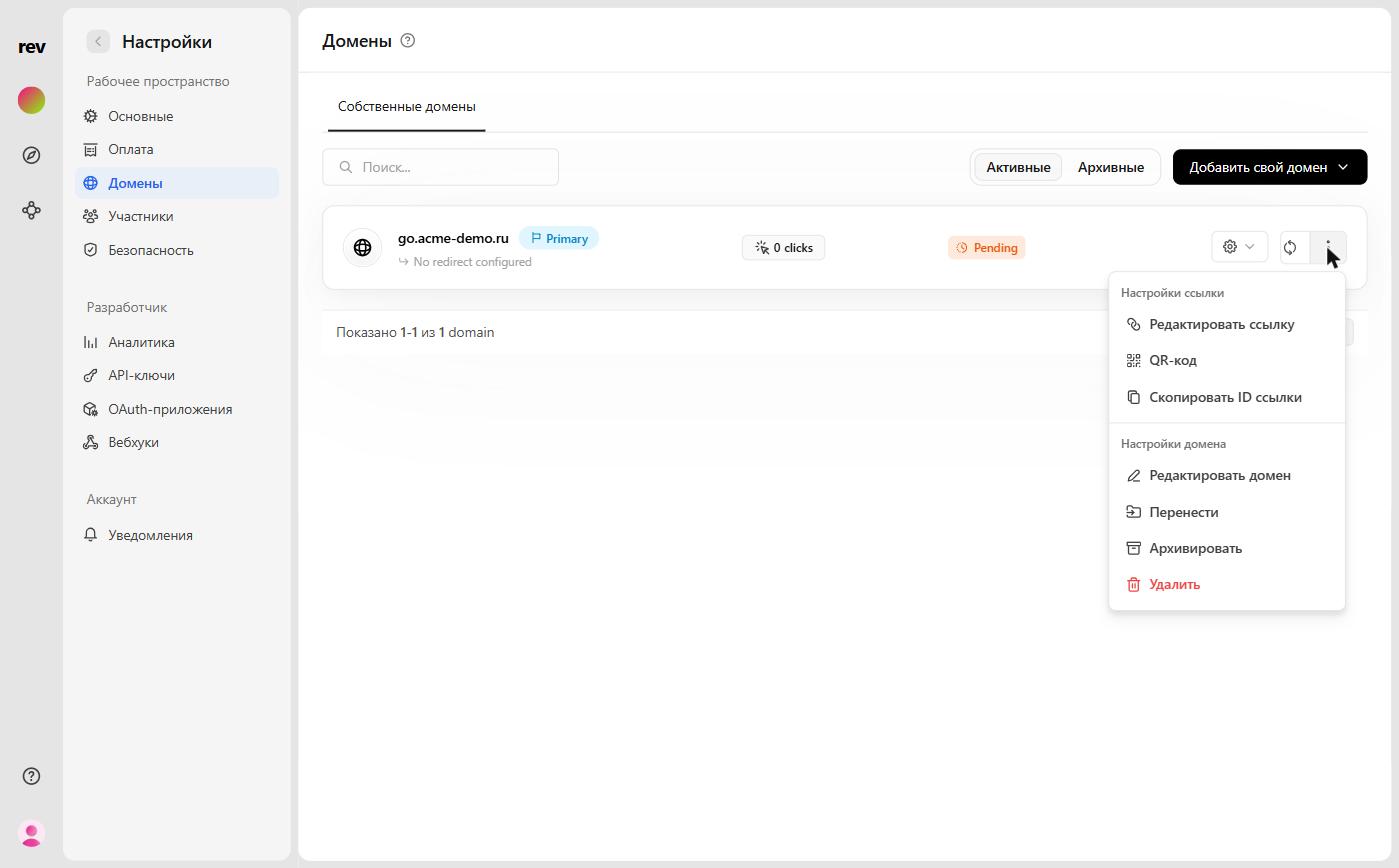
- In the “Link settings” section, click Edit link — this opens the RevRoute link builder for the domain’s root link.
- Enter the URL you want to redirect your domain to in the Destination URL field (marked with a PRO badge).
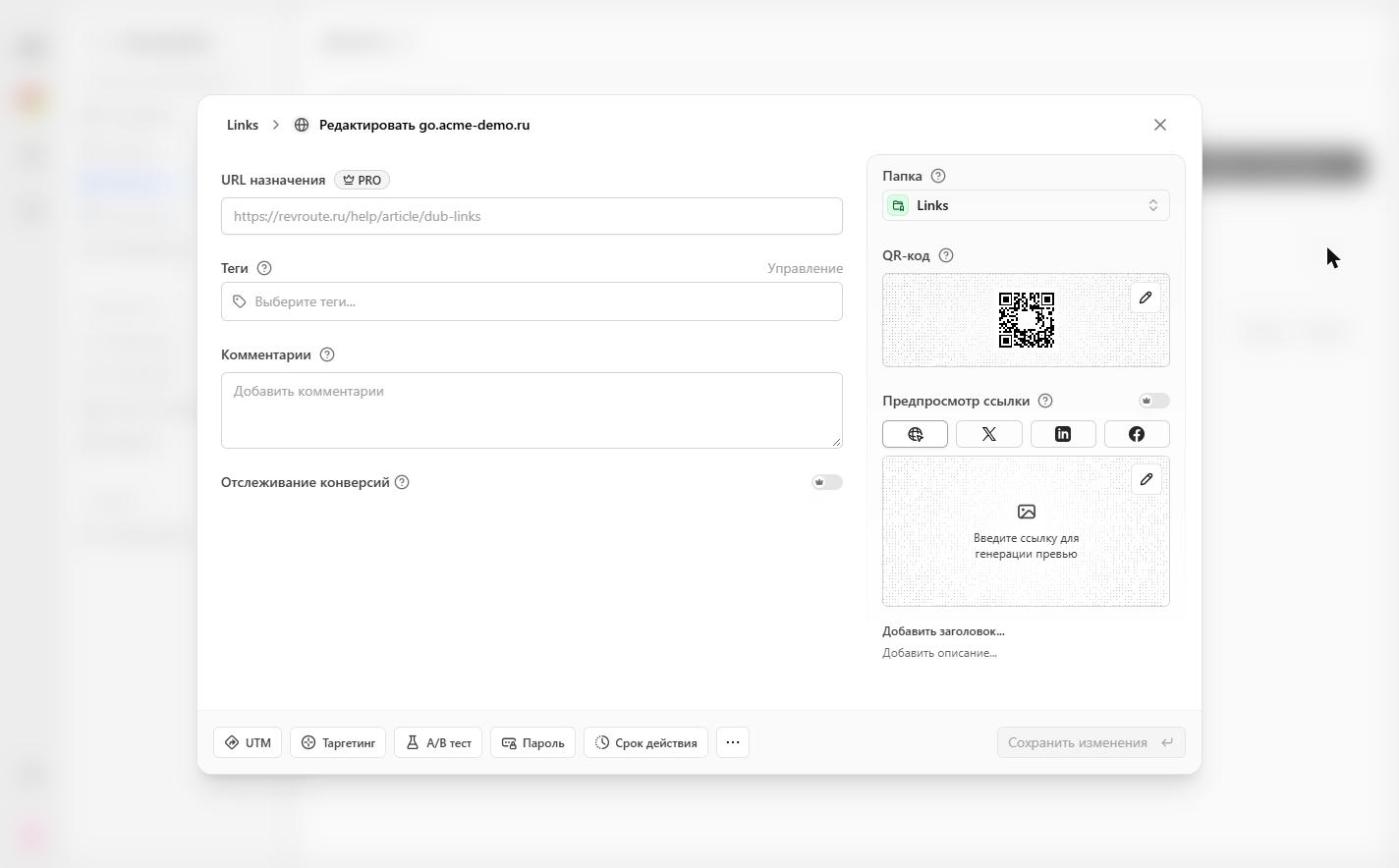
- Click Save changes. Your root domain will now redirect to the URL you just specified, and the “No redirect configured” label next to the domain will disappear.
Advanced link features
Additionally, RevRoute also offers a variety of advanced link features that you can use to enhance your root domain links:
- Custom Link Previews: Customize how your links show up on social media to improve click-through rates.
- Tags: Assign tags to your links to organize them. Learn more.
- UTM Builder: Add UTM parameters to your links. Learn more.
- Link Cloaking: Mask your destination URL with your short link. Learn more.
- Password Protection: Protect your links with a password. Learn more.
- Expiration Date: Set an expiration date for your links. Learn more.
- Device Targeting: Set a custom destination URL for iOS and Android devices. Learn more.
- Geo Targeting: Redirect your users to different links based on their location. Learn more.
- Search Engine Indexing: Control how your links are indexed by search engines. Learn more.
- Comments: Add comments to your links – for you and your team. Learn more.
Last updated on