How to pay a partner through RocketWork
Programs pay self-employed partners and sole proprietors through RocketWork: money leaves your company’s RocketWork balance, a one-off contract is issued for each payout, and the self-employed partner’s NPD receipt is generated automatically. You need an earned commission, enough balance and a payout confirmation.
By now the partner has set the tax status and connected RocketWork — their status is Ready (see the self-employed and sole proprietor guides).
Create a commission
Commissions usually appear on their own from sales through partner links. A one-off payout (bonus, reimbursement) can be added manually.
1. Create commission
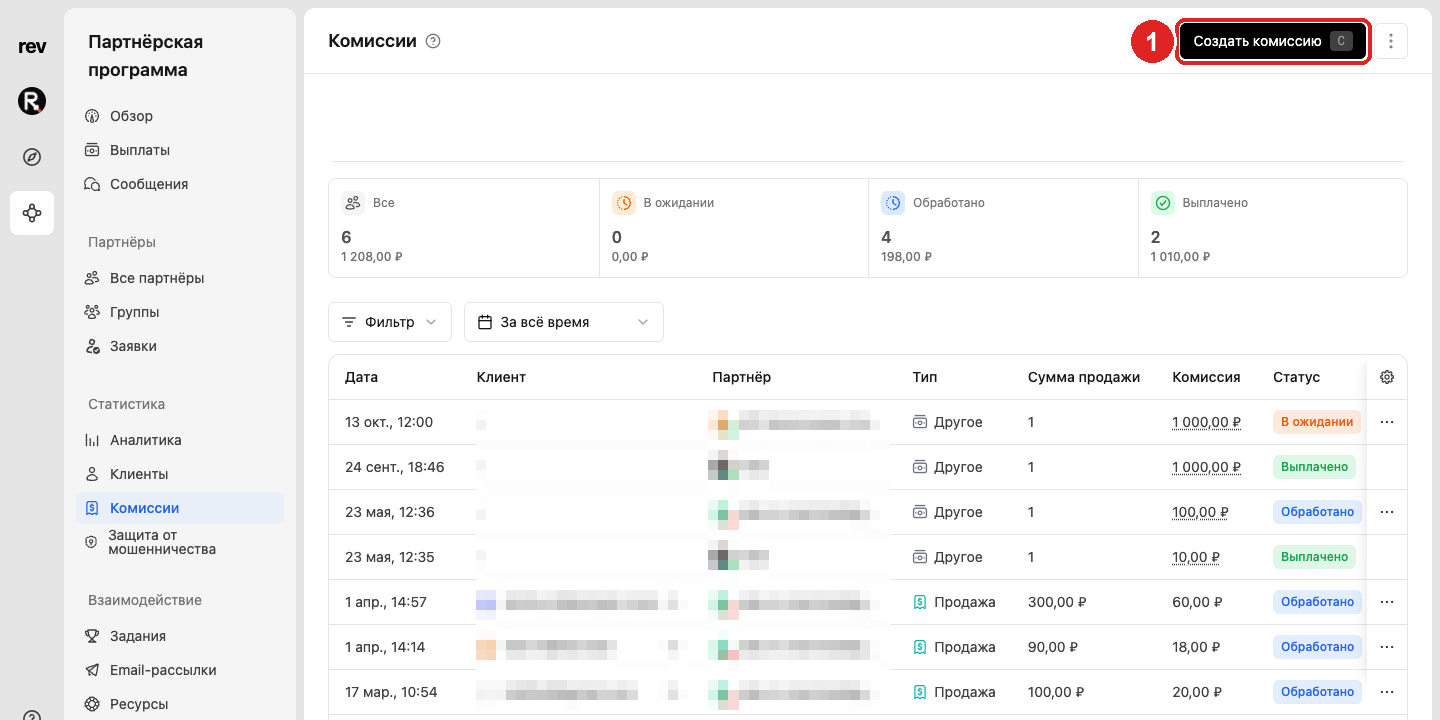
Open Commissions in the program menu and click Create commission (or press C).
2. Partner
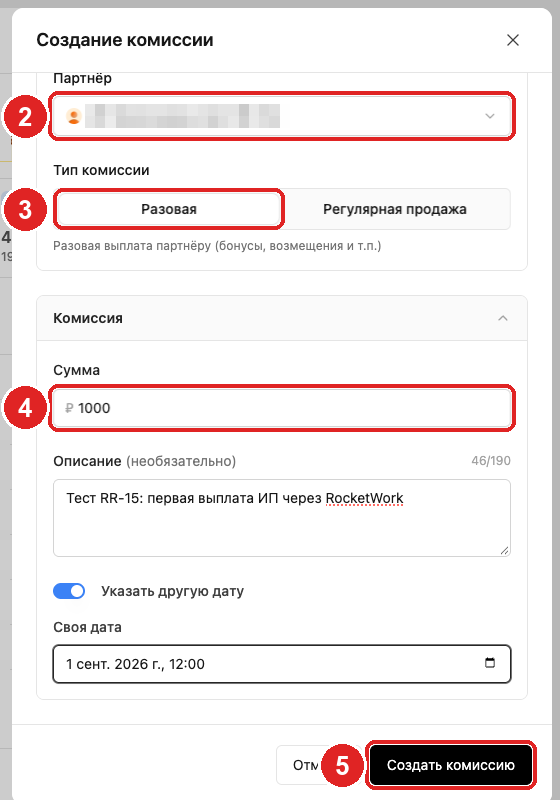
Pick the partner from the list — start typing the name.
3. One-time type
One-time — a bonus or reimbursement not tied to a sale. It is payable immediately: the holding period doesn’t apply.
4. Amount
Enter the amount in rubles. The description is optional and visible to the partner.
5. Save
Click Create commission. It appears in the list, and a pending payout to the partner appears in Payouts.
Check the RocketWork balance
6. Balance and top-up details
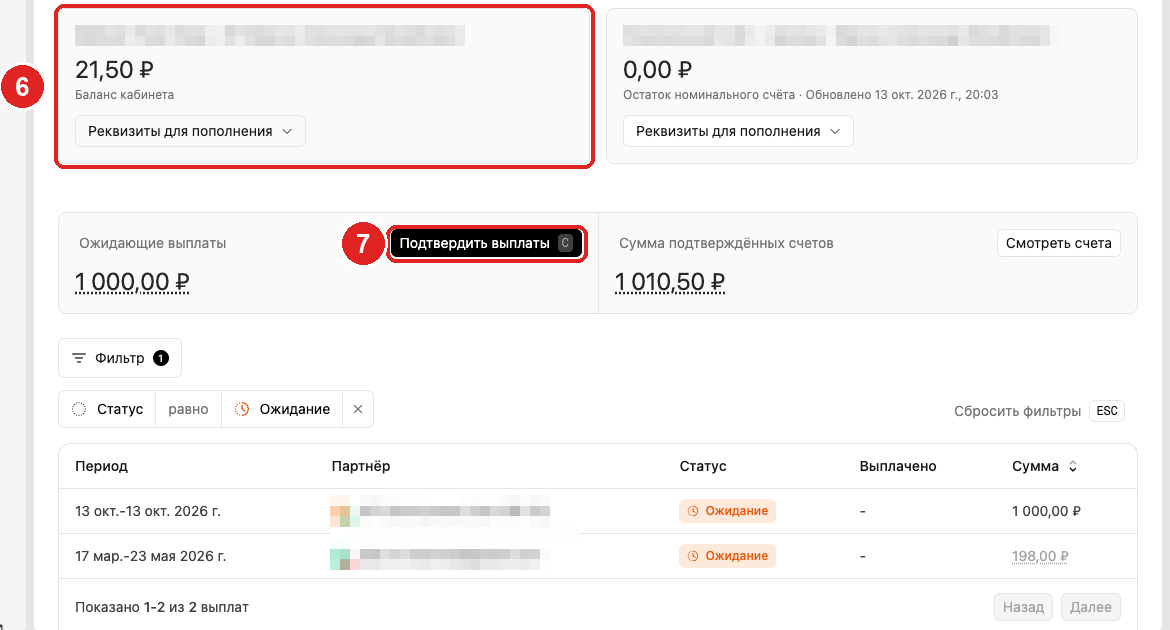
Open Payouts. At the top is the RocketWork account card with the current balance. If it doesn’t cover pending payouts, click Top-up details and transfer money from the company account. Mind RocketWork’s fee: it is charged from the same balance at your rate.
7. Confirm payouts
The Pending payouts card shows the amount ready to pay. Click Confirm payouts.
Confirm the payout
8. Check the totals
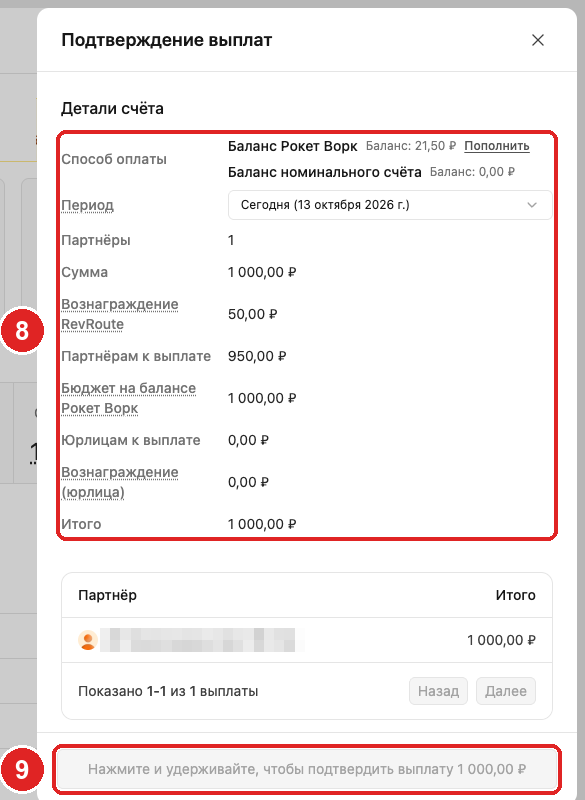
The Confirm payouts window shows where the money comes from and what each partner gets:
| Row | Meaning |
|---|---|
| Amount | Commissions earned by partners for the period |
| RevRoute fee | 5 % of payouts made through RevRoute |
| Partners receive | What partners receive after the fee |
| RocketWork funding budget | What is charged to the RocketWork balance |
| Legal entities receive | Payouts to companies via the nominal account, if any |
9. Press and hold
Press and hold the button at the bottom. While the balance is insufficient the button is disabled — top up (step 6) and come back.
Partner signature and transfer
10. Payout confirmed
After holding the button you see Payout confirmed with the amount and number of partners. The money is charged to the RocketWork balance, and RevRoute creates a one-off contract in RocketWork for each payout. View invoices opens the invoice for this payout.
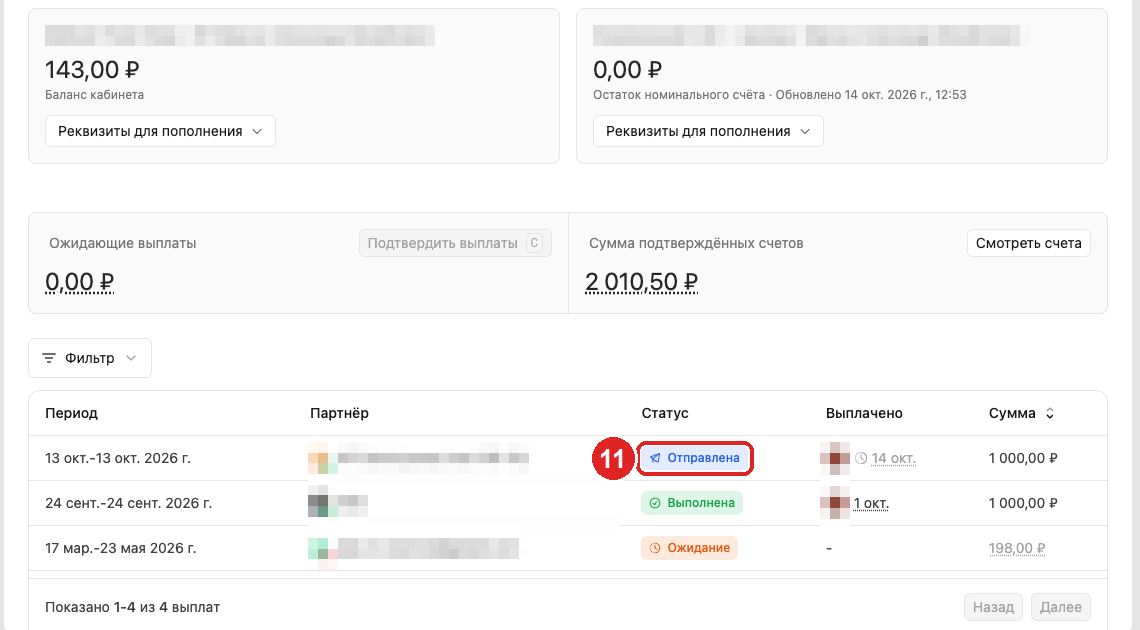
11. Statuses in Payouts
The partner gets an email and signs the contract with an SMS code. After signing RocketWork transfers the money: the payout becomes Sent, then Completed. The RocketWork balance decreases by the amount paid to the partner plus RocketWork’s fee.
General rules — minimum amount, holding period, payout statuses — are in Sending partner payouts.