Configuring brand and support resources for your partners
This feature is only available on Business plans and above .
Set your partners up for success by providing support, clear documentation, program terms, and brand assets in their dashboard, so they can get started faster, avoid mistakes, and represent your brand consistently.
Where to find program resources
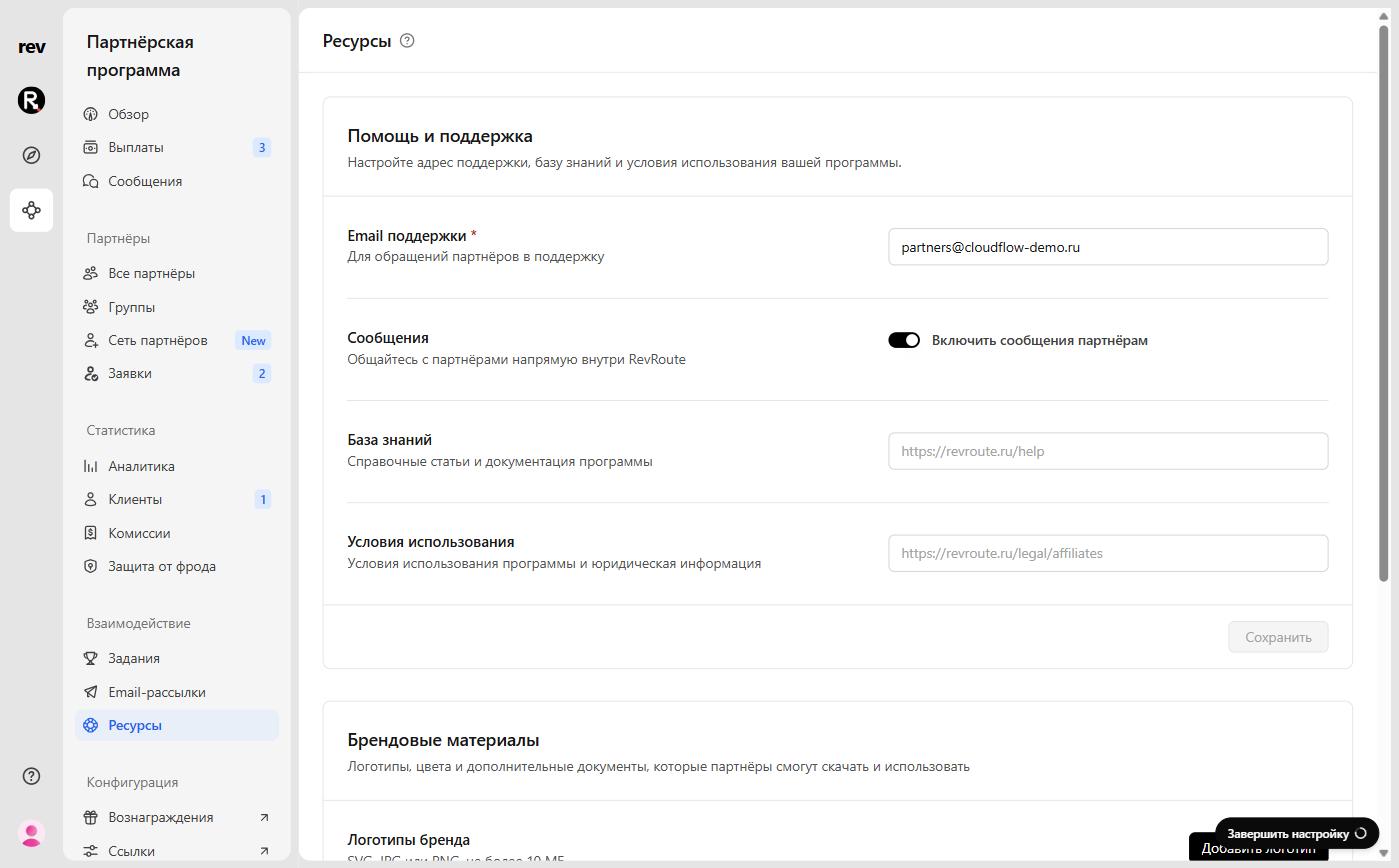
In your program menu, open Resources under Engagement. The page has two sections: Help and support and Brand assets.
Help and support
To give your partners the best experience, fill in every field in this section and click Save.
Support email
The address partners use to contact you with questions about your program. This field is required.
Partner replies to your program emails go to this address. In the partner dashboard, it’s available in the Program support block via the Email support button.
Messages
This feature is only available on Advanced plans and above .
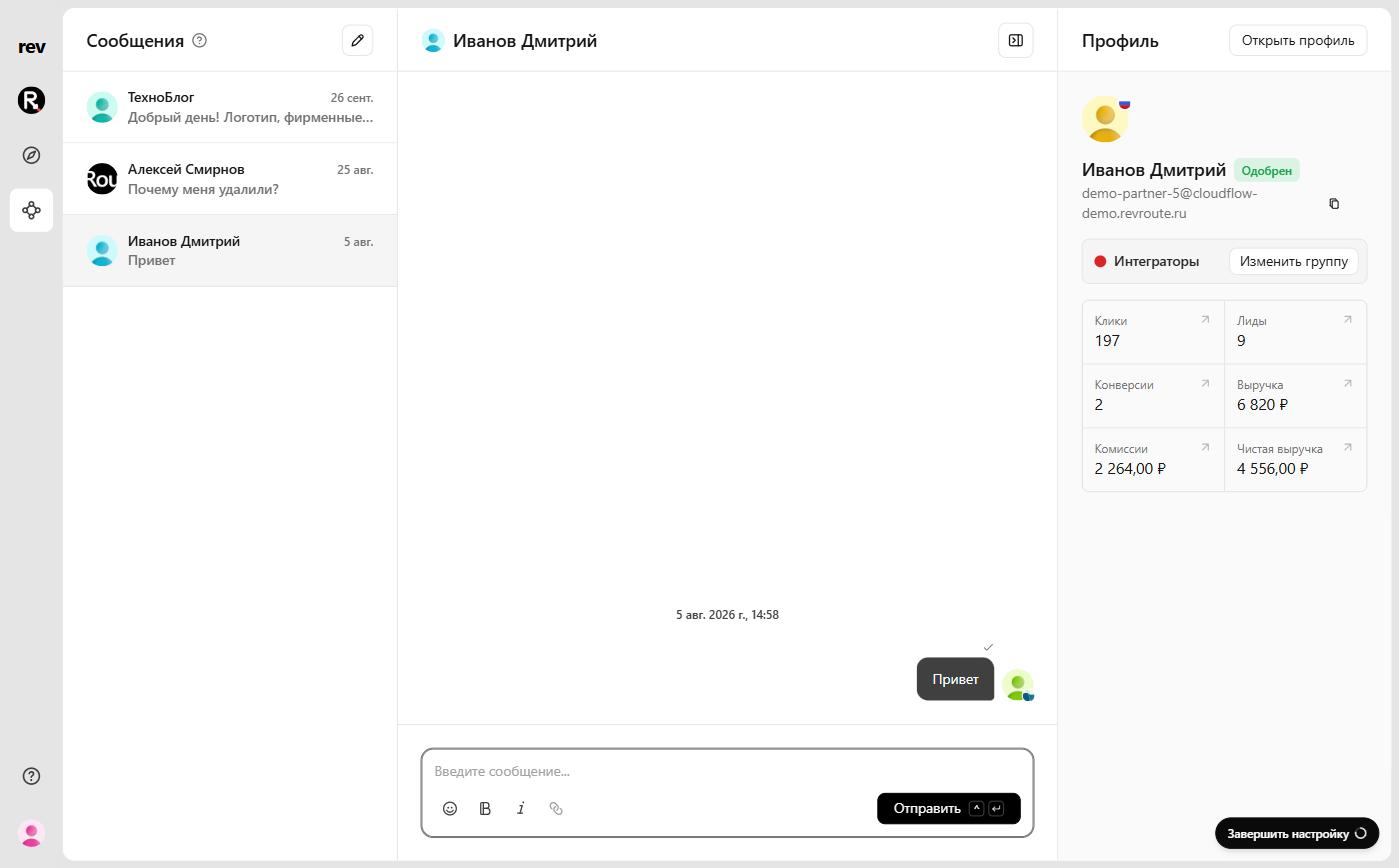
The Enable partner messaging switch turns on the messaging center: you can message partners directly in RevRoute, and they can message you. When messaging is off, partners see a button to email your support address instead.
Help center
A link to documentation or other self-serve resources that help your partners succeed. In the partner dashboard, it appears in the Program support block as Help center. The address in the field is just an example — enter your own.
Terms of service
A link to your partner program’s terms of service (usually separate from your product’s general terms). In the partner dashboard, it appears in the Program support block.
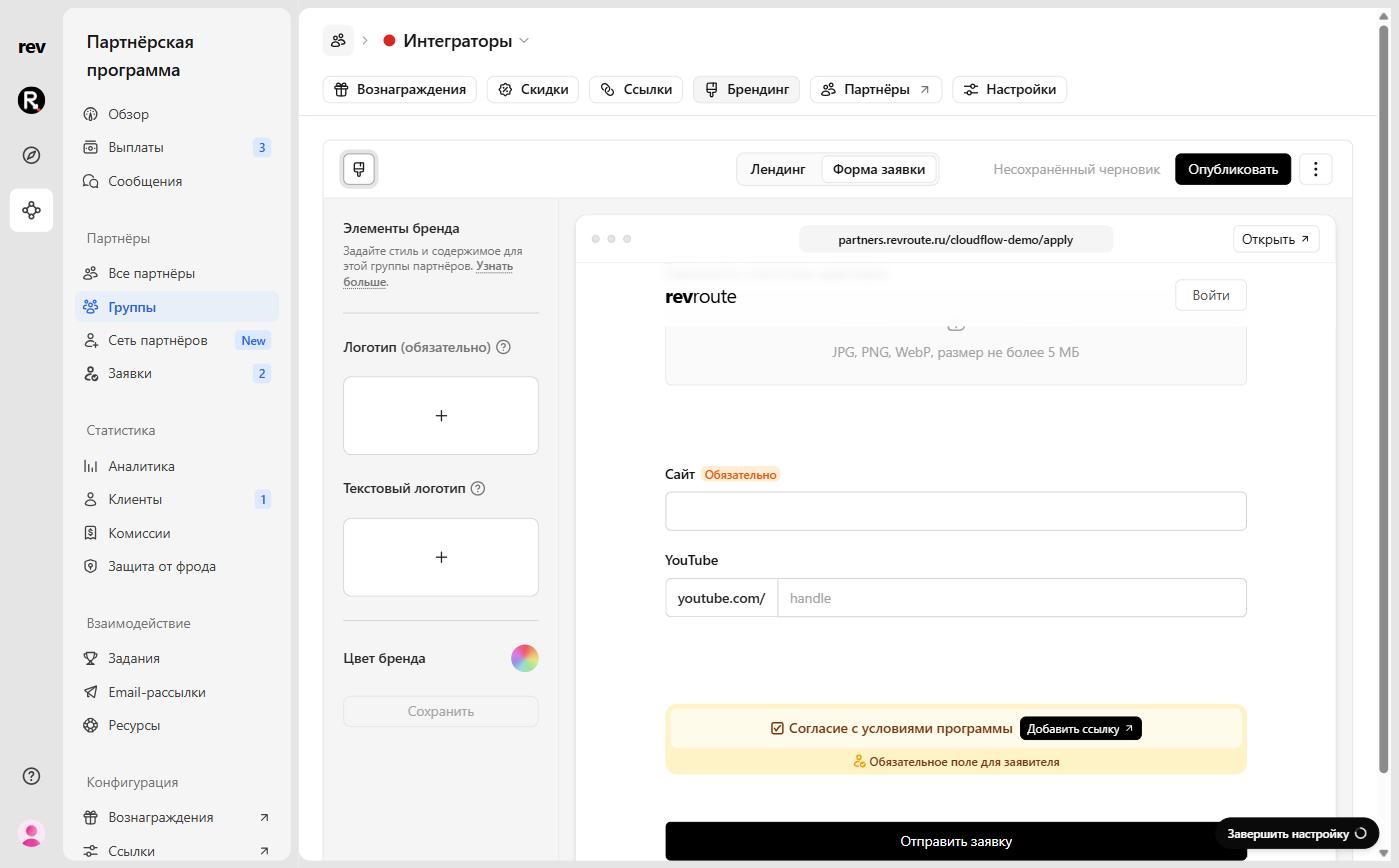
This address is also used in the required Agree to program terms checkbox of your program application form. Until it’s set, the form editor shows an Add link button next to the checkbox that leads to the Resources page.
Brand assets
Add logos, useful links, brand colors, and other files — partners can download and use them from their dashboard.
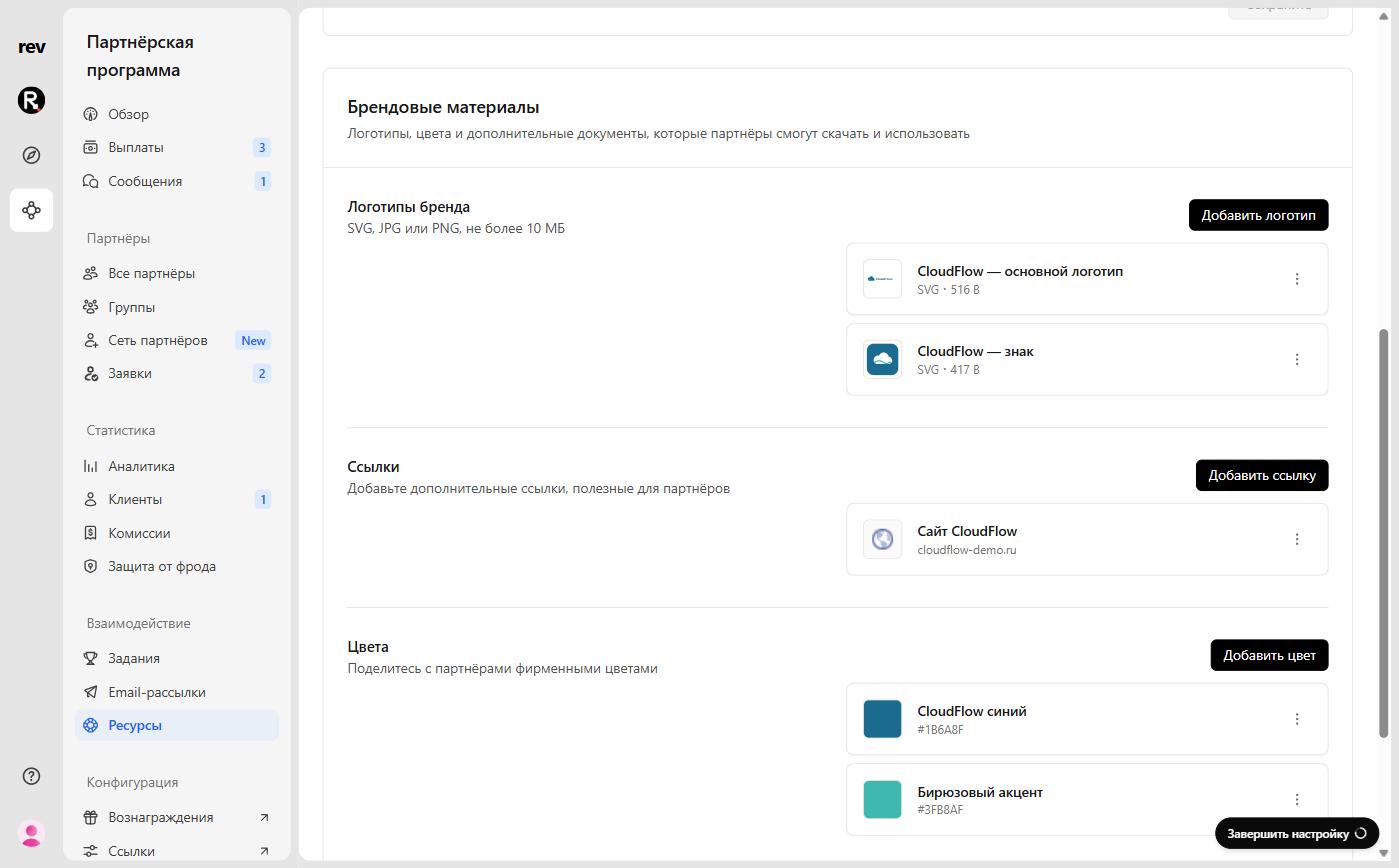
Each asset you add has a menu for downloading or opening, copying, editing, and deleting it.
Brand logos
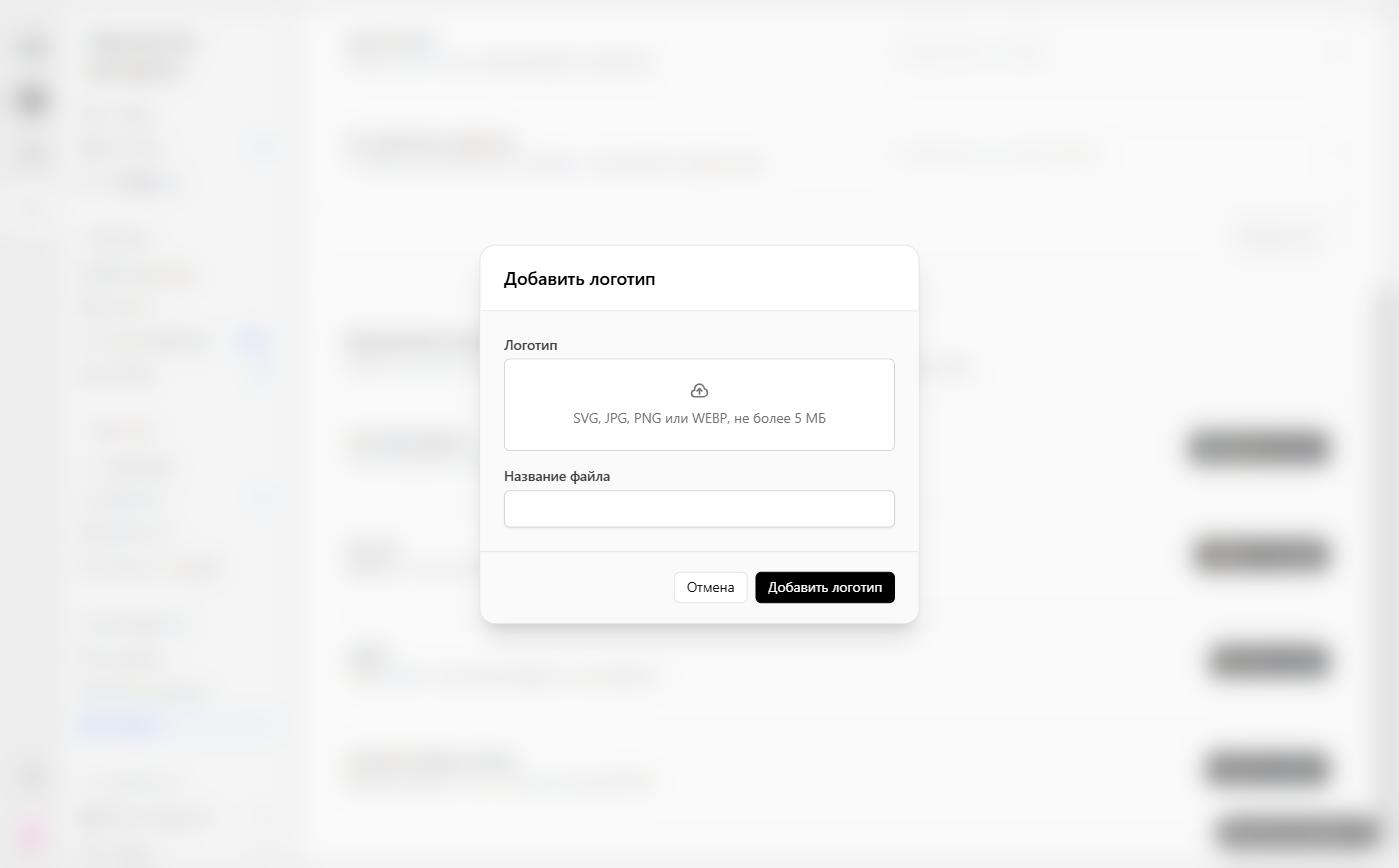
Upload your official logos so partners always have the latest versions. Click Add logo, select or drop a file (SVG, JPG, PNG, or WEBP, up to 5 MB), and enter the File name.
Links
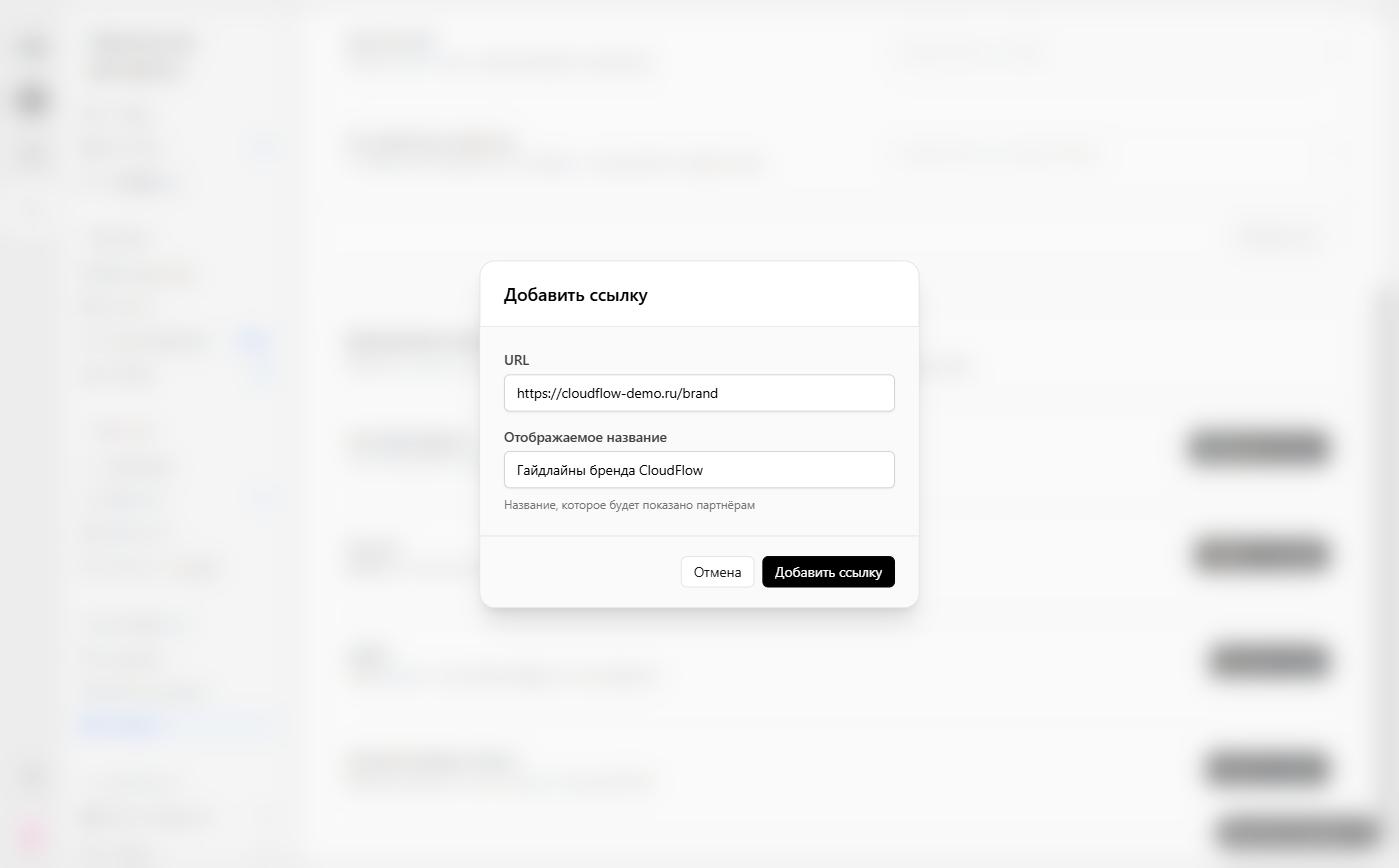
Add links to materials that live on your website — for example, brand guidelines or a banners page. Click Add link, then enter the URL and the Display name partners will see.
Colors
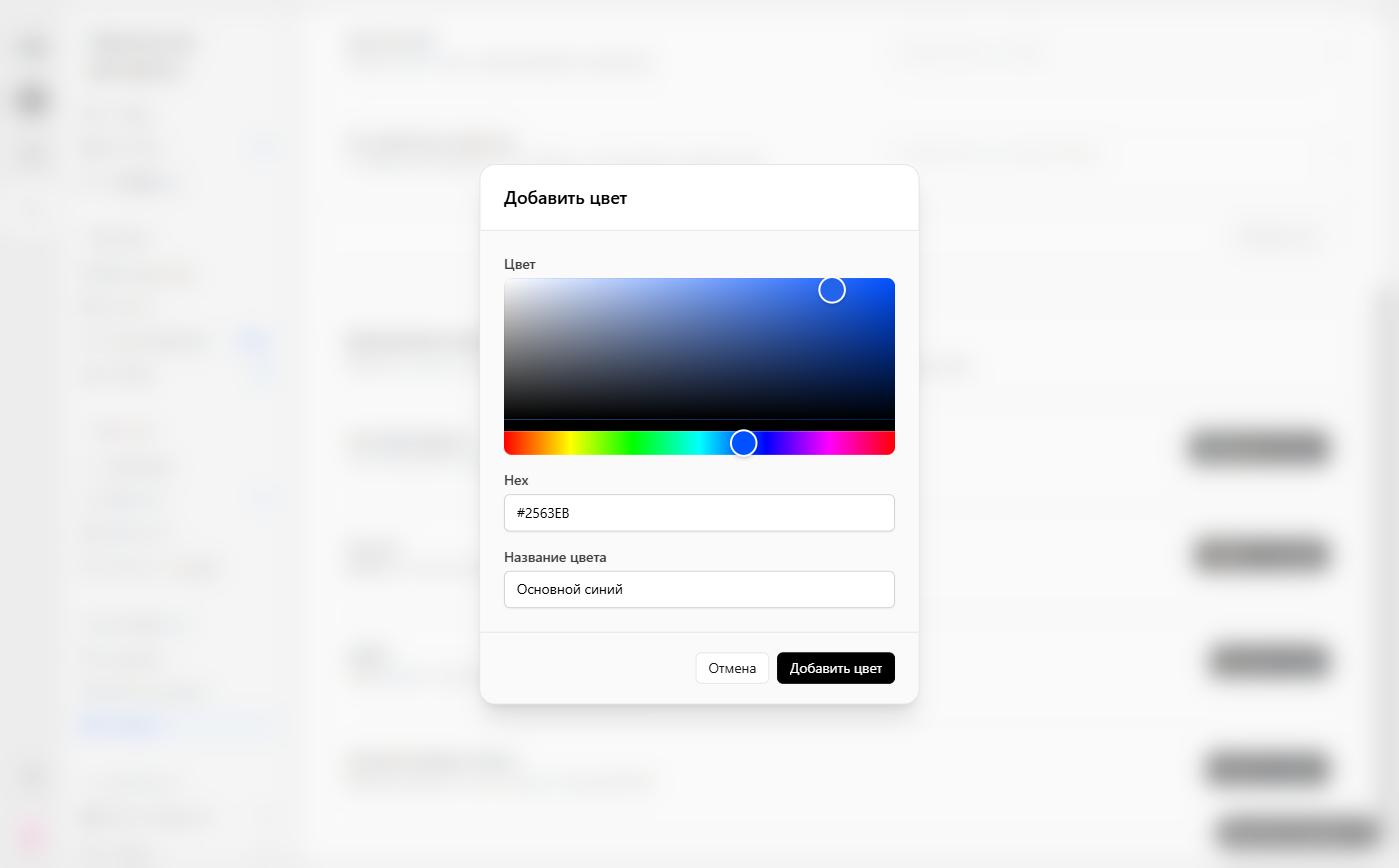
Share your brand colors. Click Add color, pick a color from the palette or enter its Hex code, and enter the Color name.
Additional files
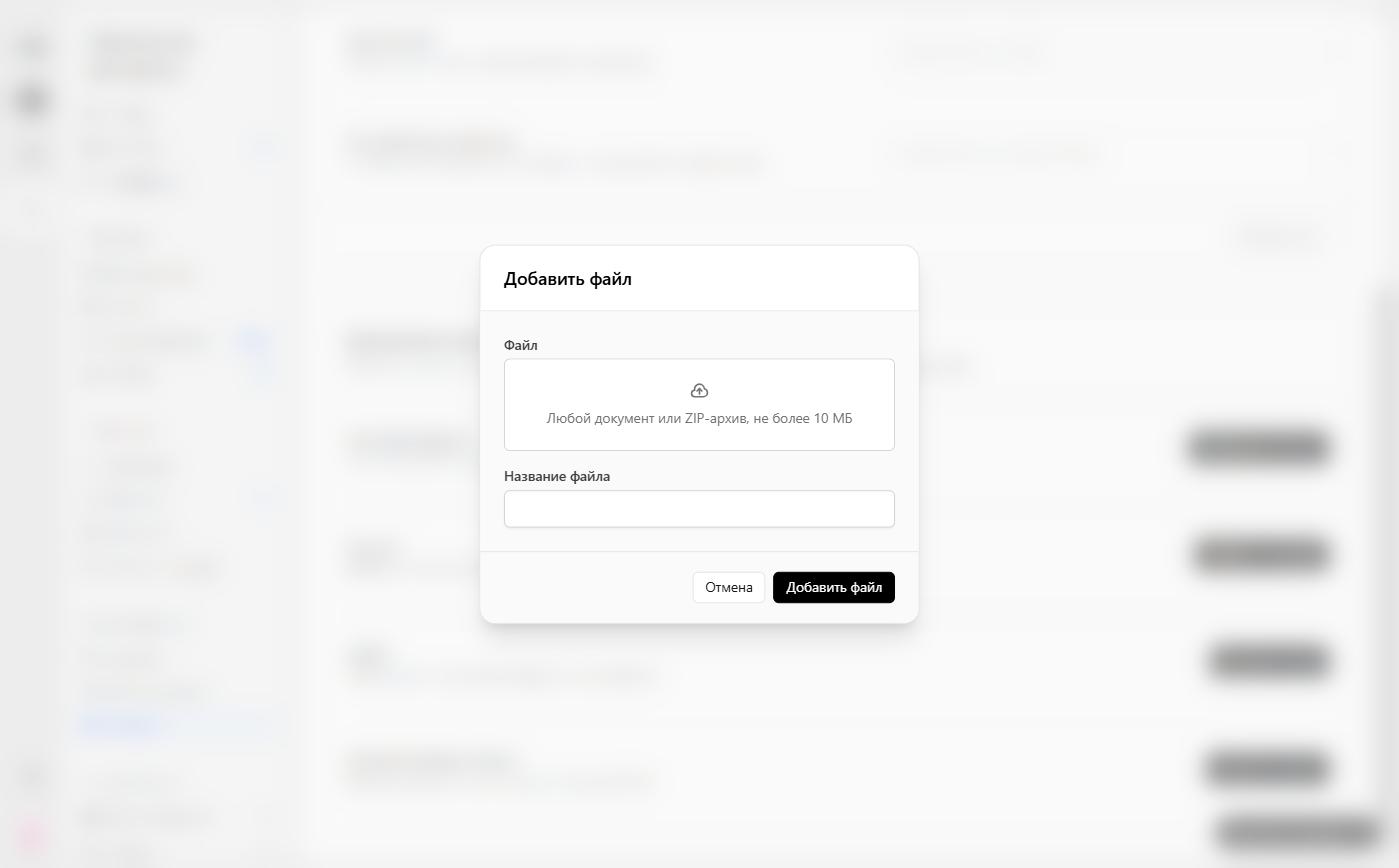
Add any other materials for your partners — a document or a ZIP archive of up to 10 MB. For example:
- Brand guidelines
- Product presentation
- Banner pack
Click Add file, select or drop a file, and enter the File name.