Self-employed payouts: tax status, Moy Nalog and RocketWork
Programs pay self-employed partners through RocketWork: a one-off contract is issued for every payout, the NPD receipt is generated automatically and the money arrives by card, SBP or to an account. You set your status, INN and phone once in the partner dashboard, grant the platform permissions in the “Moy Nalog” app and add bank details in the RocketWork X app.
By now you have applied to the program and created a partner account — if not, start with How to join a partner program.
Set your tax status
1. Set status
Open Payouts in the left menu. Until the status is set, a warning Set your tax status stays at the top of the page — click Set status. The same form opens from Payout settings at the top right.
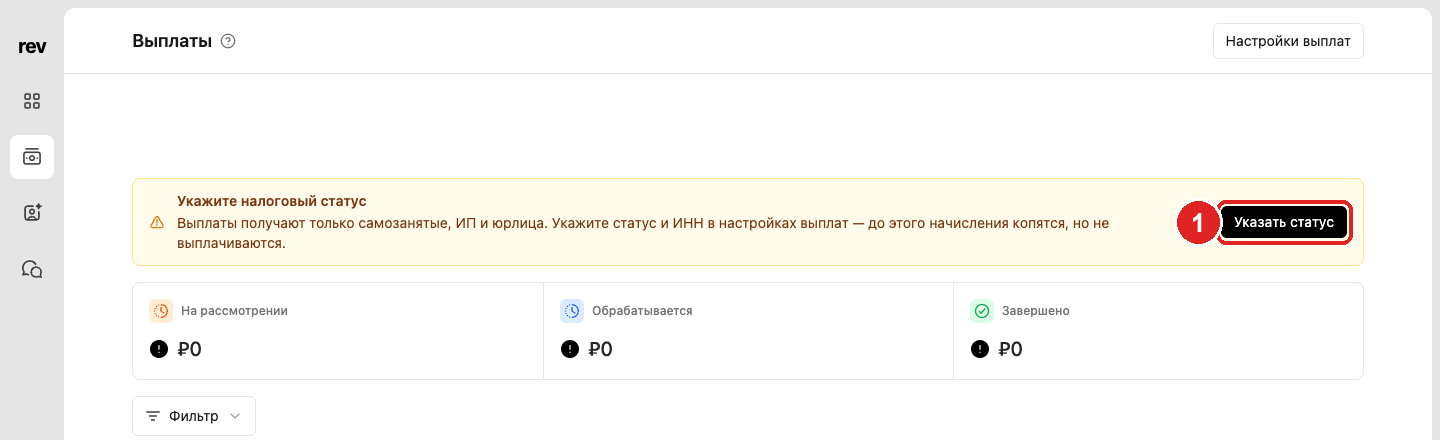
2. Status: self-employed
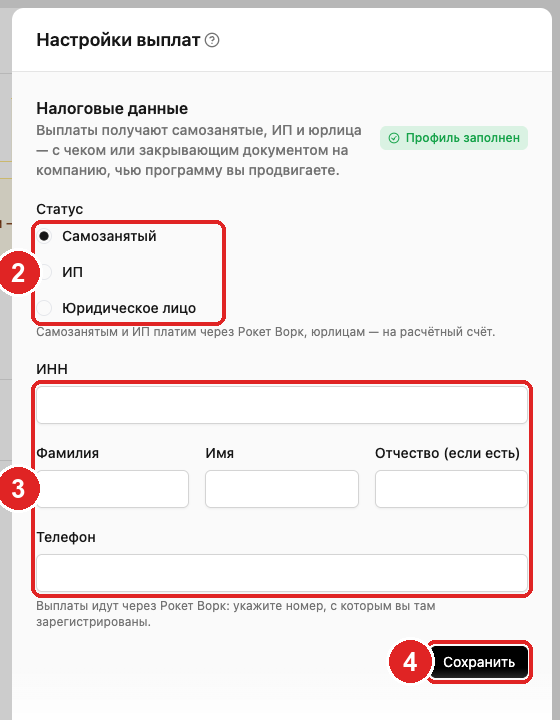
In Tax details choose Self-employed. If you are not registered as an NPD payer yet, do it first in the “Moy Nalog” app — it takes a few minutes.
3. INN, name and phone
INN — 12 digits, the same as in “Moy Nalog”. Last name, first name and patronymic (if any) — as in your passport. Phone — the one you are registered with in RocketWork (or will register with: the invitation goes there). If the data doesn’t match, the status will be Check your details.
4. Save
Click Save in this block. The badge changes to Profile complete and the warning on the payouts page changes to “Payout setup not finished” until the check completes.
Permissions in Moy Nalog and bank details
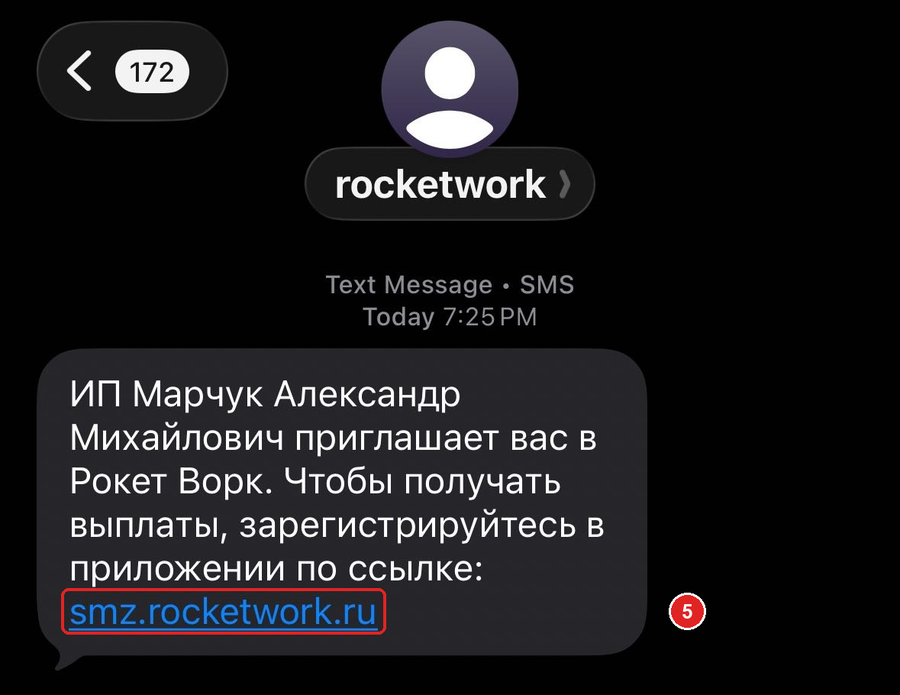
5. SMS from RocketWork
After saving, RevRoute registers you as a contractor in RocketWork with the program, and the phone
you entered receives an SMS from the sender rocketwork: the company whose program you promote
invites you to RocketWork. Follow the link in the SMS and sign up in the RocketWork X app with
the same phone number. No SMS — the payout settings show a Resend invitation button next to
the program (at most once every 10 minutes).
In the RocketWork payouts block each program gets a status:
| Status | What to do |
|---|---|
| Checking | Nothing, usually a few minutes. |
| Permissions needed | Click Request permissions in Moy Nalog and confirm the request in the “Moy Nalog” app (Partners section): without it RocketWork can’t issue receipts on your behalf. |
| Not self-employed | The tax service doesn’t see you as an NPD payer: register in “Moy Nalog” and come back to the settings. |
| No bank details | Sign up in the RocketWork X app via the link from the SMS (step 5) and choose there where to receive money: SBP, card or account. |
| Check your details | Compare the INN and phone with those in “Moy Nalog” and RocketWork. |
| Tax debt | Pay the tax in “Moy Nalog” — payouts are closed until then. |
| Payouts closed | Contact RocketWork support — they know the reason. |
| Ready | Everything is set up, the payout goes through automatically. |
Permissions in “Moy Nalog”, the RocketWork account and bank details are shared across programs: set them up once and you get Ready everywhere a program pays through RocketWork.
Contract, receipt and money
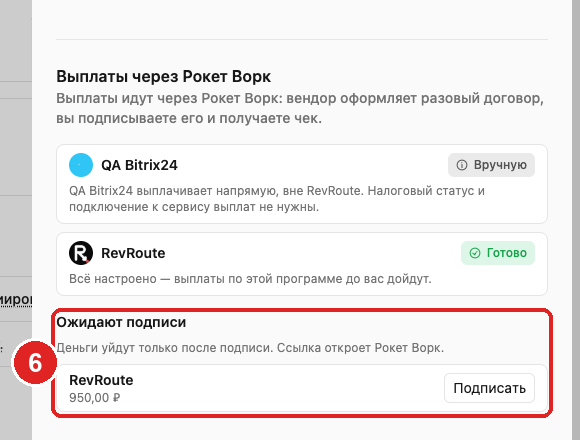
The program starts the payout once commissions pass the holding period and reach the minimum amount. When the program confirms the payout, you get an email asking you to sign the contract, and the Waiting for your signature section appears in payout settings.
6. Sign
Open Payout settings on the Payouts page and click Sign next to the program in Waiting for your signature — the contract opens in RocketWork. The same link is in the email, and the signing request is in the RocketWork X app.
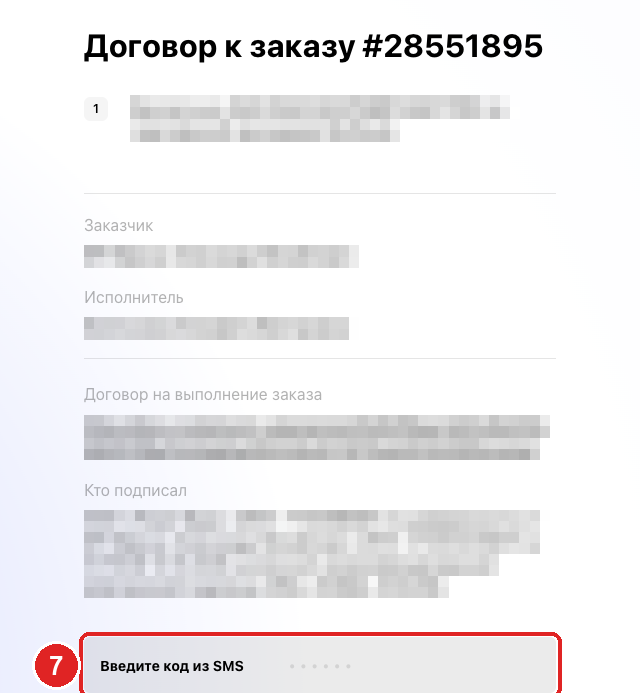
7. SMS code
On the contract page click Sign contract and enter the six-digit code from the SMS sent to your phone. If it didn’t arrive or didn’t work, click send again (after 30 seconds). Once the code is accepted, your signature appears under “Who signed”.
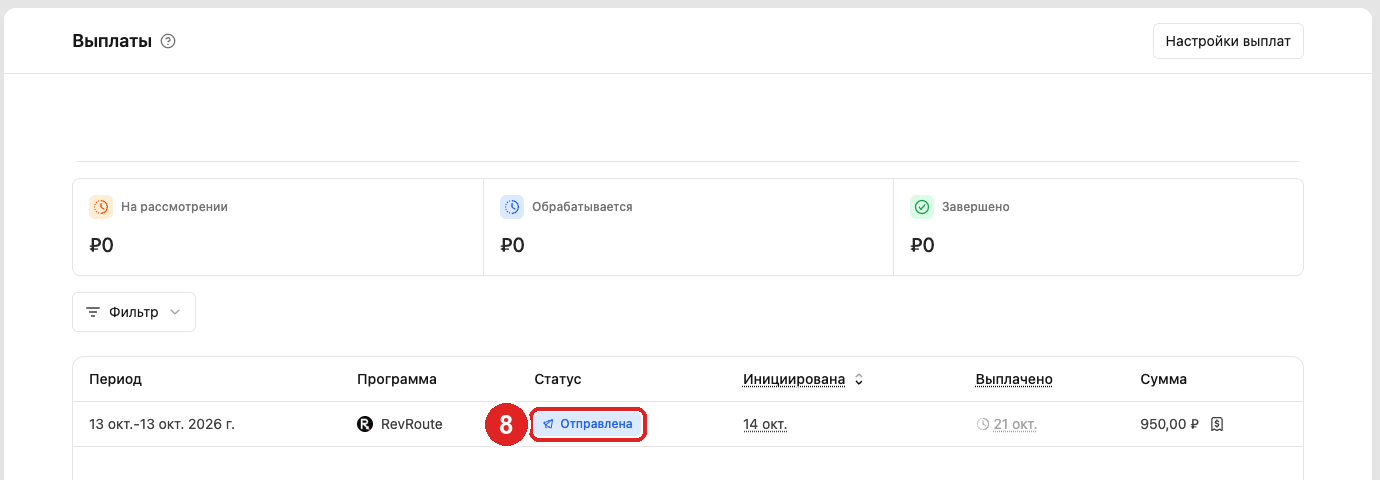
8. Payout status
After signing RocketWork transfers the money. On the Payouts page the payout becomes Sent with the amount you receive, then Completed once the transfer is done.
After payment RocketWork issues the NPD receipt to the client company itself — you don’t need to issue it in “Moy Nalog”.
Why a payout may be delayed — in the FAQs.