Filtering and visualizing your analytics by UTM parameters
On RevRoute, you can filter your analytics by UTM parameters. This allows you to create powerful campaign-specific reports for your links.
For example, you’re leveraging our UTM templates feature to create standardized UTM parameters for your team to use in their marketing campaigns, you’d want a way to see how each of these UTMs are performing in your analytics.
With the UTM parameters tab among the breakdowns on the analytics page, you can easily see how each of your UTM parameters are performing in real time:
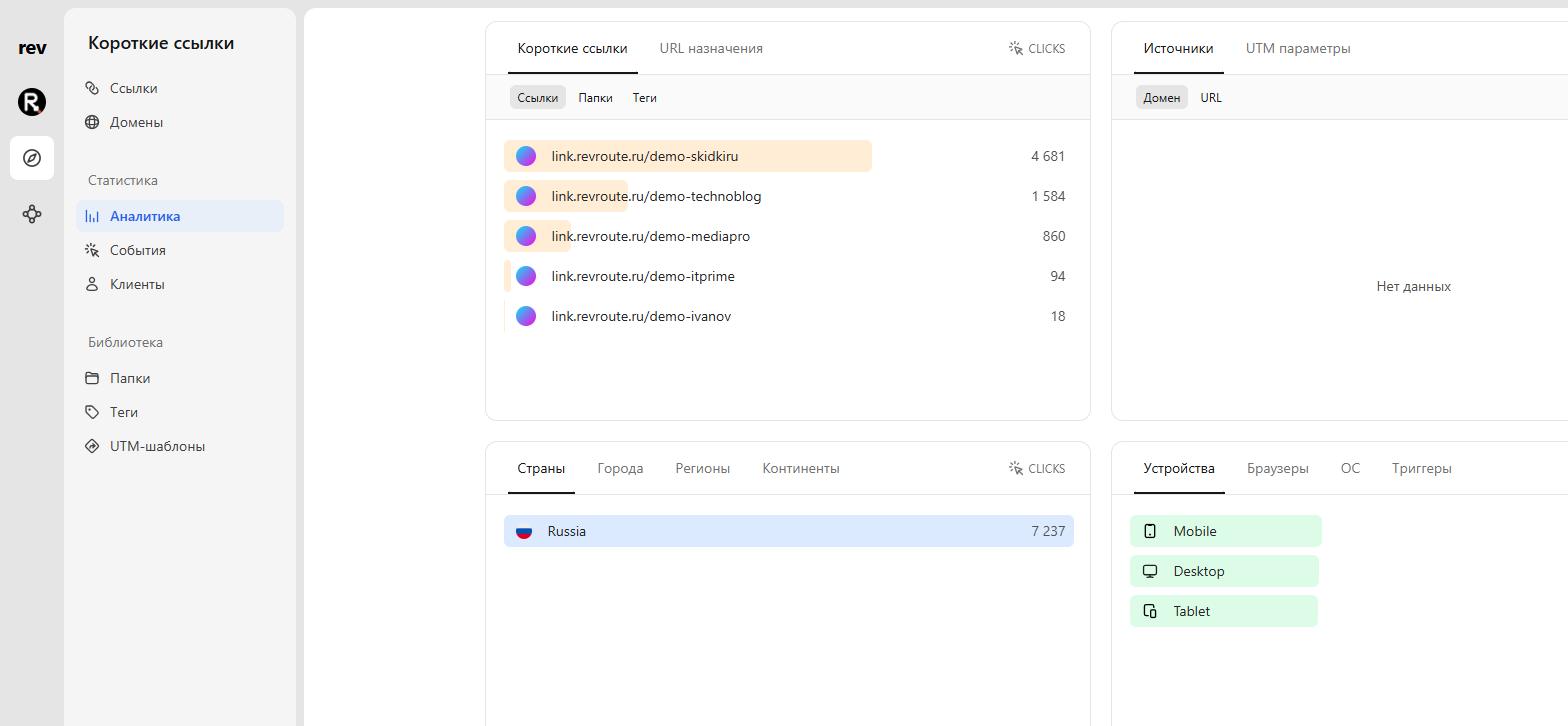
You can also filter your analytics by a specific UTM parameter that you’d like to create a custom report for:
Open the filter menu
In the Analytics tab of your RevRoute workspace, click on the Filter button to open the filter menu:
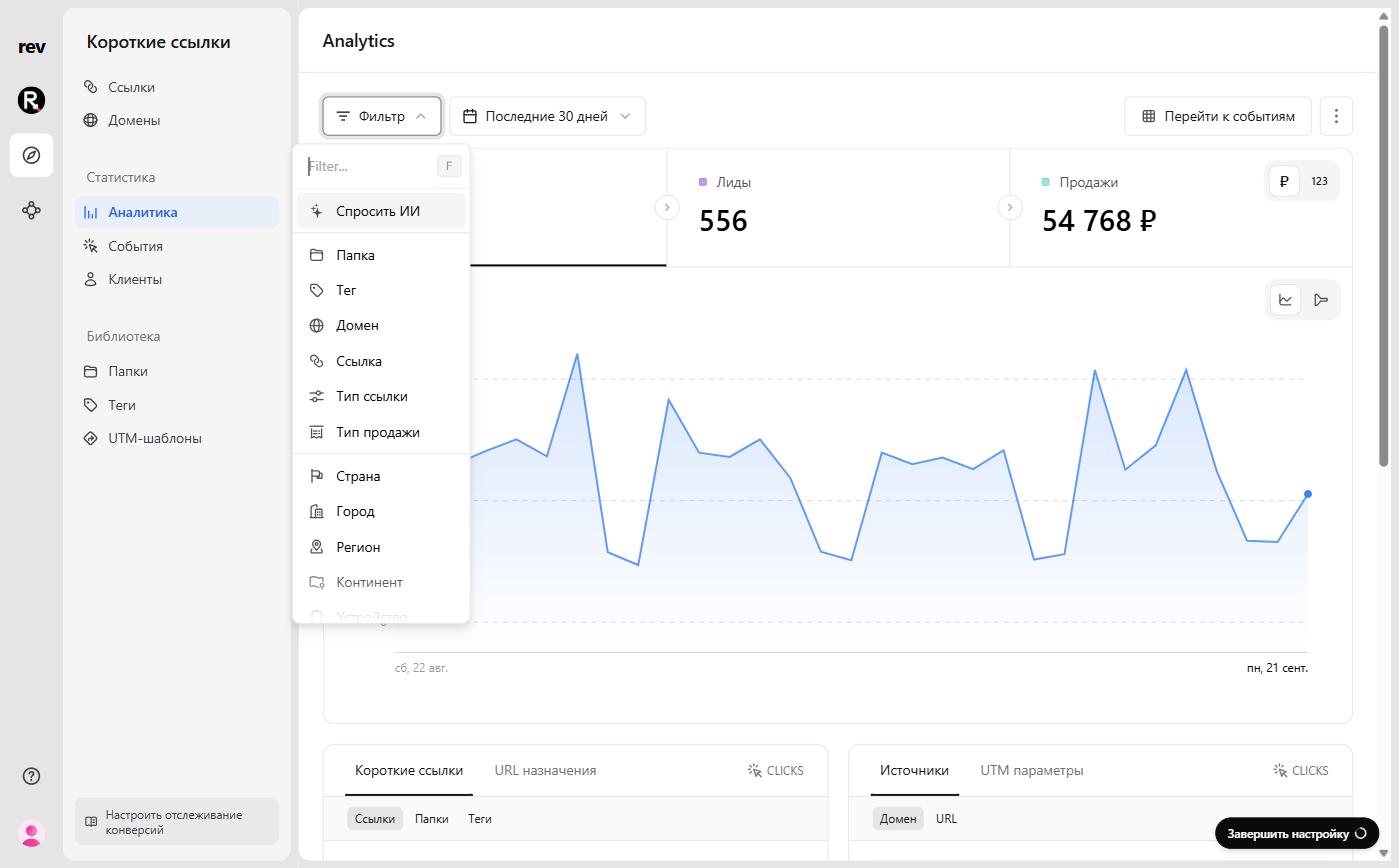
You can also use the F keyboard shortcut to quickly open the filter menu.
Select a UTM parameter and its value
Scroll the filter list down to the UTM parameters, or start typing the parameter name in the menu’s search field. Select the parameter you need (for example, the campaign source), and then the specific value you want to filter by. The dashboard recalculates and shows clicks, leads, and sales for that UTM tag only.
If you’re looking to filter by other UTM parameters, you can select them accordingly in the main filter menu.
Values appear in the filter and on the UTM parameters tab as clicks accrue: if links with UTM tags haven’t recorded any clicks in the selected time period, the list of values will be empty.