How to add a custom domain to RevRoute
Whenever you’re creating a short link for marketing purposes, it is important to use a custom domain for better brand recognition and click-through rates.
A custom domain is available even on the free plan, and paid plans include more:
- Free plan: 1 domain
- Pro plan: 10 domains
- Business and Enterprise plans: more domains — see the pricing page for current limits
In this guide, we will learn how to add a custom domain to your RevRoute workspace.
If you don’t have one, you can create one for free.
If you haven’t already, create a workspace to get started.
If you don’t have one, you can choose one and purchase it from domain registrars like Namecheap , GoDaddy , Cloudflare , and Dynadot .
Not sure which custom domain to use? Check out our guide on choosing a custom domain for some tips.
Step 1: Add a custom domain
Once you have a custom domain, you can add it to your RevRoute workspace by following these steps:
- Navigate to your workspace’s domains page: Settings → Domains (app.revroute.ru/settings/domains ).
- Click the Add custom domain button and select Connect your domain.
- In the Add domain modal, enter the domain you want to use in the Your domain field and click Add domain.

Step 2: Configure your domain
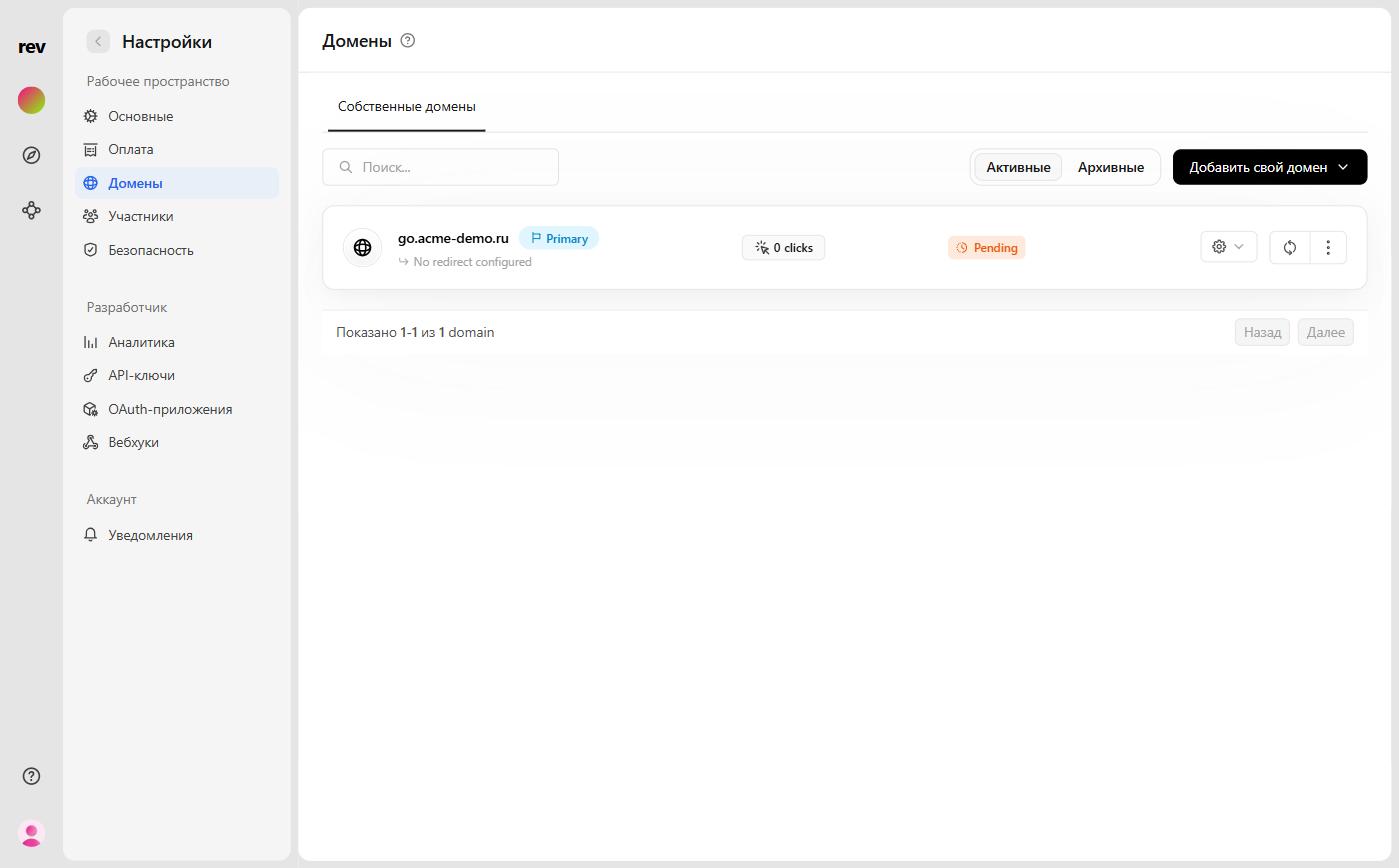
The domain you added will appear in the list with a Pending status. Expand its row to reveal the DNS configuration block with the A Record and CNAME Record (recommended) tabs, showing the records you need to add to your DNS provider’s settings.
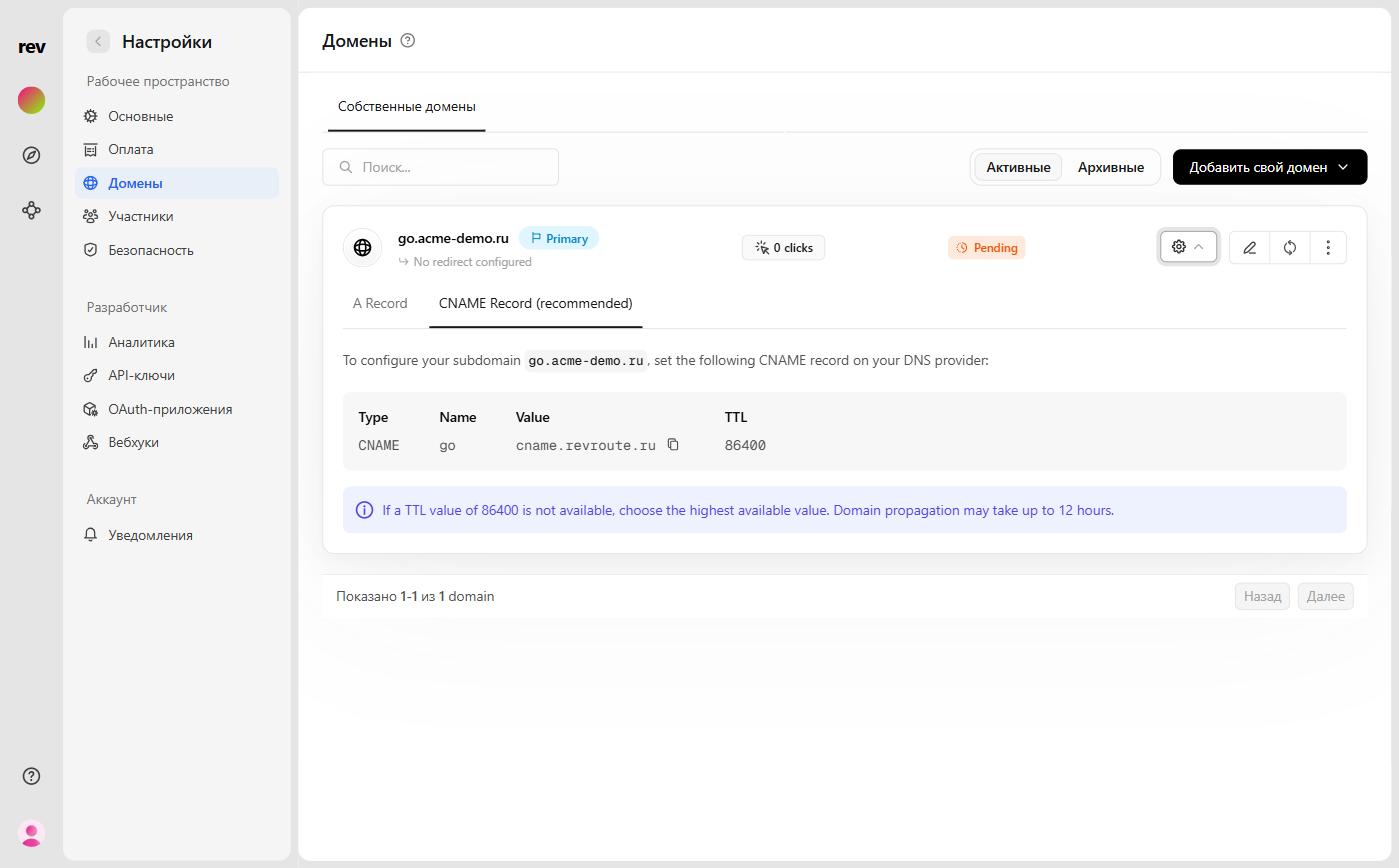
Once the records are in place, check the status with the refresh button next to the domain row.
Step 2a: Adding an apex domain
If you’re adding an apex domain (e.g. example.com), you’ll need to add an A record with the following values:
- Name:
@(or leave it blank) - Value: the value shown on the A Record tab in the RevRoute dashboard
- TTL:
86400(or the highest value possible)
Step 2b: Adding a subdomain
If you’re adding a subdomain (e.g. go.example.com), you’ll need to add a CNAME record with the following values (this is the recommended option — the CNAME Record (recommended) tab):
- Name:
go(or whatever subdomain you want to use) - Value:
cname.revroute.ru - TTL:
86400(or the highest value possible)
Note that we do not support using www. as a subdomain, since the www. subdomain will always redirect to the apex domain instead.
We recommend using the following variations for your subdomains:
go.example.comtry.example.comlinks.example.coml.example.com
If you’re using Cloudflare as your DNS provider, you might need to configure some extra steps for it to work properly. Please refer to our guide on using Cloudflare domains with RevRoute for more information.
How long do I have to wait for my domain to work?
Domain configuration can take anywhere between 1 to 24 hours to complete. If your domain still doesn’t work after 24 hours, please send us an email and we’ll be happy to help you out.