Offering dual-sided incentives
This feature is only available on Business plans and above .
A dual-sided incentive rewards both sides: the partner earns a reward for the customer they referred, and the customer gets a discount for coming in through the partner’s link or promo code.
Some examples include:
- 25% discount for the first 12 months
- 30% lifetime discount
- ₽5,000 one-off discount
- A bonus in units of your product — e.g. 100 extra leads credited to the balance
This drives word-of-mouth growth: partners are more likely to share their link if it gives their audience a discount, and the audience is more likely to click if a special deal is waiting for them.
How it works
RevRoute stores the discount terms and knows which partner each promo code belongs to. No money passes through RevRoute: the discount itself is applied by your payment system — YooKassa, your own billing, an invoice, whatever you use. You don’t need to create coupons in your payment system.
The whole chain:
- You create a discount for a partner group: a percentage, a fixed amount or a bonus, plus its duration.
- The partner gets a promo code tied to their referral link — you create it manually in the partner’s profile or turn on automatic creation. The partner sees the code in their dashboard and shares it with their audience.
- A customer comes to you through the partner’s link or types the promo code at checkout. Your site or server asks RevRoute whose code it is and what the terms are, and applies the discount.
- After payment you send the sale to RevRoute — the partner earns a commission according to their group’s rules.
Steps 1 and 2 happen in the UI, no developer needed. Steps 3 and 4 are an integration on your side: two API requests.
Create a discount for a partner group
Open the partner group that should get the discount, go to the Discounts tab and click Create. A group can have only one discount; if different partners need different terms, set up separate groups.
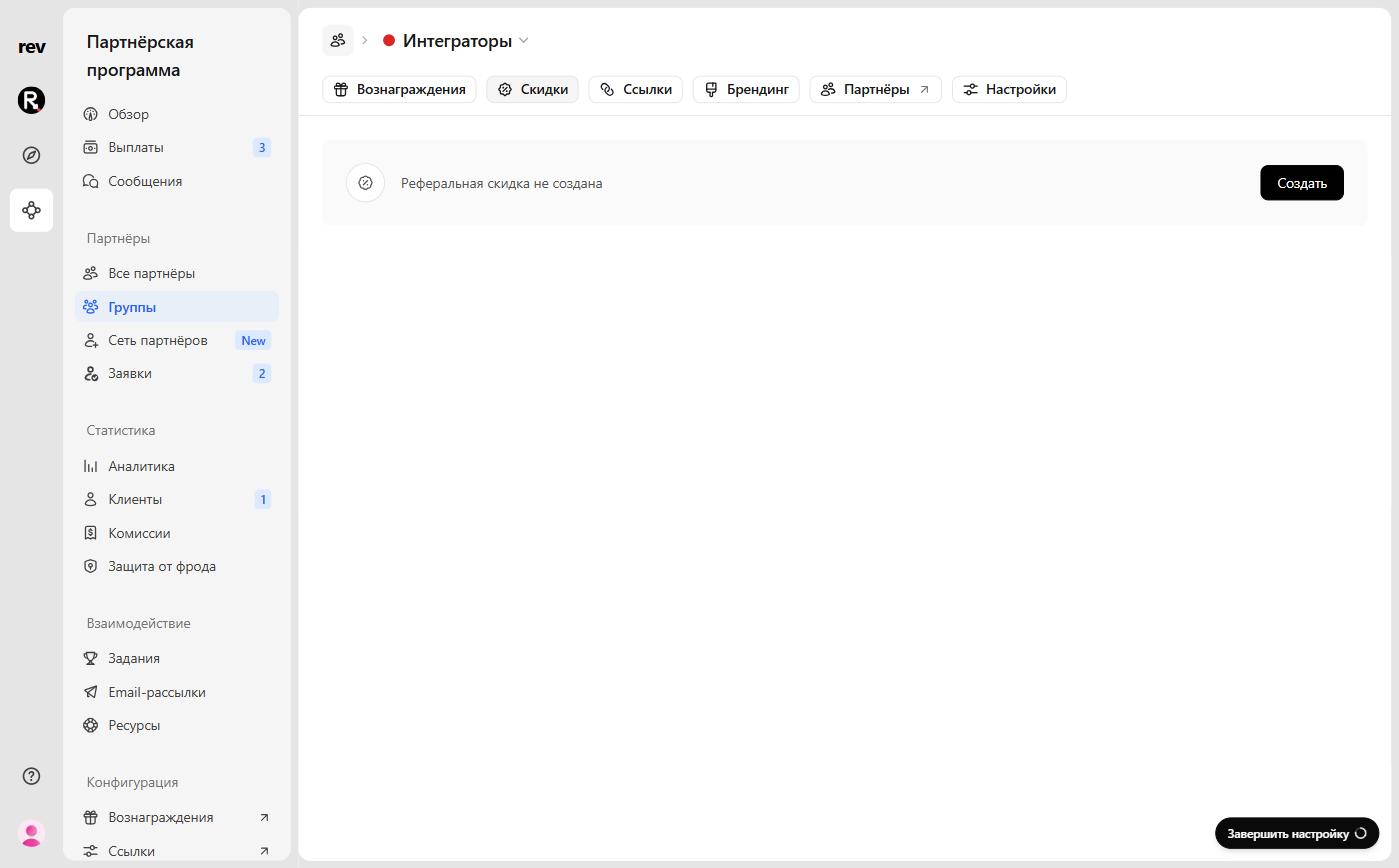
In the Create discount sheet, pick the offer type:
- Discount — a percentage or a fixed amount off the payment. Set the amount and the duration: one time (first payment only), for several months or lifetime.
- Bonus — an offer in units of your product that your system credits, e.g. “100 leads credited to the balance”. Set the Quantity, Unit and Description — partners and customers will see the description.
The Automatically create promo codes toggle turns on automatic code creation for the group’s partners — see the next step. The To block shows which partners in the group get the discount. Confirm with Create discount.

The amount, type and duration of a discount can’t be changed after creation — only the description, the bonus terms and automatic code creation. To change the terms, delete the discount and create a new one. Deleting a discount also deletes the promo codes of the partners in that group.
Give the partner a promo code
A promo code is what the partner gives their audience where a link can’t be placed: in a podcast, a video, a post. Each code is tied to one of the partner’s referral links, and a link can have only one code. Sales made with the code count towards the same link as clicks on it.
Automatically. If the Automatically create promo codes toggle is on in the discount sheet, RevRoute creates a code for the default link of every active partner in the group, and for new partners when their application is approved. The code is built from the first word of the partner’s name in capitals plus the discount amount: IVAN20OFF for 20%, IVAN5000OFF for ₽5,000. If that code is already taken in the program, a short suffix is appended.
Manually. Open the partner’s profile, the Links tab, and click Create code in the Promo codes block. If the button is disabled, hover over it to see why: either the partner’s group has no discount, or all of the partner’s links already have promo codes. In the latter case, create a new link for the partner first.
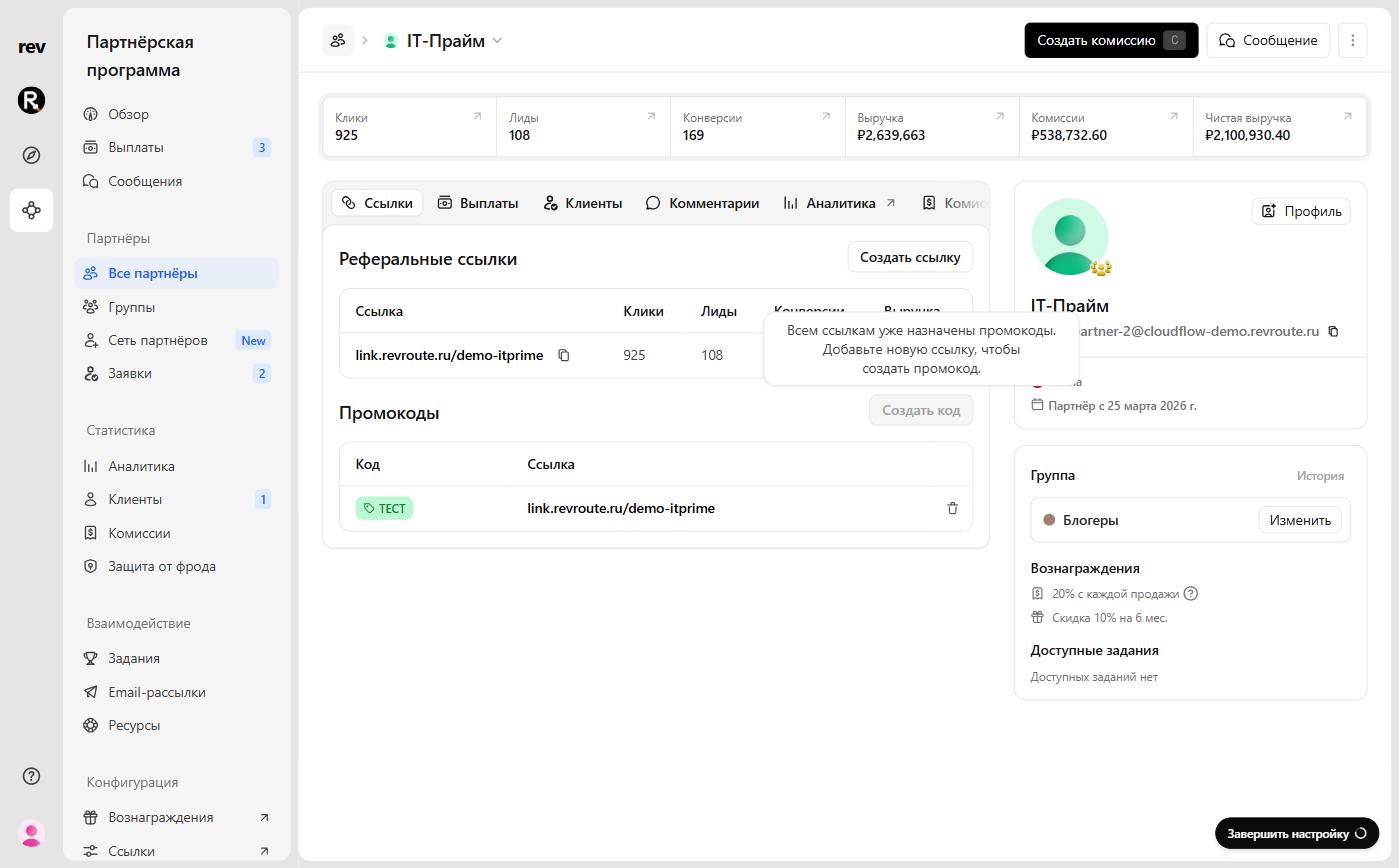
Create code opens the New discount code dialog. Pick the link to tie the code to under Referral link, enter the code in Discount code — the field hint shows the partner’s name in capitals; leave the field empty to have the code built automatically — and click Create discount code. The code is stored in capitals and copied to your clipboard right away.
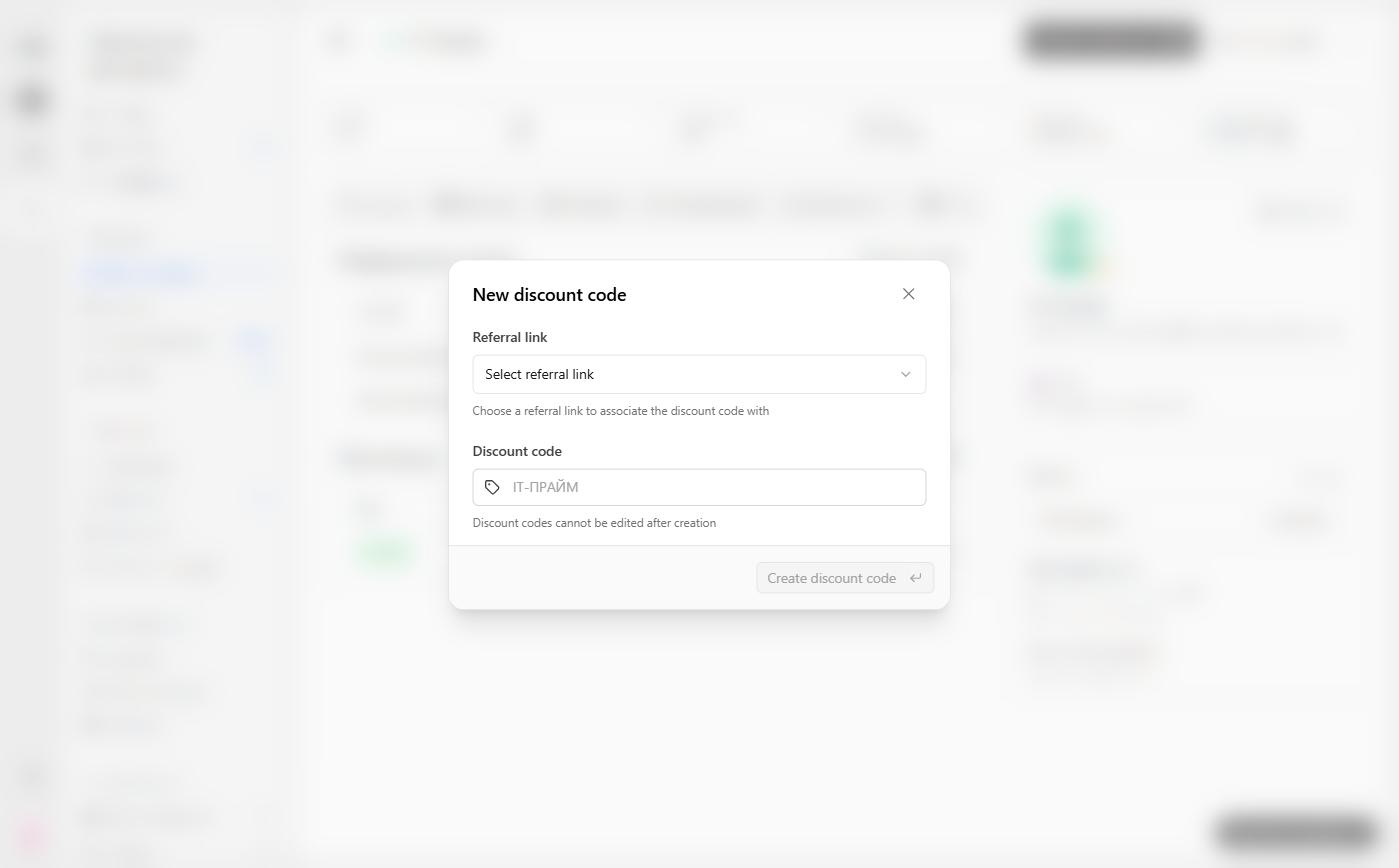
Promo codes cannot be edited after creation — only deleted. Double-check the code and the link before creating it.
Once created, the code appears in the Promo codes block next to its link. The partner sees it in their dashboard on that link’s card, labelled Promo code — clicking it copies the code. The discount terms are shown to the partner in the program’s reward description: “New users get 10% off for 6 months”.
Apply the discount on your side
A customer can reach you in two ways, and for each of them RevRoute returns the partner and their discount terms.
The customer clicked the partner’s link. If the RevRoute script is installed on your site, the partner and the discount are already available in window.RevRouteAnalytics and in the rr_partner_data cookie — see Displaying a discount banner below. On the server, the same data can be fetched by the value of the rr_id cookie: GET /discount-codes/resolve?clickId=<rr_id>.
The customer typed a promo code at checkout. Ask RevRoute whose code it is. From your server, call GET /discount-codes/resolve with your workspace API key:
curl "https://api.revroute.ru/discount-codes/resolve?code=IVAN20OFF" \
  -H "Authorization: Bearer rr_xxxxxx"
The response (internal fields omitted):
{
  "partner": {
    "id": "pn_xxx",
    "name": "Ivan Petrov",
    "email": "ivan@example.com",
    "image": null
  },
  "discount": {
    "id": "disc_xxx",
    "offerType": "discount",
    "type": "percentage",
    "amount": 20,
    "maxDuration": 6,
    "bonusQuantity": null,
    "bonusUnit": null,
    "description": null
  },
  "program": { "id": "prog_xxx", "name": "Acme", "slug": "acme" },
  "link": {
    "id": "link_xxx",
    "domain": "refer.example.com",
    "key": "ivan",
    "shortLink": "https://refer.example.com/ivan"
  },
  "discountCode": { "id": "dcode_xxx", "code": "IVAN20OFF" }
}
How to read the terms:
offerType—discountorbonus(a bonus in units:bonusQuantity,bonusUnit,description).type—percentageorflat(fixed amount). Forflat,amountis in kopecks:500000means ₽5,000.maxDuration— the duration in months:0means the first payment only,nullmeans lifetime.discount: null— the code has no discount (it was deleted), there is nothing to apply.
An unknown code returns 404: no such promo code exists in the program, so no discount should be given.
Straight from the checkout page, without an API key, a code can be resolved with POST /track/discount-code — it returns the partner and the terms, but without the partner’s email or the program’s internal data:
const res = await fetch("https://api.revroute.ru/track/discount-code", {
  method: "POST",
  headers: { "Content-Type": "application/json" },
  body: JSON.stringify({ domain: "refer.example.com", code: enteredCode }),
});

if (res.ok) {
  const { partner, discount } = await res.json();
  // show the customer "Ivan's promo code: 20% off for 6 months"
}
domain is the referral link domain of your program. Only the sites listed under Allowed hostnames in Settings → Analytics may call this endpoint; while the list is empty it responds with 403 — this protects codes from being enumerated. The limit is 20 requests per minute per IP address.
From here on, applying the discount is up to you: reduce the invoice amount, add a coupon in YooKassa, credit bonus units — whatever fits your system.
Send the sale — the partner earns a commission
An applied discount doesn’t earn the partner a commission by itself: RevRoute only learns about the sale from your request. After payment, send it to POST /track/sale and, if the customer came in without clicking a link, pass the promo code in the discountCode field:
curl -X POST "https://api.revroute.ru/track/sale" \
  -H "Authorization: Bearer rr_xxxxxx" \
  -H "Content-Type: application/json" \
  -d '{
    "customerExternalId": "user_123",
    "amount": 199000,
    "currency": "rub",
    "paymentProcessor": "custom",
    "eventName": "Invoice paid",
    "invoiceId": "INV-1001",
    "discountCode": "IVAN20OFF"
  }'
How RevRoute decides who gets credit for the sale:
- If
clickIdis passed (the value of therr_idcookie), the sale goes to the partner whose link was clicked —discountCodeis ignored. - If a customer with this
customerExternalIdis already known (for example, you sent their sign-up to/track/lead), the sale is attributed to them as usual. - Otherwise the sale goes to the partner who owns the
discountCode. An unknown code returns404and the sale is not recorded.
POST /track/lead accepts the discountCode field too — for the case where a customer signs up with a promo code before paying. Pass the amount the customer actually paid in amount — the partner’s commission is calculated from it.
Displaying a discount banner
Once dual-sided incentives are set up, the next step is to show the discount right on your pricing page or landing page: “Ivan referred you to Acme and gave you 20% off”.
All you need is the RevRoute script with client-side click tracking enabled: when a visitor lands on your site via a valid referral link, the script fetches the partner and discount data for you.
The script stores the partner and discount data in the rr_partner_data cookie as
a JSON object:
{
  "clickId": "xxx",
  "partner": {
    "id": "pn_xxx",
    "name": "Ivan Petrov",
    "image": "https://example.com/ivan.png",
    "groupId": "grp_xxx",
    "tenantId": null
  },
  "discount": {
    "id": "disc_xxx",
    "offerType": "discount",
    "type": "percentage",
    "amount": 20,
    "maxDuration": 6,
    "bonusQuantity": null,
    "bonusUnit": null,
    "description": null,
    "code": "IVAN20OFF"
  }
}
The discount fields are the same as in the /discount-codes/resolve response above; code is the partner’s promo code for this link, if one exists — you can show it to the customer.
In page code the same data is available on window.RevRouteAnalytics. Read it
inside the ready callback — by then the script has fetched the click data.
<script>
  revRouteAnalytics("ready", function () {
    const { partner, discount } = window.RevRouteAnalytics;
    if (!partner || !discount) return;

    const offer =
      discount.offerType === "bonus"
        ? discount.description || discount.bonusQuantity + " " + discount.bonusUnit
        : (discount.type === "percentage"
            ? discount.amount + "%"
            : "₽" + discount.amount / 100) + " off";

    const banner = document.createElement("div");
    banner.innerHTML = `
      <img src="${partner.image}" alt="${decodeURIComponent(partner.name)}" />
      <p>${decodeURIComponent(partner.name)} referred you to Acme and gave you ${offer}</p>
    `;
    document.body.appendChild(banner);
  });
</script>partner.name and partner.image are URL-encoded inside the cookie — run
them through decodeURIComponent before rendering.