amoCRM: connection
To let RevRoute pick up leads, payments and cancellations from amoCRM and calculate partner commissions automatically, you need three things:
- A long-lived token of an external integration — RevRoute uses it to read your account’s deals.
- A click ID in the deal — it tells RevRoute which partner the customer came from.
- Deal stages — which stages mean the deal is paid, refunded or canceled.
The integration is available on the Business plan and above. An amoCRM administrator connects it; it takes a few minutes.
Token
1. amoMarket
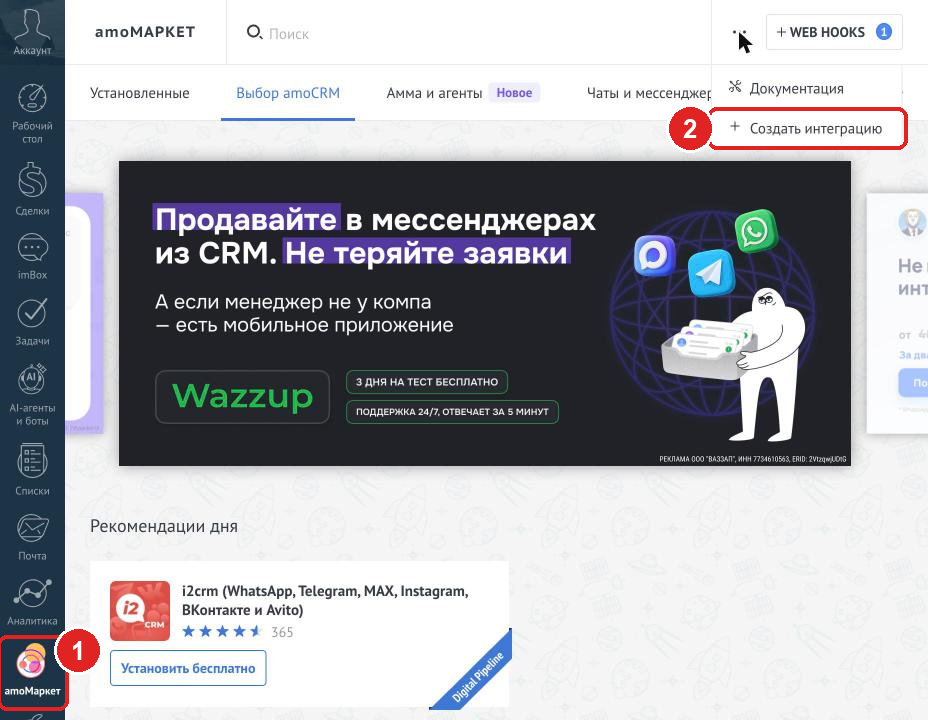
In the amoCRM left menu, open amoМаркет (amoMarket).
2. Create integration
In the top right corner, click «⋯» and choose «Создать интеграцию» (Create integration).
3. External integration
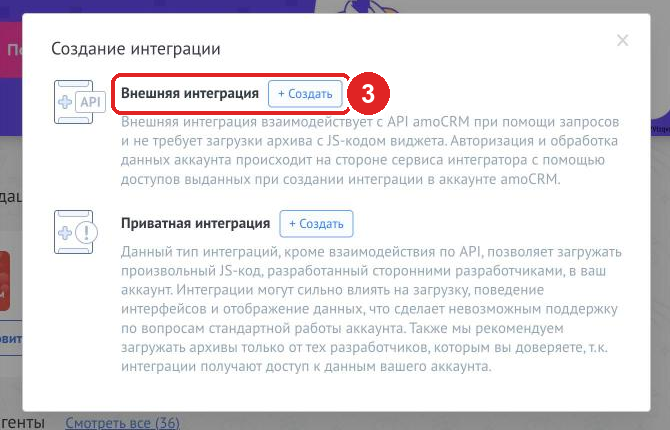
In the «Создание интеграции» window, click «+ Создать» next to «Внешняя интеграция» (External integration). A private integration won’t work: only an external one has a long-lived token.
4. Fill in the form and save
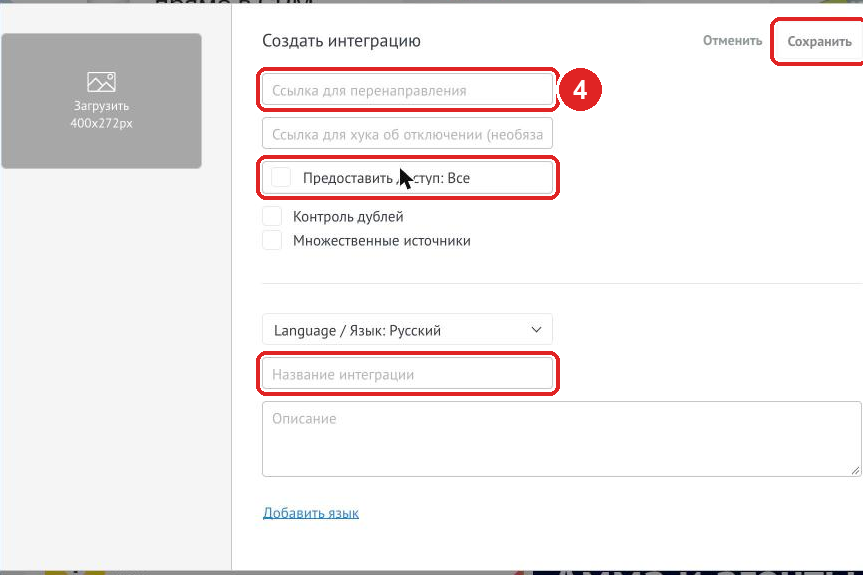
- «Ссылка для перенаправления» (Redirect URL) —
https://revroute.ru. The field is required; RevRoute doesn’t use it. - «Предоставить доступ: Все» (Grant access: All) — tick the checkbox.
- «Название интеграции» (Integration name) — for example,
RevRoute.
Click «Сохранить» (Save). amoCRM may ask you to confirm with a code from an email.
5. Generate a long-lived token
Open the new integration, go to the «Ключи и доступы» (Keys and access) tab, and in the «Долгосрочный токен» (Long-lived token) block click «Сгенерировать токен» (Generate token). Pick an expiry date — up to five years — and copy the token with the copy button next to the field.
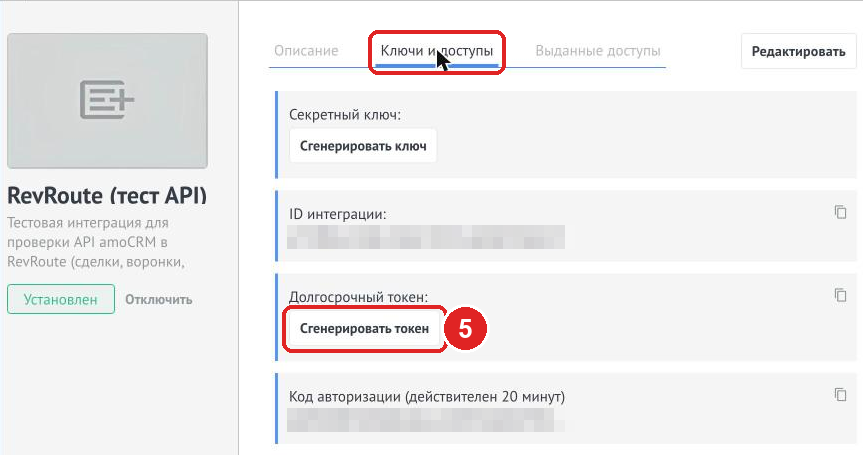
The token is long — over a thousand characters. Copy it with the button rather than by selecting text: a selection easily misses part of it, and RevRoute won’t accept a truncated token.
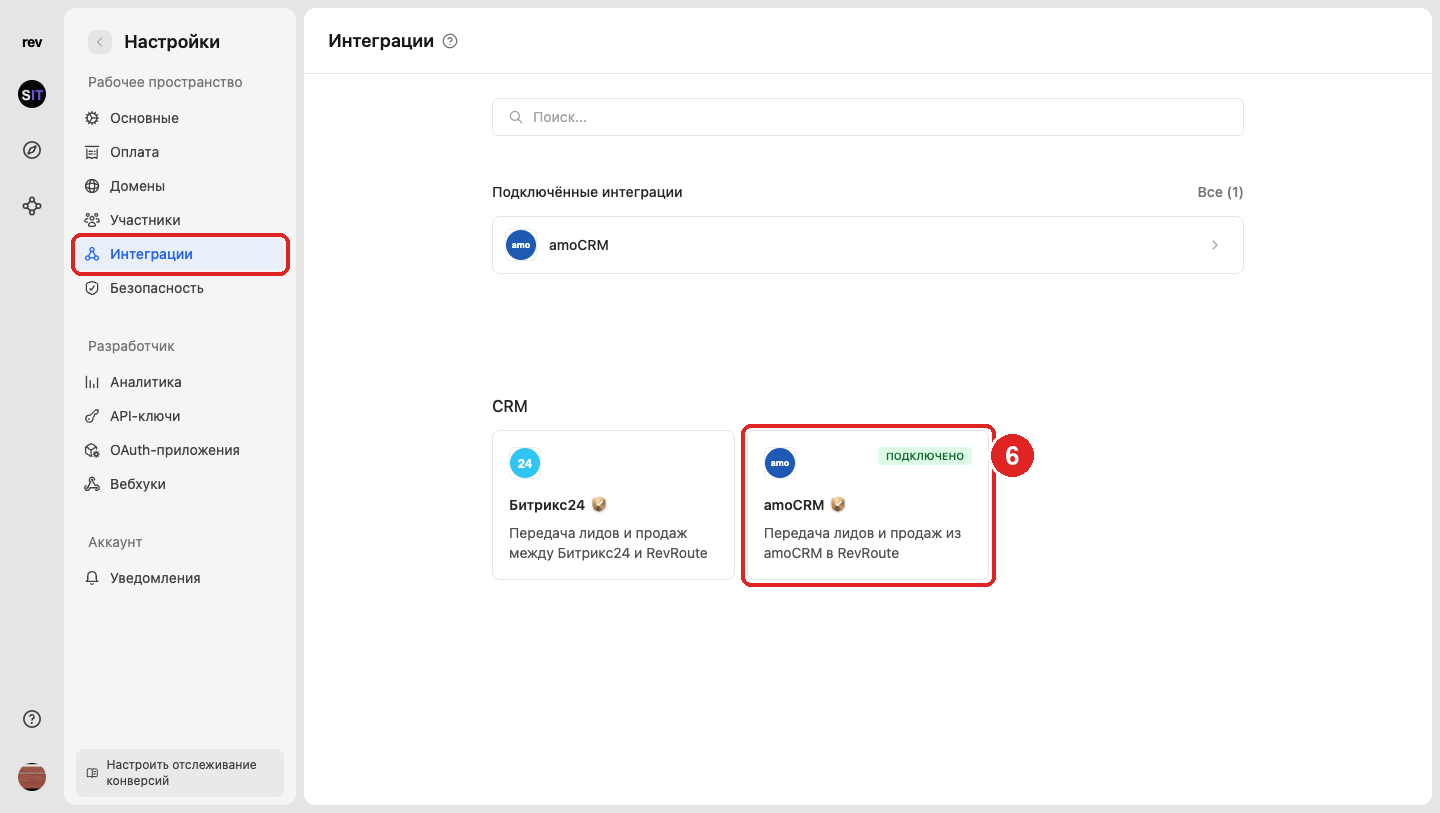
6. Integrations → amoCRM
In RevRoute, open Settings → Integrations and click the amoCRM card.
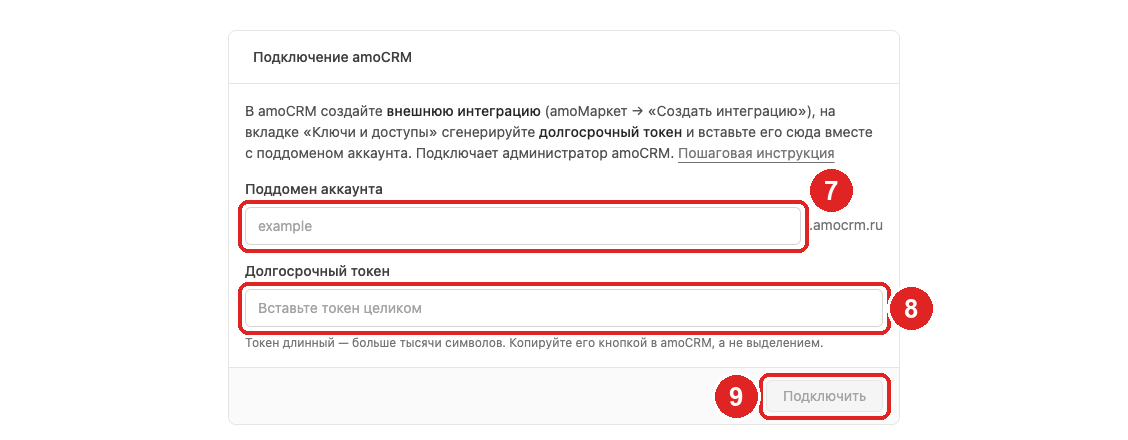
7. Account subdomain
Enter the part of your amoCRM address before .amocrm.ru: for example.amocrm.ru it’s example.
8. Long-lived token
Paste the whole token from step 5.
9. Connect
Click Connect. RevRoute checks the token, creates the click ID field in deals and subscribes to deal changes.
Once connected, the Connection block shows that the integration works, when the token expires and whether instant updates are on.

The token gives access to your amoCRM account — don’t publish it or send it to open chats. If it leaked, delete the integration in amoCRM («Редактировать» → «Удалить интеграцию», Edit → Delete integration) — the old token stops working — create a new one following steps 1–5 and click Replace token in RevRoute. Stage roles and history are kept. A token that is about to expire is replaced the same way: generate a new one and click Replace token.
Click ID in the deal
When connected, RevRoute creates a «RevRoute: метка перехода» (RevRoute: click ID) field in deals. This is the only change RevRoute makes to your amoCRM data.
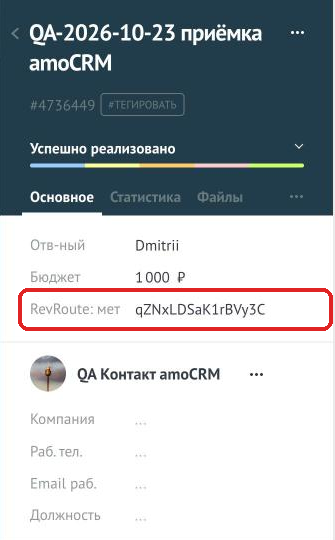
When a visitor follows a partner link, a click ID is stored in the browser on your site — the rr_id cookie (set by the RevRoute script on your site). For the customer to be credited to the partner, put this value into the «RevRoute: метка перехода» field together with the request:
- A site form that sends requests to amoCRM. Add a hidden field with the
rr_idcookie value to the form and map it to the «RevRoute: метка перехода» deal field — the same way you pass UTM tags. - Your site creates deals via the API. Pass the click ID by the field code
RR_CLICK_IDwhen creating the deal (POST /api/v4/leads):
[
  {
    "name": "Website request",
    "price": 15000,
    "custom_fields_values": [
      {
        "field_code": "RR_CLICK_ID",
        "values": [{ "value": "<rr_id cookie value>" }]
      }
    ]
  }
]
The click ID can also be added to a deal later: RevRoute notices the deal change and credits the customer to the partner. RevRoute takes the customer’s name and email from the deal’s main contact.
A deal from «Неразобранное» (Incoming leads) reaches RevRoute once a manager accepts it. Rejected requests won’t show up for the partner.
Deal stages
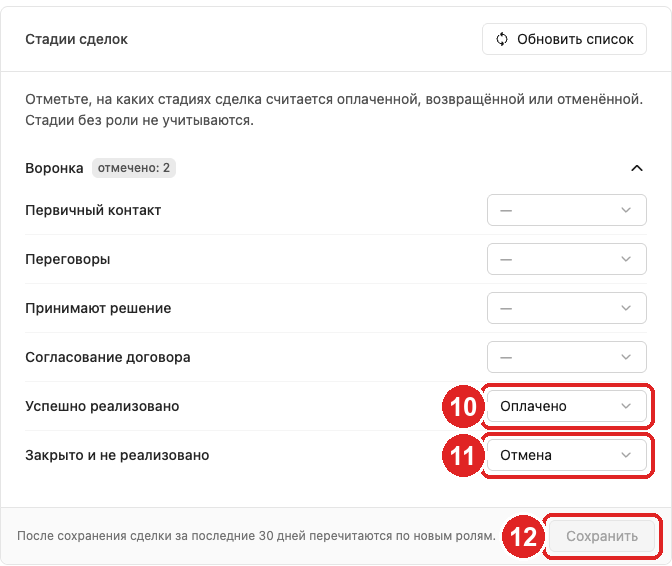
Open Settings → Integrations → amoCRM, the Deal stages block: it lists all pipelines of your account. Pick a role for each stage:
- Paid — a deal at this stage counts as a sale, and the partner earns a commission.
- Refund and Cancel — the deal’s commission is canceled. The only difference is how the event is named in reports.
- Stages without a role are ignored.
For the standard amoCRM stages RevRoute suggests roles itself: «Успешно реализовано» (Closed – won) — Paid, «Закрыто и не реализовано» (Closed – lost) — Cancel. Accept the suggestions or pick your own and click Save.
Leads are loaded right after connecting; sales only come from stages with the Paid role.
Payment isn’t the last stage of the pipeline? If a deal moves on after payment (“Documents”, “Onboarding”, “Closed – won”), choose Paid: this and all following for the payment stage — the role goes on it and every following stage of the pipeline except the lost ones. Then a deal that passed the payment stage quickly or skipped it still becomes a sale. There are no duplicates: one deal gives one sale, however many stages it passes.
After you save the roles, RevRoute re-reads the deals of the last 30 days with the new roles. Deal changes usually reach RevRoute within a minute, and RevRoute also checks deals itself every 5 minutes. The Sync now button runs the check immediately.
Good to know:
- The sale amount is the deal budget at the moment it reaches a Paid stage. If the budget changes after payment, the sale keeps the original amount.
- A deal moved back from Cancel to Paid doesn’t create a new sale; the canceled commission stays canceled.
- If the token stops working (it was deleted in amoCRM, expired, or the amoCRM plan isn’t paid), an error appears in the settings and we get a notification. Leads and sales from that period aren’t lost: after the token is replaced, RevRoute continues where it stopped.
- If the commission of a canceled deal has already been paid out, RevRoute doesn’t cancel it automatically — the team handles such cases manually.