Customizing your program application form
This feature is only available on Business plans and above .
What is the program application form?
The program application form collects the information you want from people applying to your program. Use it to ask about websites, social accounts, experience, audience size, or any details that help you decide who to accept.
The form lives at partners.revroute.ru/<program-slug>/apply — the Apply button on your program landing page leads there. Submitted applications appear under Applications.
On RevRoute, you can create a separate application form for each partner group — e.g. ask bloggers about their audience and integrators about their clients.
A new partner group starts with a copy of the default group’s application form, which you can then edit separately.
Where to find the application form builder?
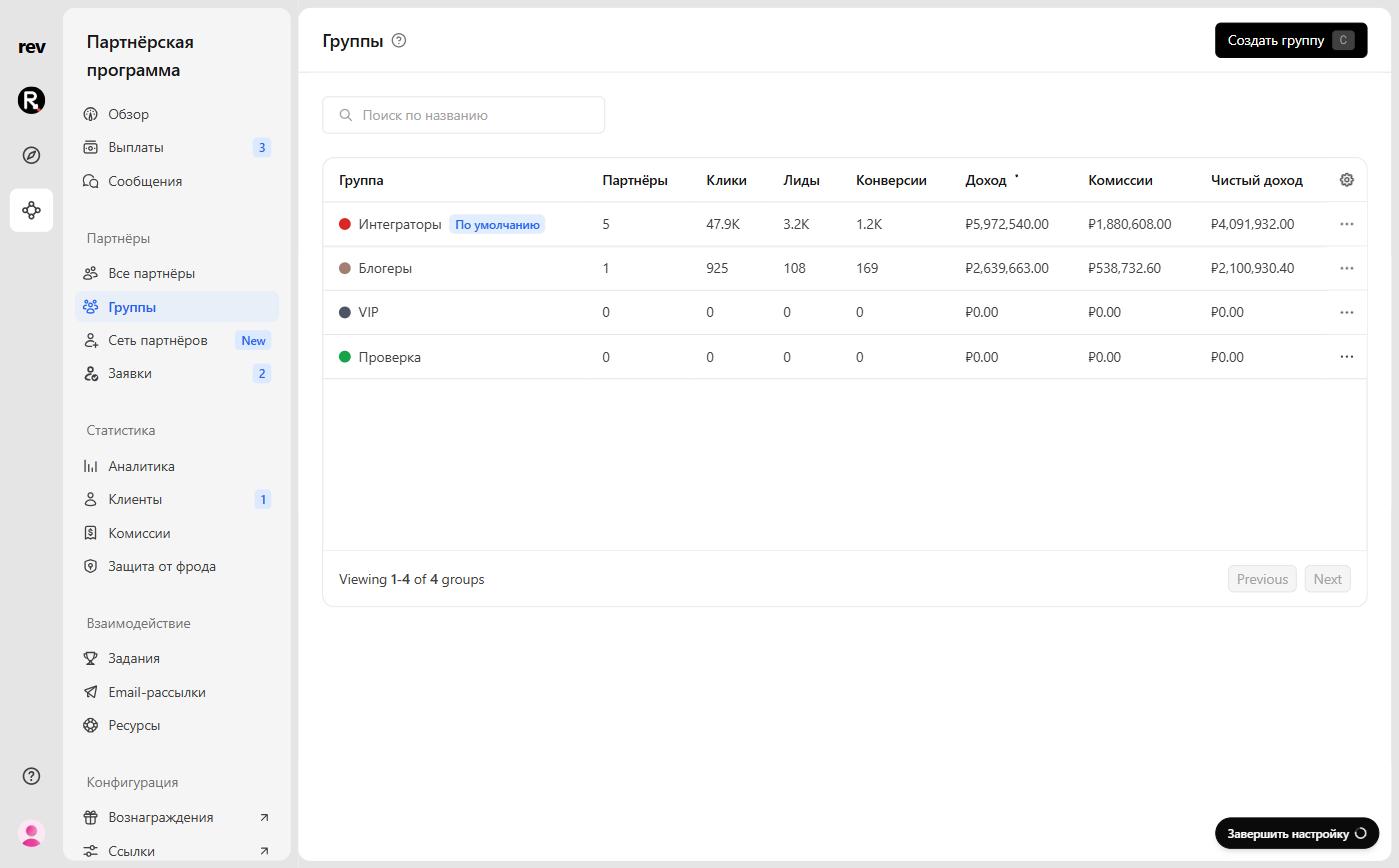
On the Groups page, open the partner group you want to tailor the application form for:
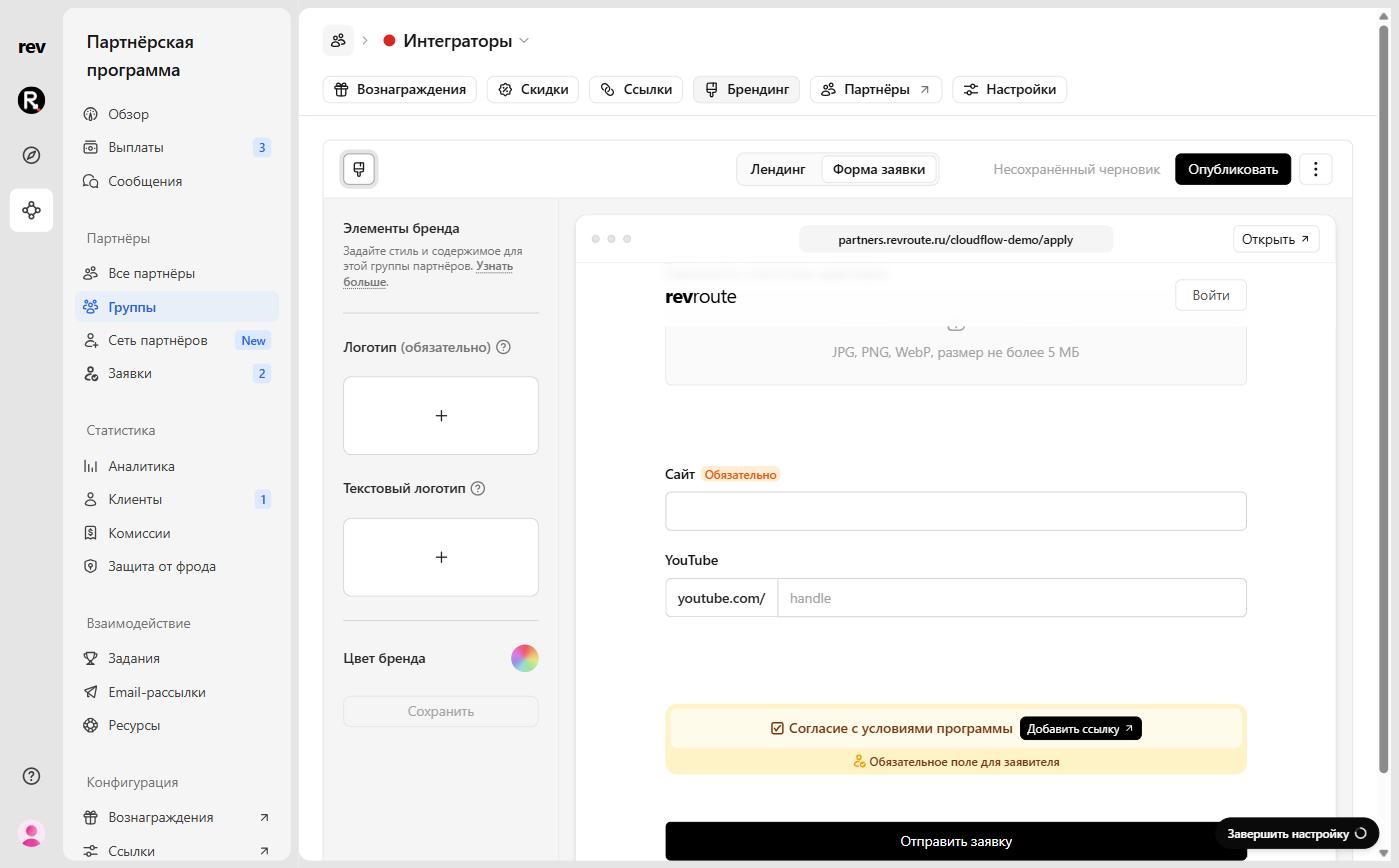
Open the Branding tab and choose Application form in the switcher above the editor. For your program’s default group, here’s a quick link straight to the form builder.
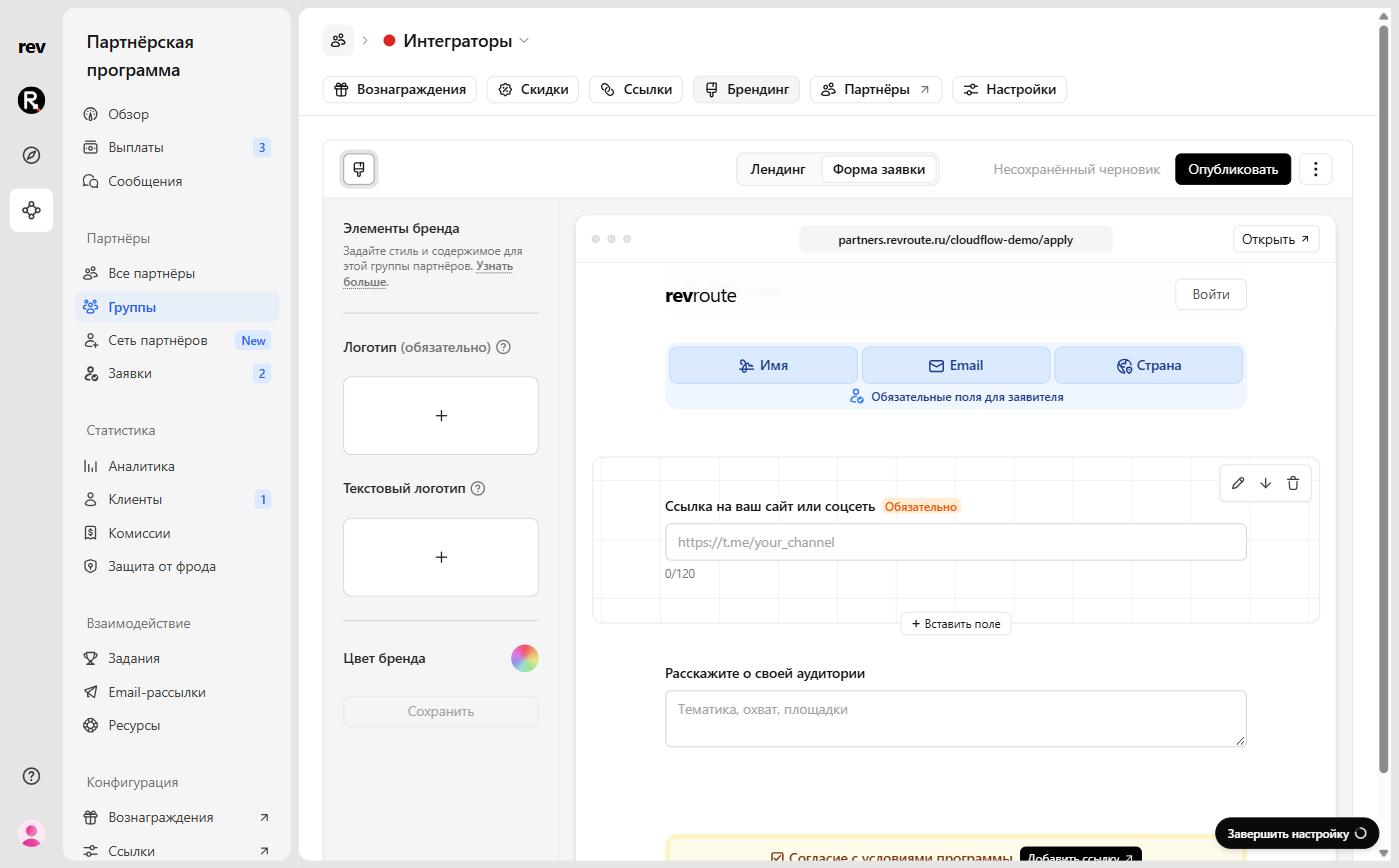
Mandatory fields
Name, Email, and Country are required in every form and always come first — you cannot remove or rename them. The heading and description above the form can only be edited, which keeps the page layout consistent for applicants.
Editing and adding fields
Hover over a field to reveal its actions: Edit (pencil), Move up and Move down (arrows), and a trash icon that deletes the field. The Insert field button between fields adds a new field at that spot.
Input field types
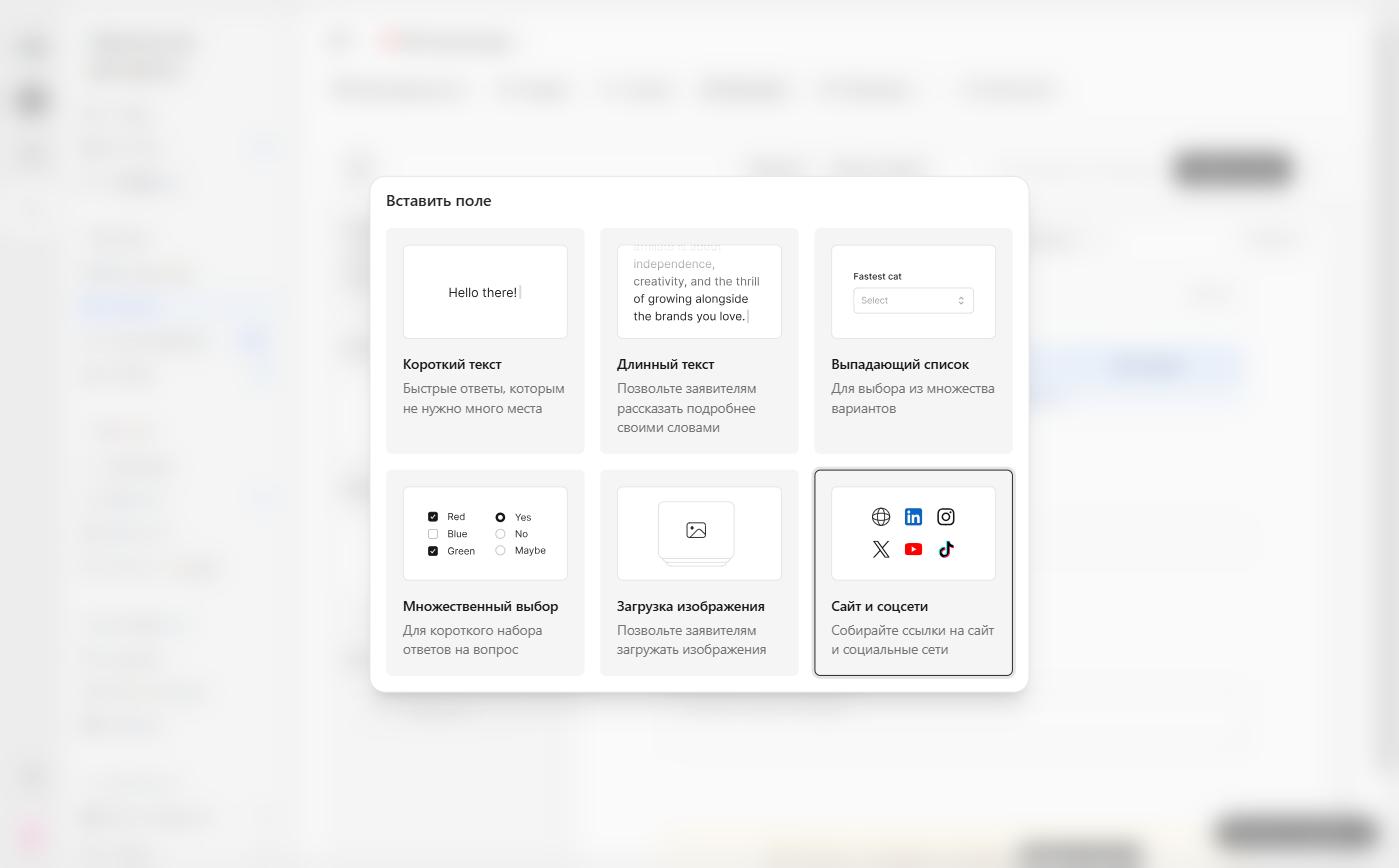
Click Insert field and pick the input type:
Short text
Use for short answers like names, links, or one-line bios.
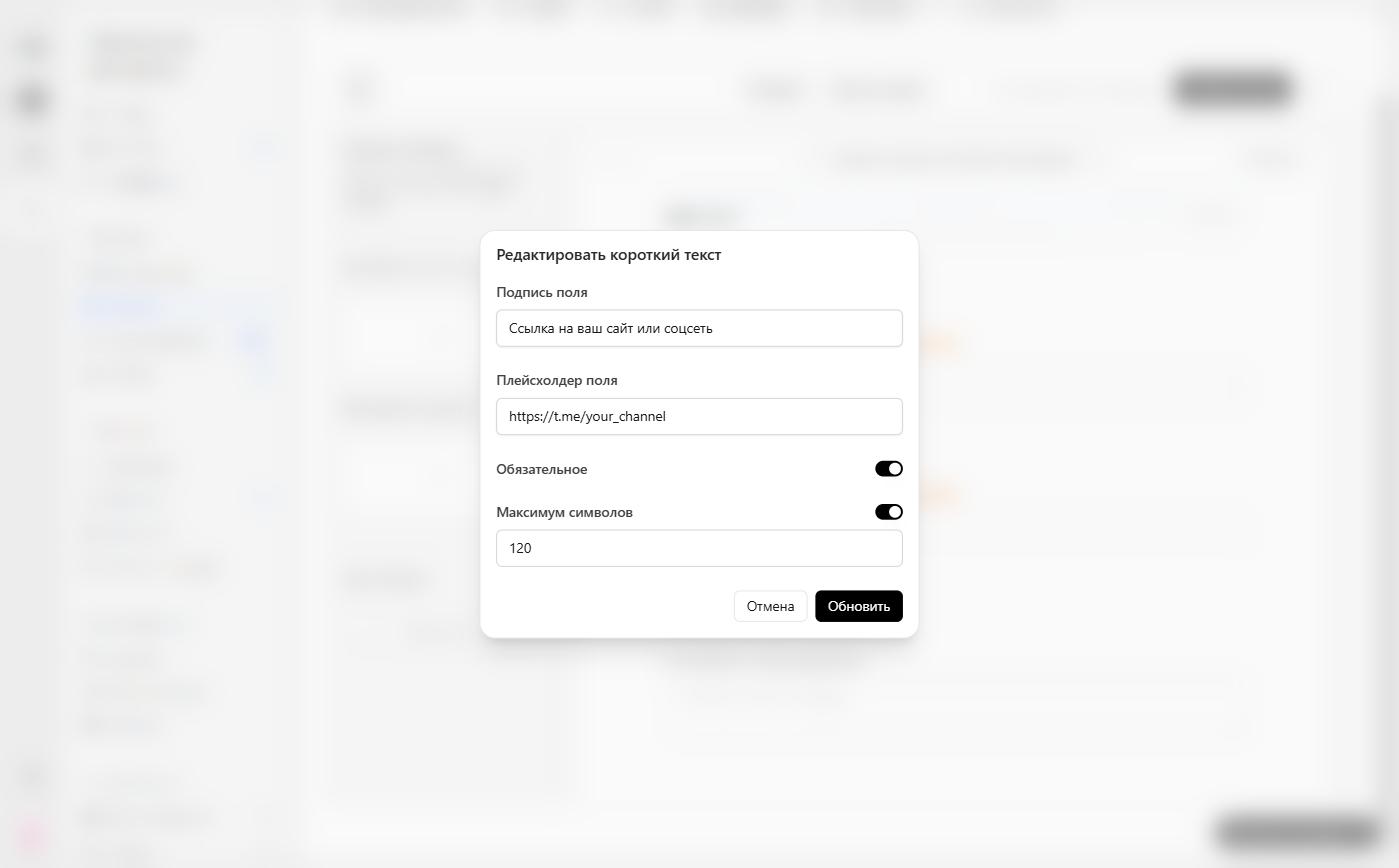
| Option | Details | Example |
|---|---|---|
| Field label | The question above the field | ”Link to your website or social page” |
| Field placeholder | Guidance shown inside the empty field | https://t.me/your_channel |
| Required | Make the field mandatory | Yes |
| Max characters | Set a character limit | 120 |
Long text
Use for longer responses that need multiple lines. The options are the same as for short text.
| Option | Details | Example |
|---|---|---|
| Field label | The question above the field | ”Tell us about your audience” |
| Field placeholder | Guidance shown inside the empty field | ”Topics, reach, platforms” |
| Required | Make the field mandatory | No |
| Max characters | Set a character limit | 500 |
Dropdown
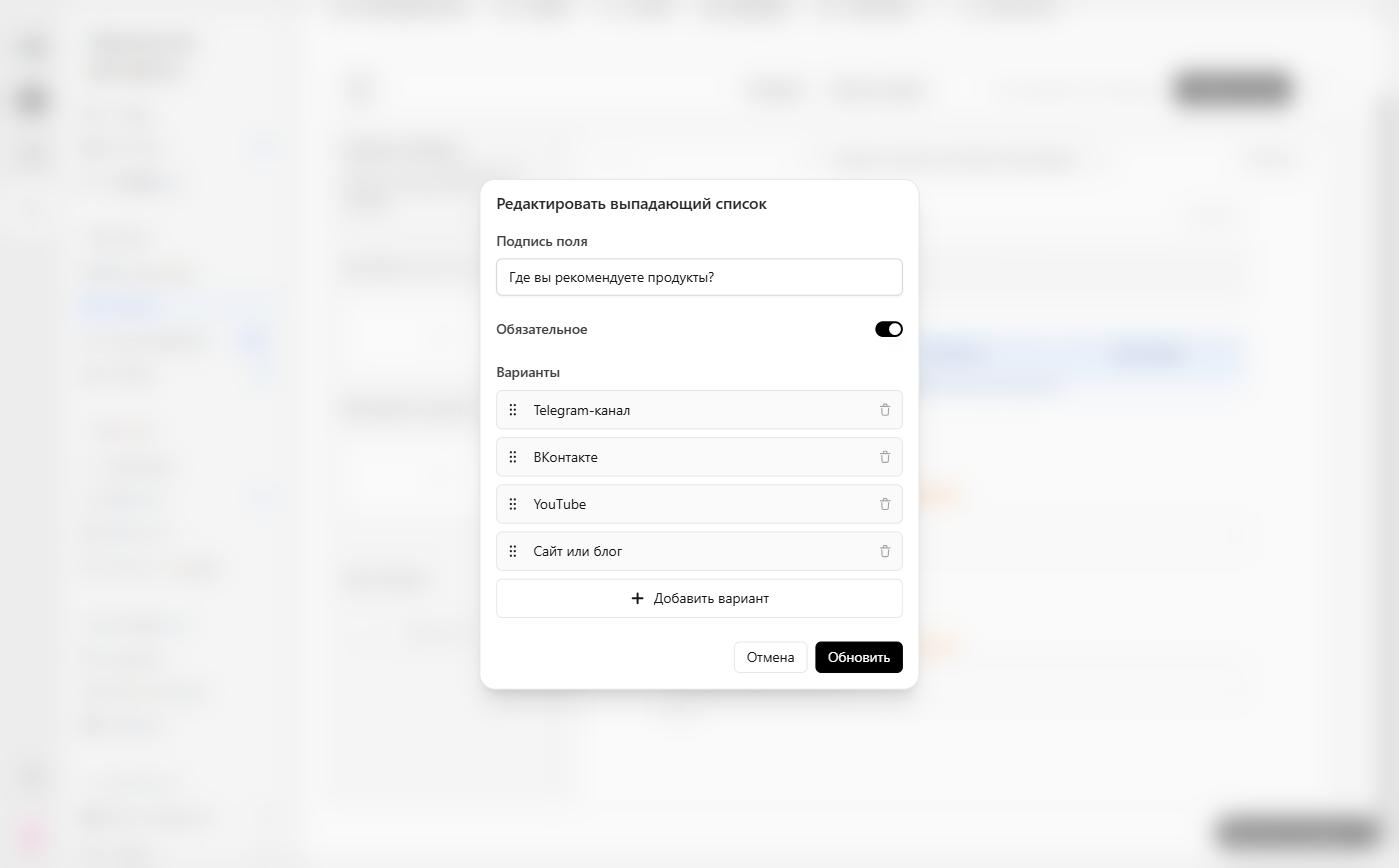
Best when you have many options. You can add, delete, and reorder options by dragging.
| Option | Details | Example |
|---|---|---|
| Field label | The question above the field | ”Where do you recommend products?” |
| Required | Make the field mandatory | Yes |
| Options | The choices the applicant sees | ”Telegram channel”, “VK”, “YouTube”, “Website or blog” |
Multiple choice
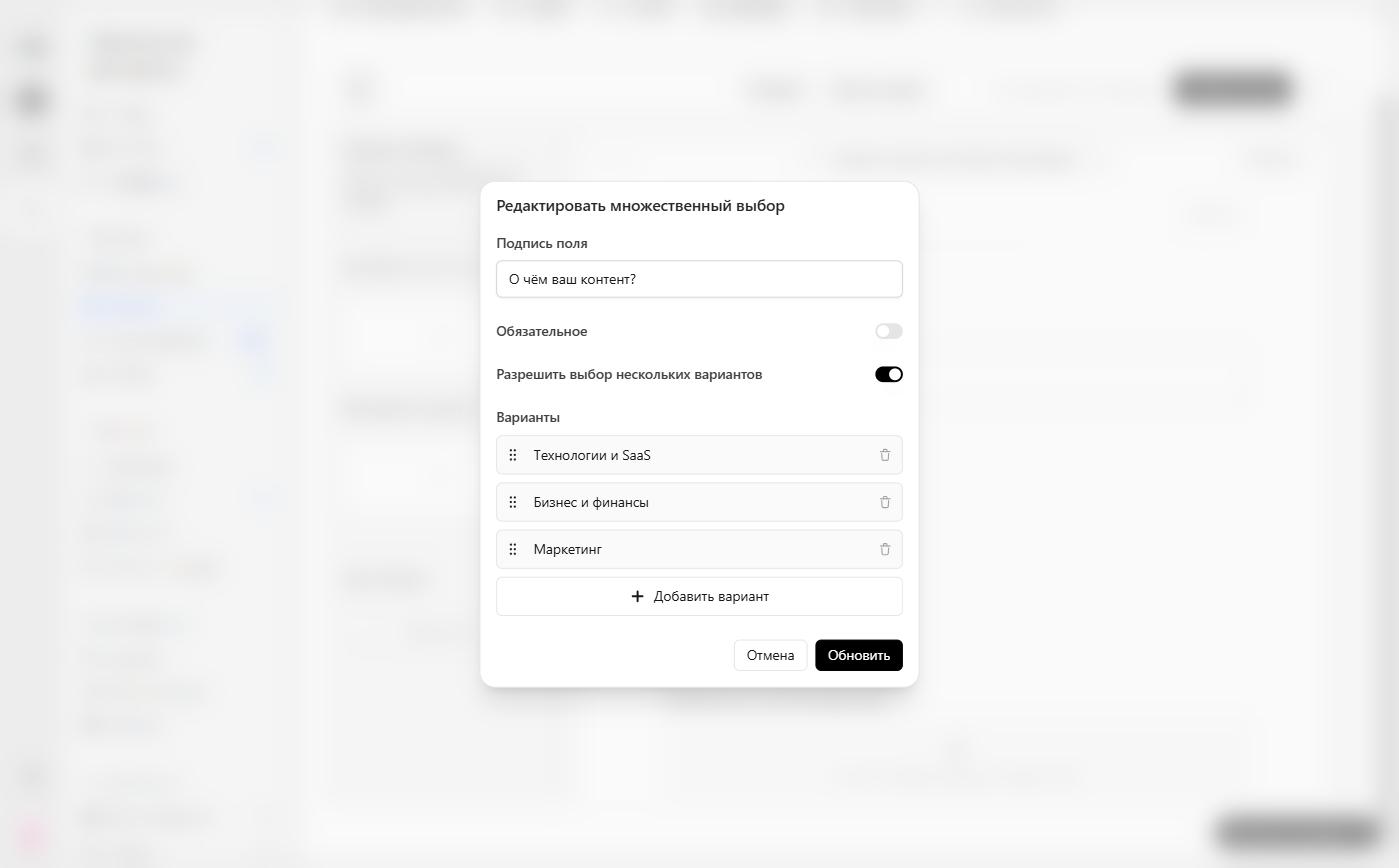
All options are visible at once — handy for a short set of answers. By default, applicants pick one option; turn on Allow multiple selections to let them pick several.
| Option | Details | Example |
|---|---|---|
| Field label | The question above the field | ”What is your content about?” |
| Required | Make the field mandatory | No |
| Allow multiple selections | Several answers instead of one | Yes |
| Options | The choices the applicant sees | ”Tech & SaaS”, “Business & Finance”, “Marketing” |
Image upload
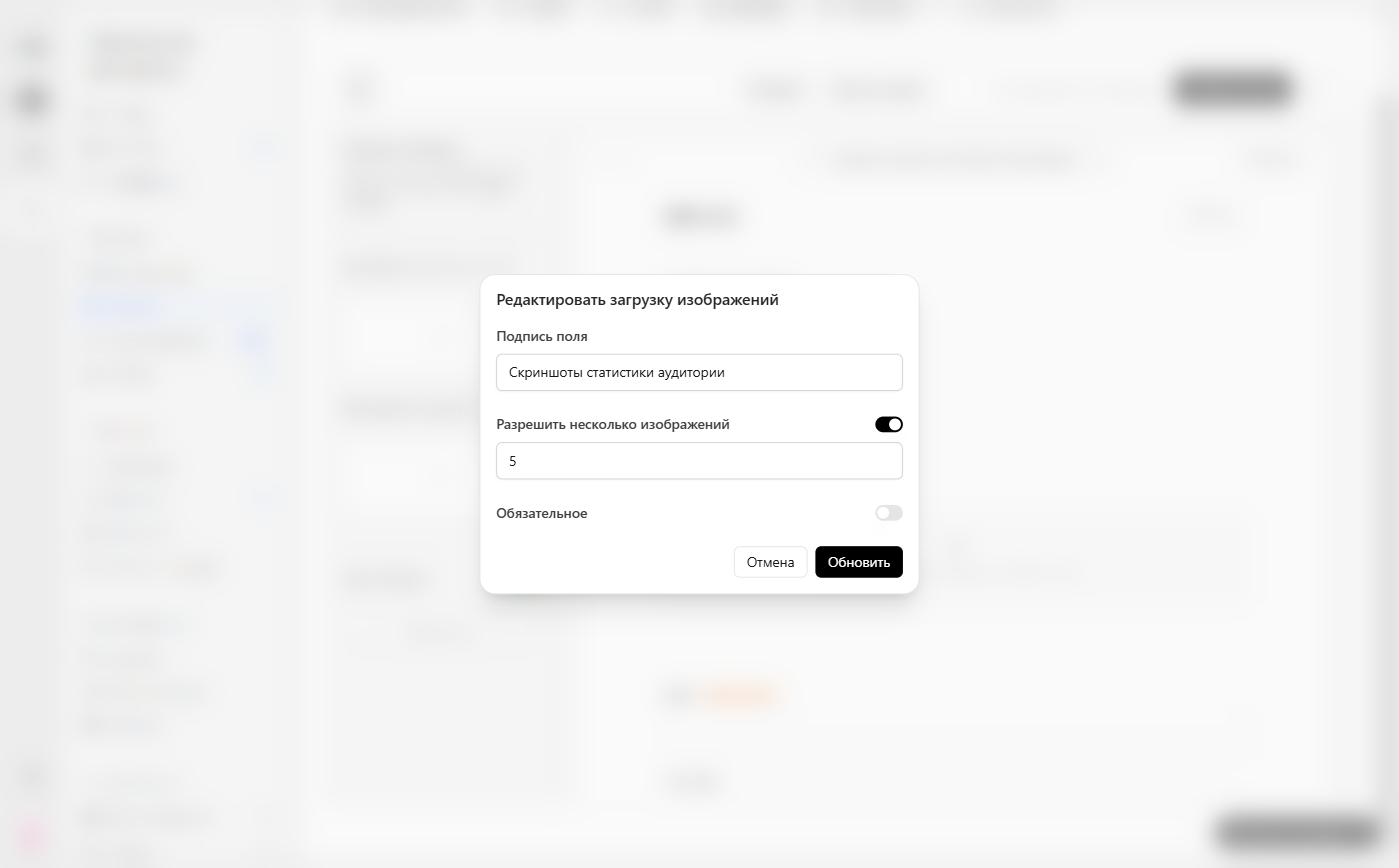
Let applicants attach images — e.g. analytics screenshots or work samples. JPG, PNG, and WebP files up to 5 MB are accepted.
| Option | Details | Example |
|---|---|---|
| Field label | The question above the field | ”Audience analytics screenshots” |
| Allow multiple images | Several files instead of one; set a maximum from 2 to 10 | Yes, up to 5 |
| Required | Make the field mandatory | No |
Website and socials
Ask for the applicant’s website and social accounts. Toggle each platform on or off — website, Instagram, YouTube, X/Twitter, TikTok, LinkedIn — and mark any required. For example, you might require a website but make YouTube optional.
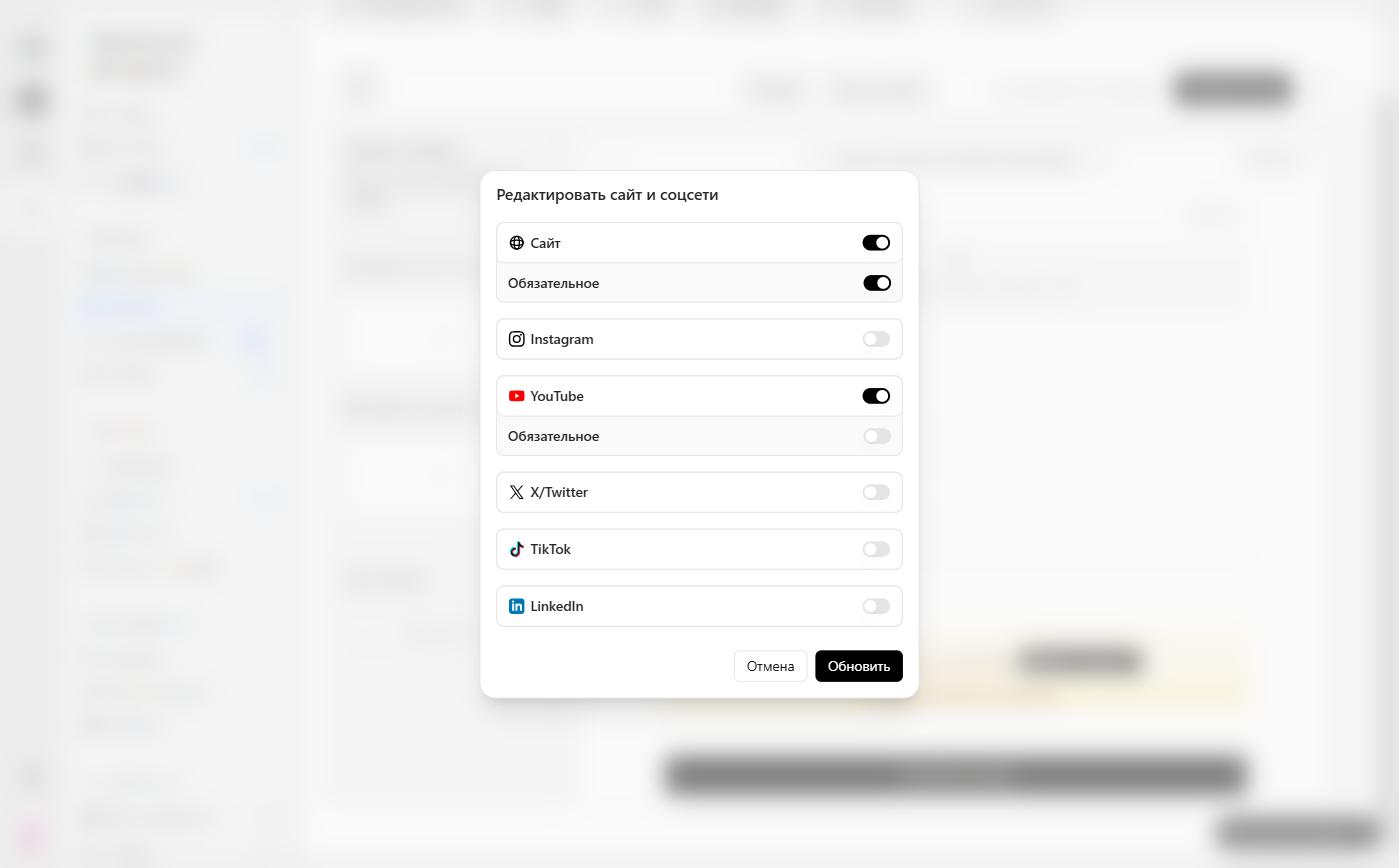
You can only add one website and socials field per form: once it’s there, the type no longer appears in the Insert field dialog. Ask for a Telegram channel or VK page with a short text field.
Program terms agreement
The form ends with a required Program terms agreement checkbox. The Add link button next to it opens the Resources page, where you set your terms URL in the Terms of use field.
Publishing your changes
As with the landing page, unpublished changes are marked Unsaved draft and exist only in your browser. When the form is ready, click Publish in the top right corner of the editor.