Managing partner commissions
This feature is only available on Business plans and above .
Where to find your program commissions?
In the program menu, open Commissions under Insights. The top of the page summarizes how many commissions you have and for what amount — in total, pending, processed, and paid. Below is the table of all program commissions with a filter and a date range picker.
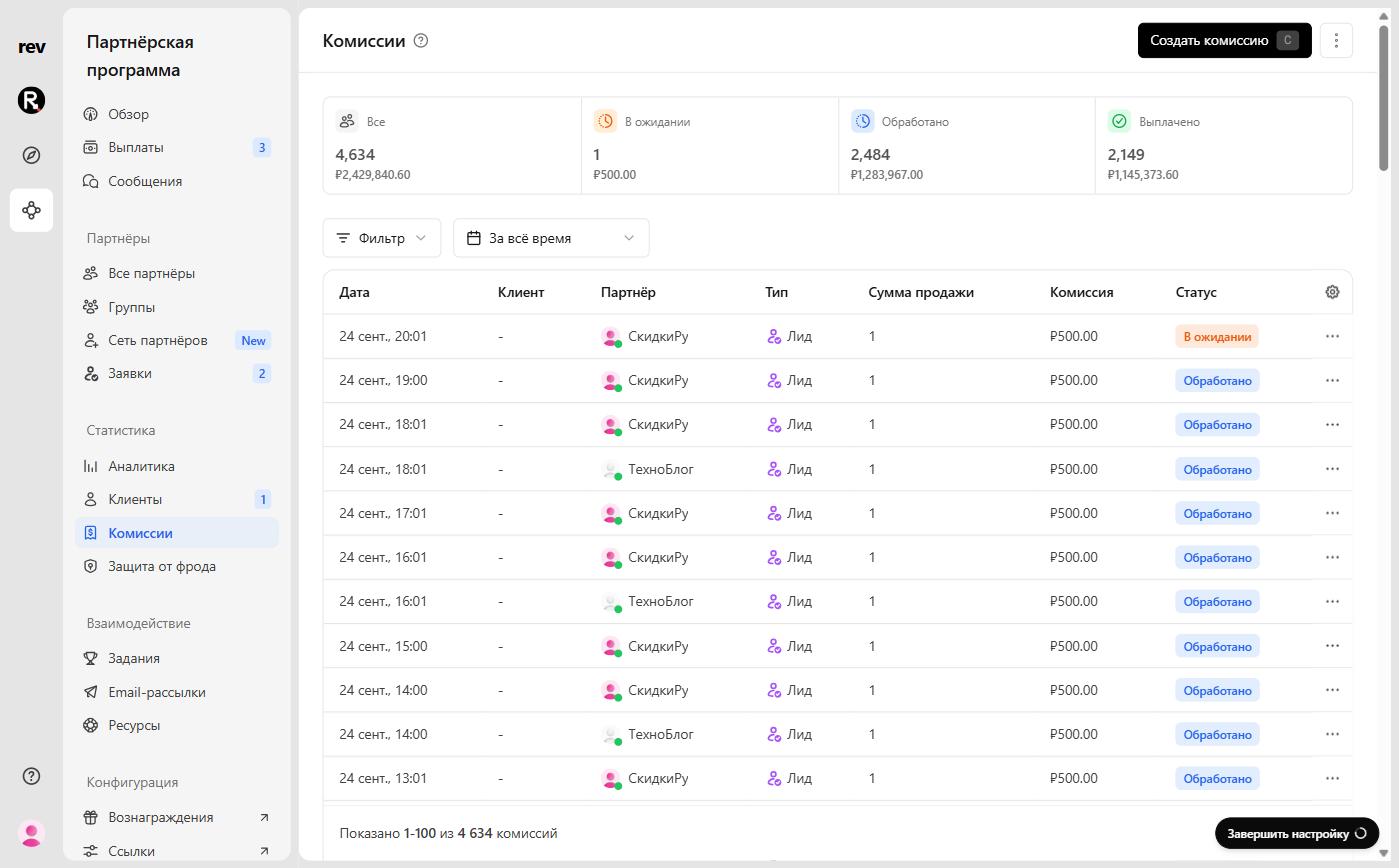
| Column | Data |
|---|---|
| Date | Commission date |
| Customer | The customer associated with the lead or sale |
| Partner | The partner receiving the commission |
| Type | Click, lead, sale, referral, or “Other” — the label for manual one-time commissions |
| Sale amount | The sale amount, or a count for clicks, leads, and manual commissions |
| Commission | The amount the partner will receive |
| Status | The current commission status — see below |
Use the gear button in the table header to choose columns — for example, add Group. To download commissions, use the ⋮ menu → Export as CSV.
Commission statuses
A new commission moves through these statuses:
- Pending — the initial status. The commission waits for the partner group’s payout holding period — from zero to 90 days.
- Processed — the holding period is over and the commission is available for payout.
- Paid — the payout containing this commission has been sent.
A commission can also get one of these statuses:
- Refunded — the sale behind the commission was refunded. Set automatically when your billing system passes the refund event (YooKassa or a custom integration), or via the RevRoute API.
- Fraud — the commission was deemed fraudulent.
- Duplicate — the commission was deemed a duplicate and excluded from all upcoming payouts.
- Canceled — the commission was canceled, e.g. for a self-referral sale.
- On hold — the commission is paused, e.g. while fraud events are being reviewed.
To mark a commission manually, use the ⋯ menu on its row: Mark as duplicate, Mark as fraud, or Cancel commission. RevRoute asks you to confirm — the action can’t be undone. Marking as fraud and canceling can be applied to all past and future commissions of the same customer–partner pair.

Creating manual commissions
Sometimes you need to create a commission manually — e.g. to pay a bonus or account for a sale missed due to a tracking error. Manual commissions are included in the partner’s next payout.
Click Create commission (or press C) on the Commissions page or in a partner’s profile. In the Create commission sheet, pick the partner and the commission type: One-time, Lead, or Recurring sale.
One-time commissions
A bonus, reimbursement, or any other payout not tied to a customer, referral link, or sale.
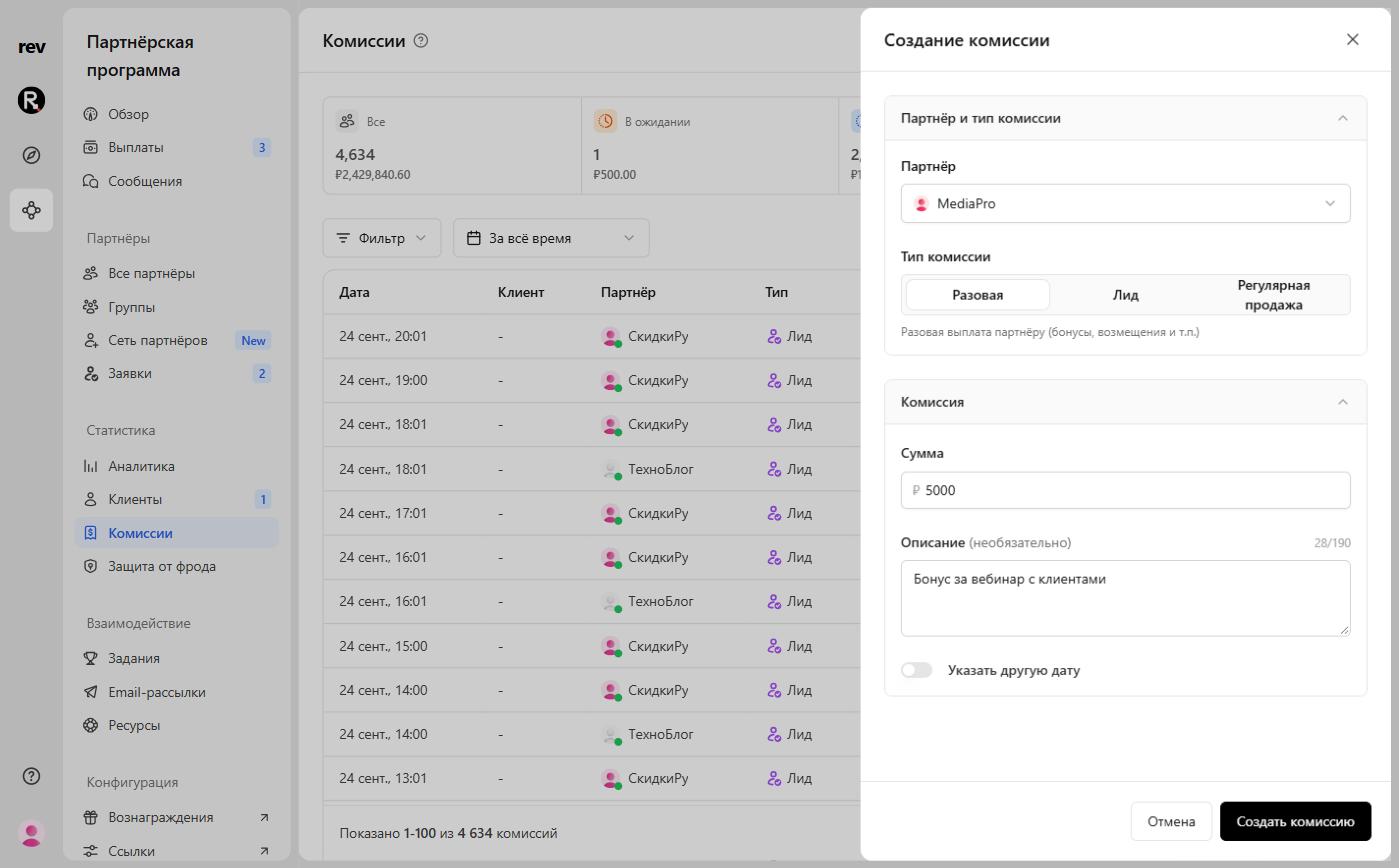
| Field | Description | Required |
|---|---|---|
| Amount | The commission amount in rubles | ✅ |
| Description | An optional description, up to 190 characters | ❌ |
| Set custom date | The commission date; defaults to today | ❌ |
Lead commissions
A reward for a qualified sign-up or referral. The amount is calculated automatically from the lead reward of the partner’s group.
| Field | Description | Required |
|---|---|---|
| Referral link | The partner link the lead is tied to | ✅ |
| Customer | The customer associated with the lead; you can create a new one right here | ✅ |
| Set custom lead event date | The event date; defaults to today | ❌ |
| Set custom lead event name | The lead event name | ❌ |
Recurring sale commissions
A reward for a subscription payment by a referred customer. The commission is calculated from the sale reward once you enter the sale amount.

| Field | Description | Required |
|---|---|---|
| Referral link | The partner link the sale is tied to; available once a partner is selected | ✅ |
| Customer | The customer associated with the sale; you can create a new one right here | ✅ |
| Sale amount | The sale amount in rubles; appears once a customer is selected | ✅ |
| Set sale date | The sale date; defaults to today | ❌ |
| Invoice ID | The sale’s invoice ID — can be used to retrieve the commission via the API | ❌ |
| Product ID | The ID of the product sold | ❌ |
Creating a new customer
If the customer doesn’t exist in RevRoute yet, open the Customer list and select Create new customer to open the New customer dialog.

| Field | Description | Required |
|---|---|---|
| Name | The customer’s name | ❌ |
| The customer’s email | ❌ | |
| Country | The customer’s country — used in analytics and country-specific rewards; Russia by default | ✅ |
| External ID | Your unique ID for this customer — e.g. your database ID or email | ✅ |
Once created, you can attach commissions to the customer.
Creating clawbacks
If a partner was credited too much, create a clawback — a negative commission deducted from the partner’s next payout.
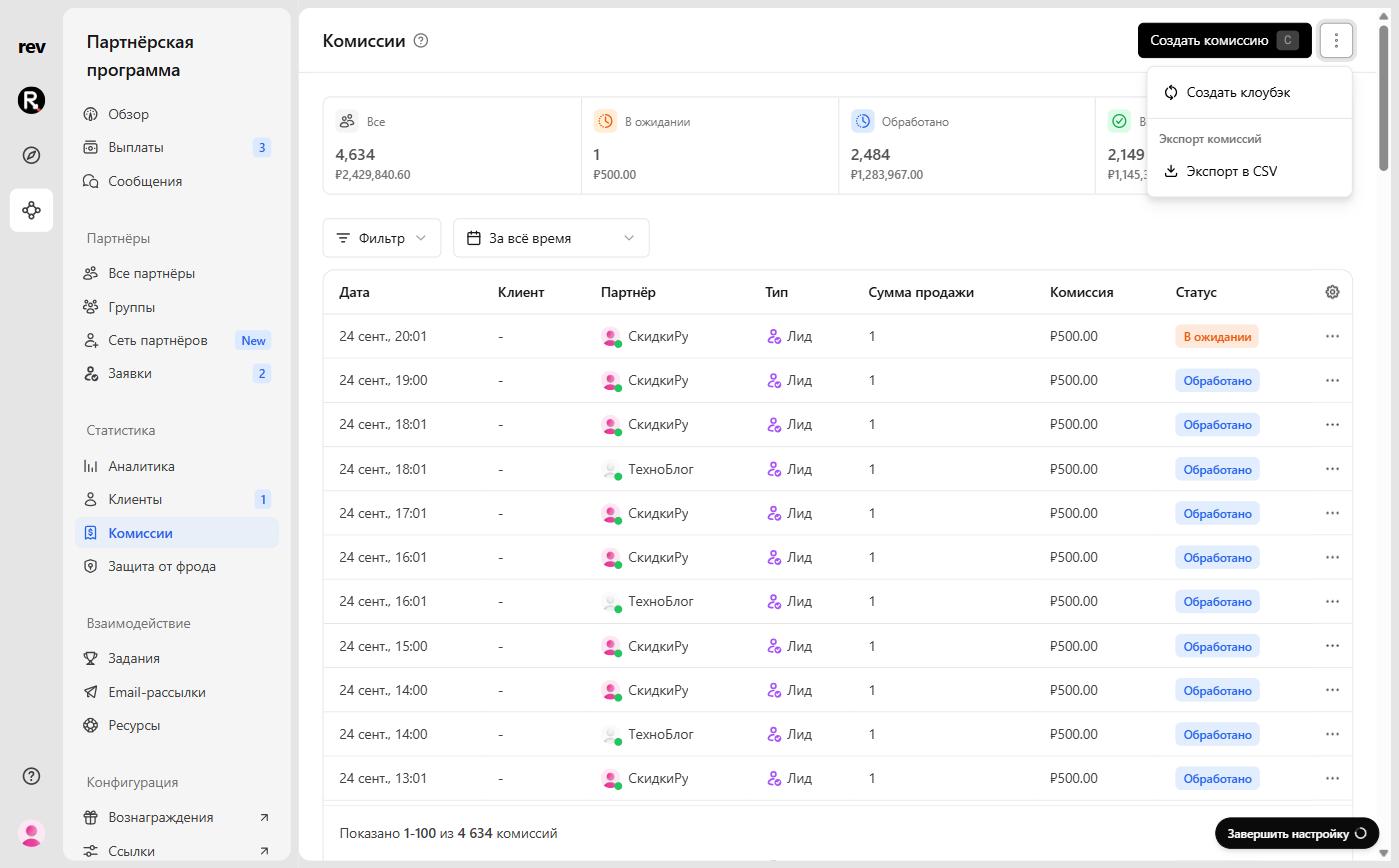
Open the ⋮ menu next to Create commission and select Create clawback. You can also create a clawback from the partner profile: ⋮ → Create commission refund — the partner is preselected.
In the Create clawback sheet, set:
- Partner — the partner the amount is withheld from;
- Amount — the clawback amount;
- Reason — order canceled, fraud, terms violation, tracking error, payment failed, ineligible partner, duplicate commission, or other.
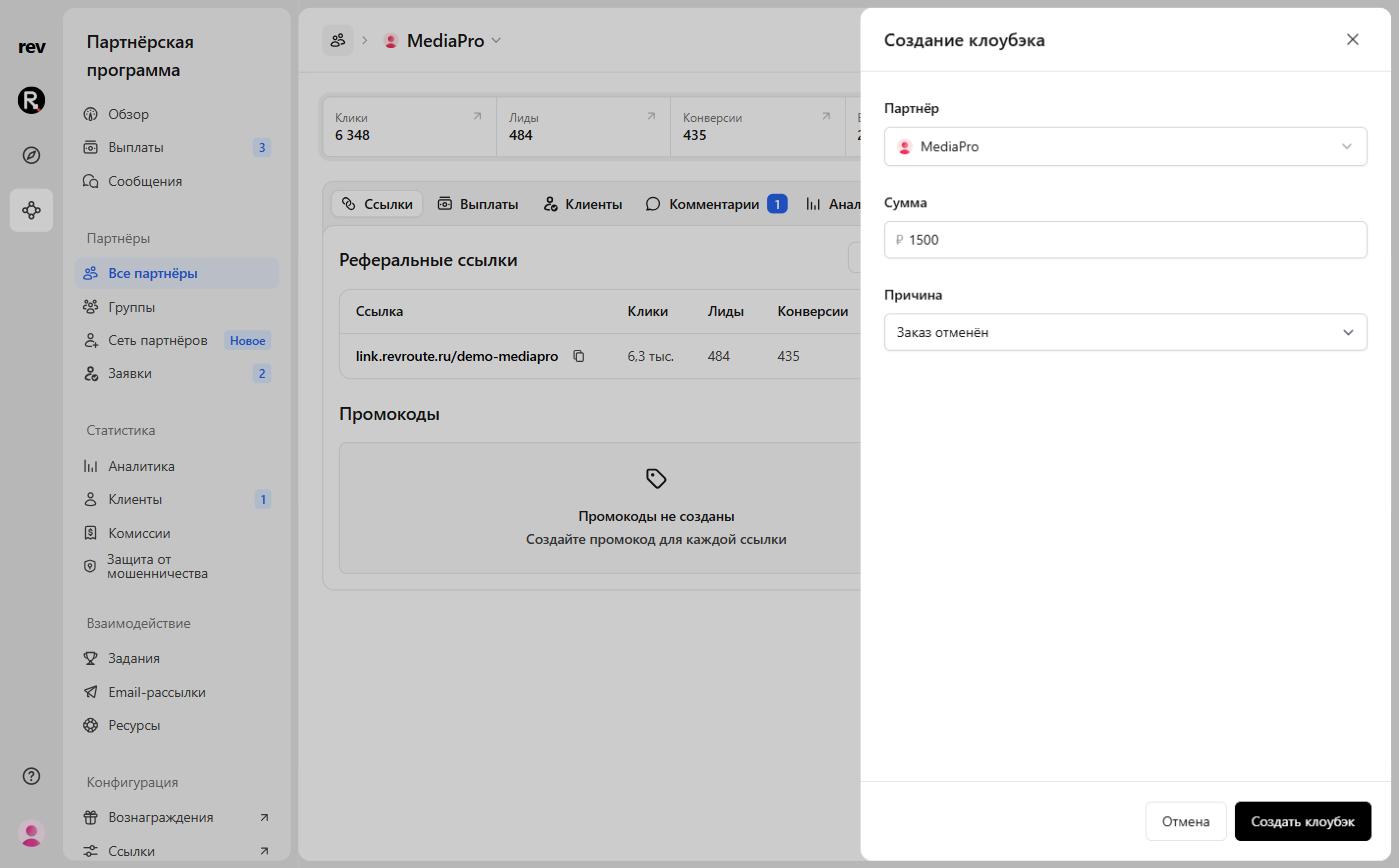
Click Create clawback — it appears in the commissions table as a negative commission.