Several managers in one partner account
Managers don’t need to sign up separately or join the program again. You keep one partner account, invite your managers to it and create a link for each of them. Clicks, leads and sales are counted per link, so you can see what each manager brought in.
Screenshots show the Russian interface; button names are given in both languages.
Invite your managers
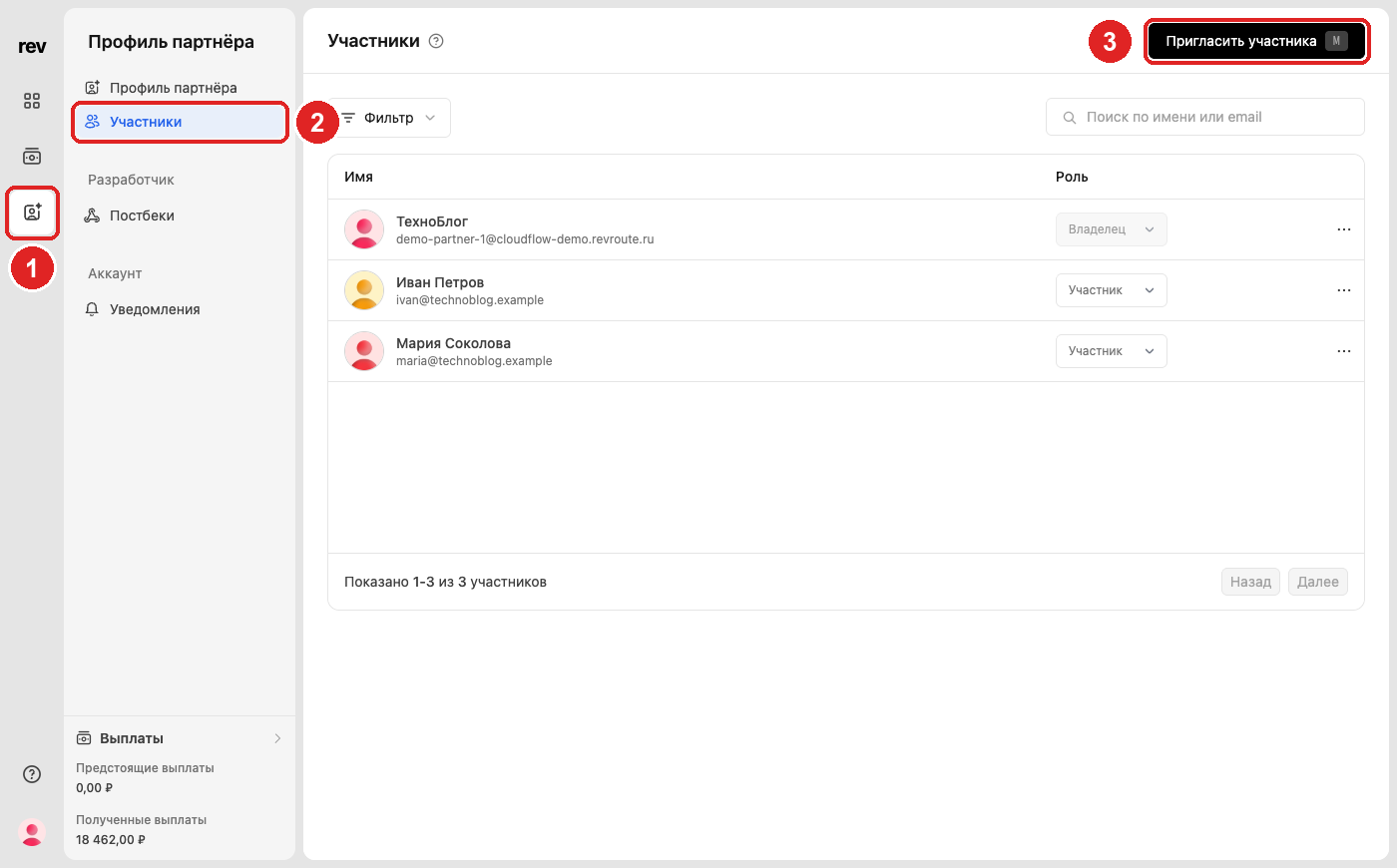
1. Profile icon
In the left panel of the partner dashboard, click the profile icon.
2. Members
In the profile menu, open Members («Участники»).
3. Invite member
Click Invite member («Пригласить участника») in the top right corner, or press M.
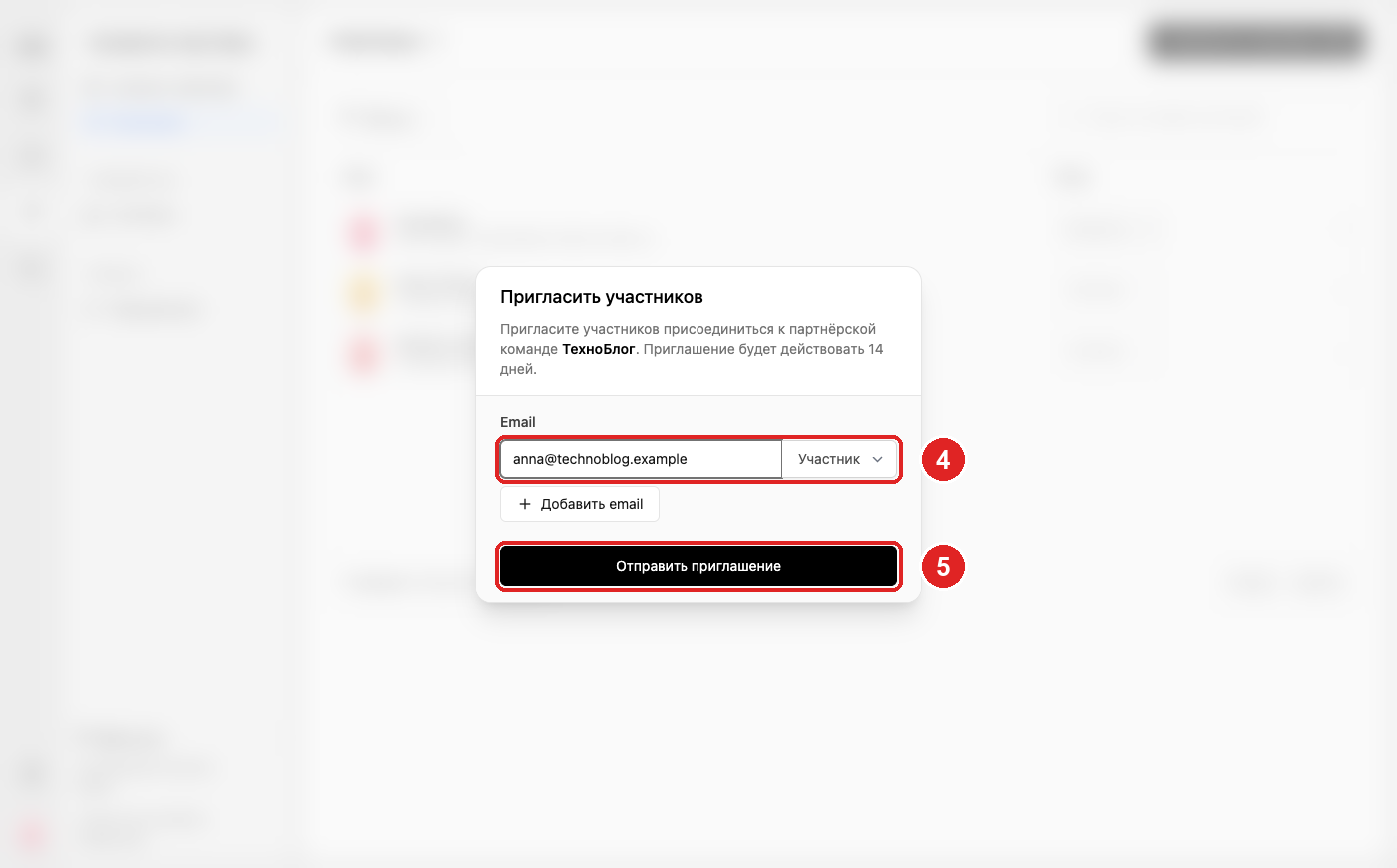
4. Email and role
Enter the manager’s email and keep the Member («Участник») role. Add email adds another row, so you can invite several people at once.
5. Send the invite
Click Send invite («Отправить приглашение»). The manager receives an email with a link; the invite is valid for 14 days.
The Member role works with programs and links but can’t manage the team or payout details — that stays with the owner. More on roles in Inviting your partner team.
Create a link for each manager
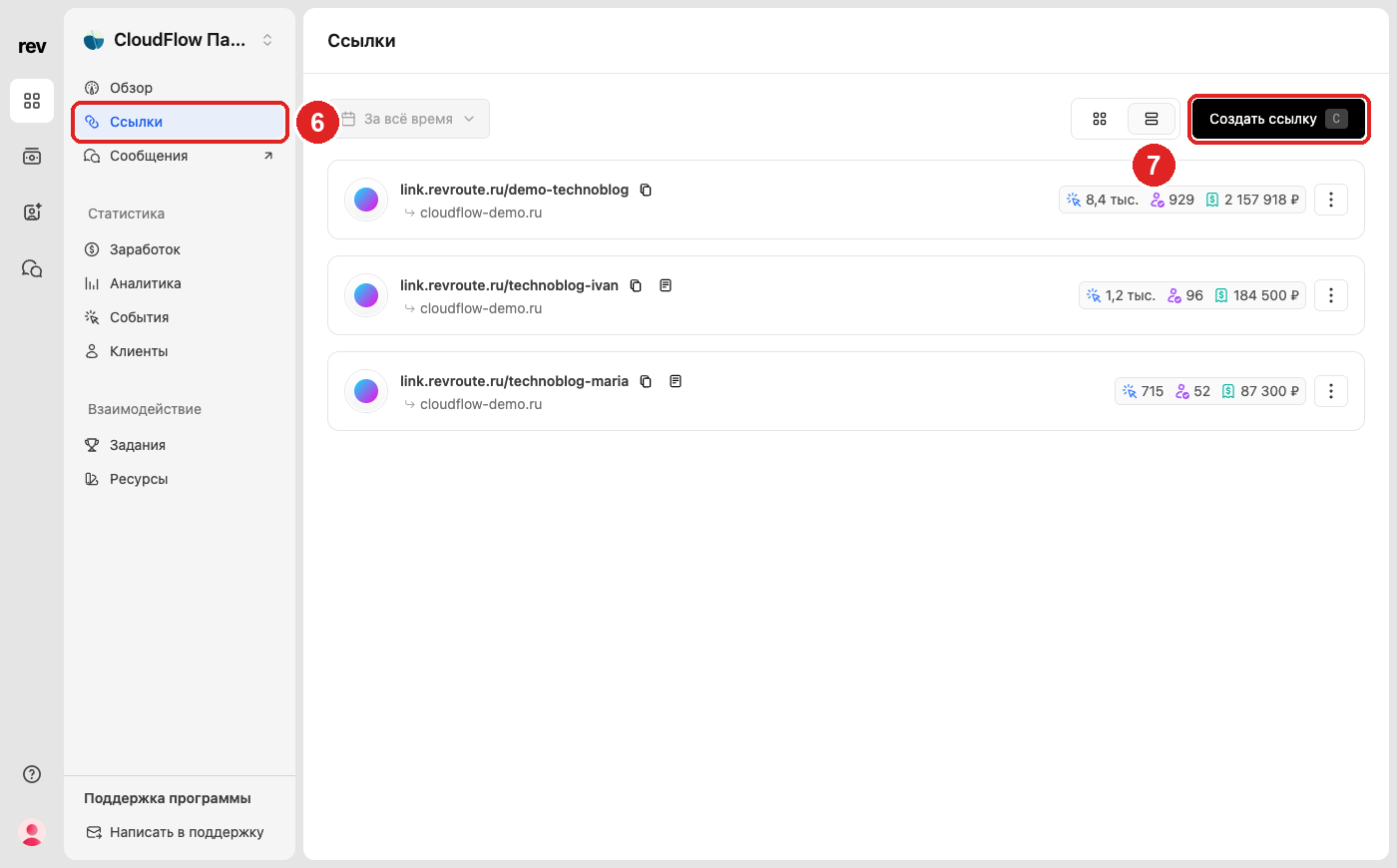
6. Open the program’s links
Go to the program and open Links («Ссылки») in the left menu.
7. Create link
Click Create link («Создать ссылку»), or press C.
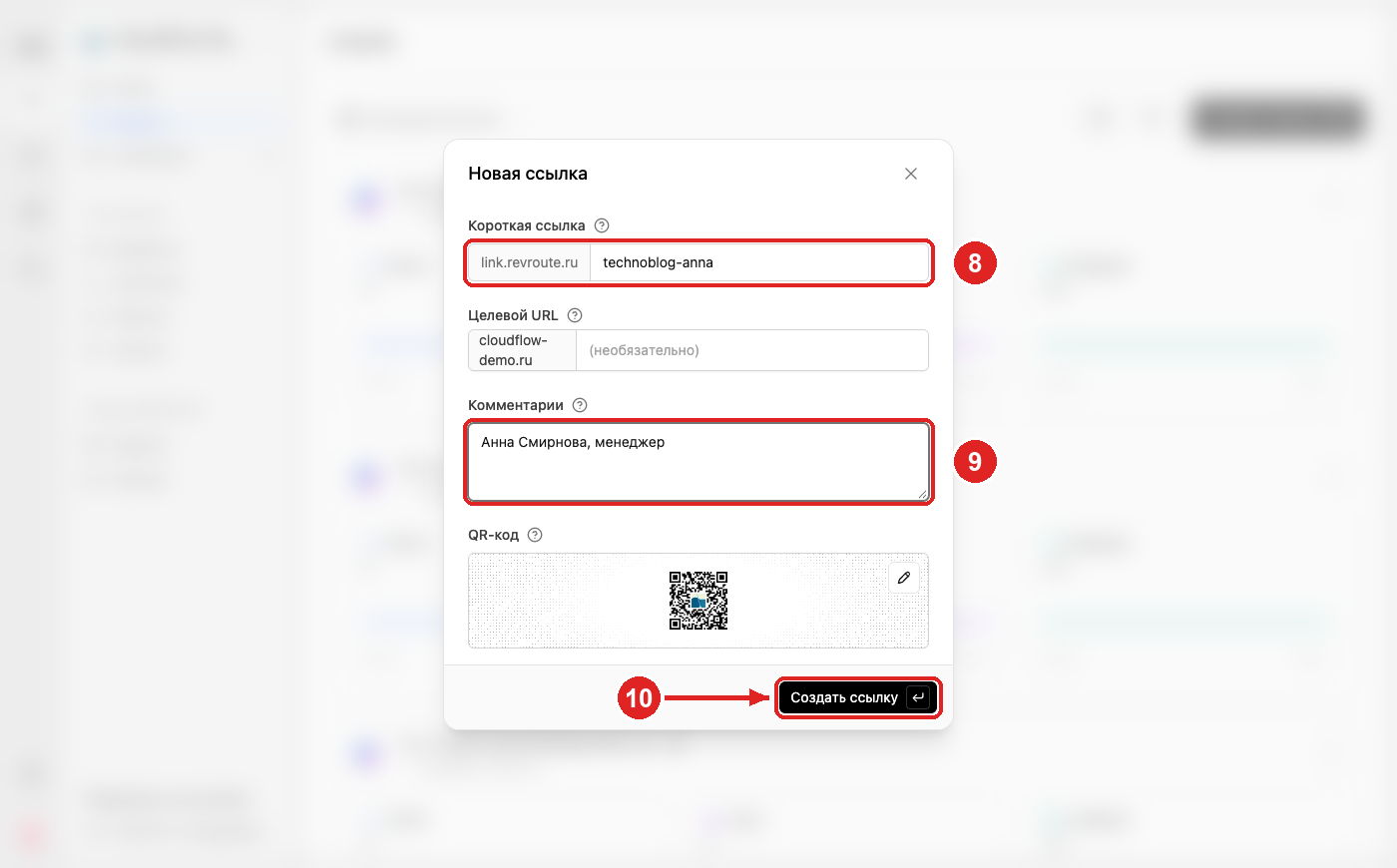
8. Short link with the manager’s name
In Short link («Короткая ссылка»), enter a clear name such as your-company-anna. You can leave Destination URL empty — the link will lead to the program’s website.
9. Comment
In Comments («Комментарии»), note whose link it is: “Anna Smith, manager”. Comments are visible to everyone in the account.
10. Create the link
Click Create link and hand it to the manager. Repeat steps 7–10 for each manager.
If Create link is disabled, your group has reached the program’s link limit or the program doesn’t let partners create their own links. Contact the program’s support.
See results per manager
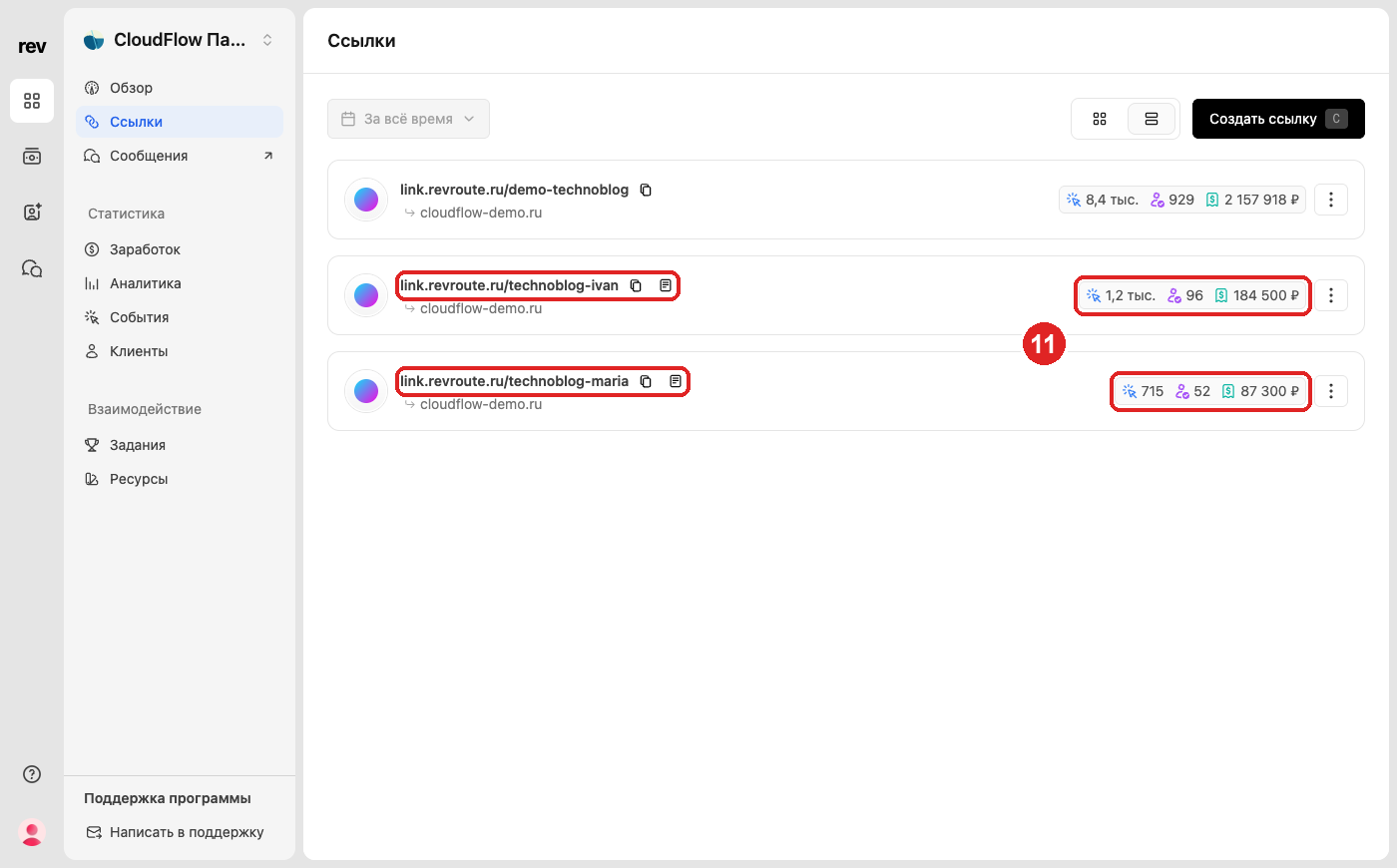
11. Clicks, leads and sales per link
The Links page shows clicks, leads and sales for every link. The icon next to the period switches the view: the compact list shows all-time totals, cards show charts for the selected period. Click a link to open analytics for that link only.
Good to know
- Rewards go to the partner account as a whole, not to a specific manager. Links show who brought what; splitting the rewards inside your company is up to you.
- Everyone in the account sees all links. A link is tied to a manager only by its name and comment.
- If a manager needs separate commissions and payouts, they need their own partner account with their own program enrollment.