How to create public analytics dashboards on RevRoute
On RevRoute, you can create a public analytics dashboard for your short links or link folders.
This allows you to share the analytics for a given short link (or a folder of links) with clients or other external stakeholders without having to invite them to your RevRoute workspace.
For further control, you can also show conversion analytics, set a password, or enable search engine indexing for the dashboard.
In this guide, we’ll go over how to set up public analytics dashboards and the options available.
Creating a shared analytics dashboard for a short link
There are two ways to enable a public analytics dashboard for a given short link:
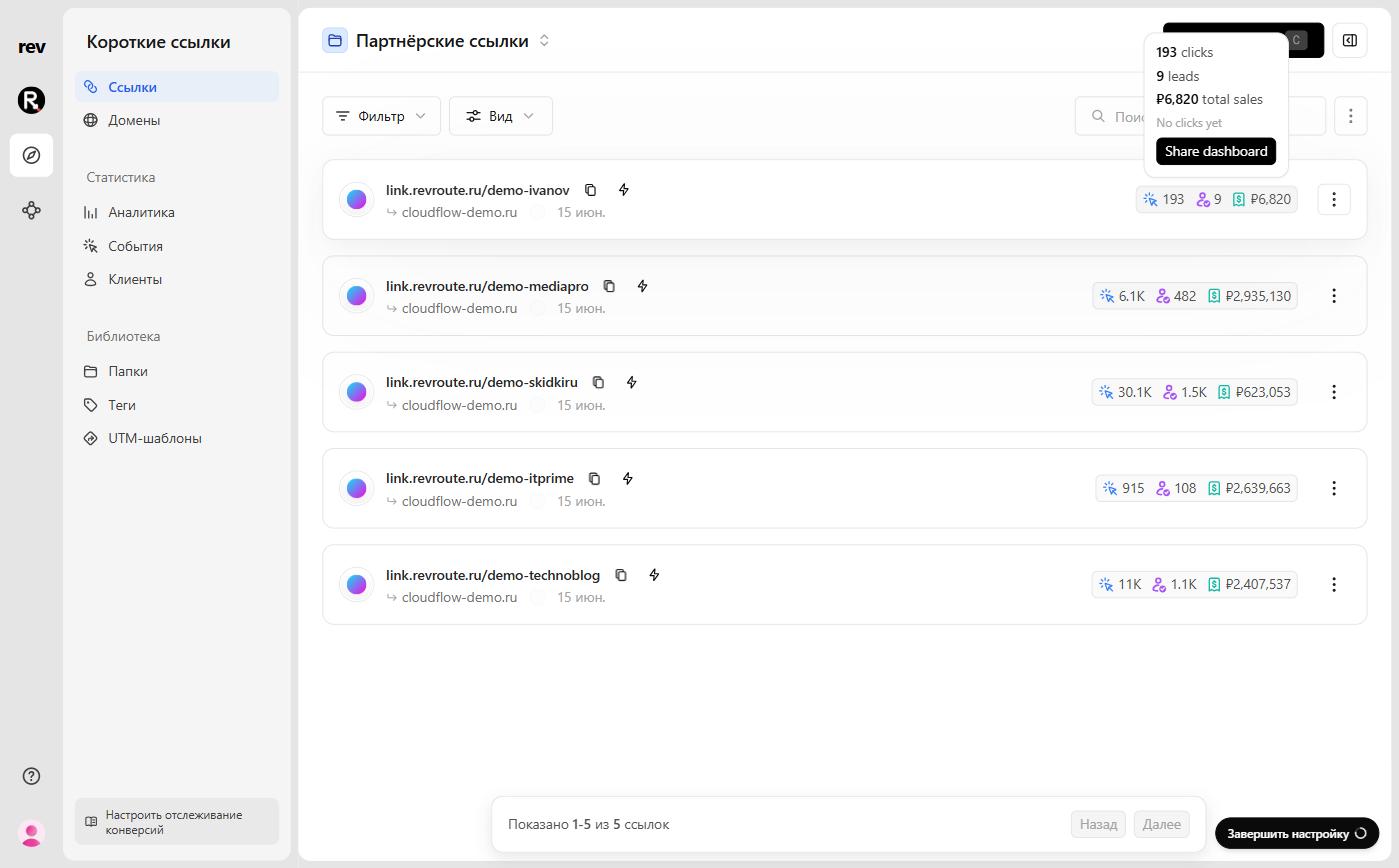
Option 1: On the links list, hover over the click counter on a link’s card — a stats popup will appear. Click the Share dashboard button inside it.
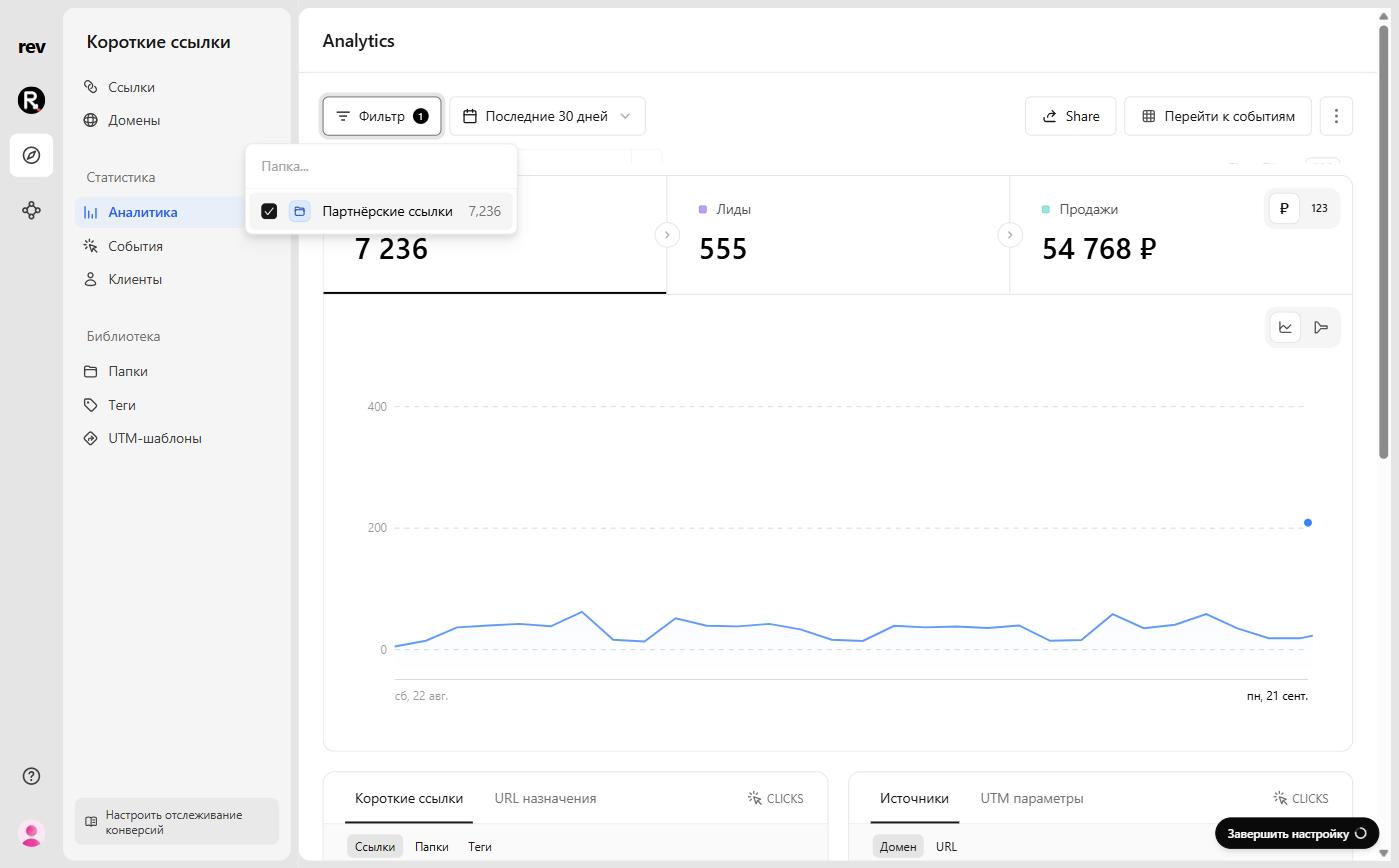
Option 2: On the analytics page, apply a filter by folder or link — the Share button will appear in the toolbar. The button is not shown on the unfiltered dashboard.
Then, inside the Share dashboard modal, toggle the Enable public sharing switch to ON.

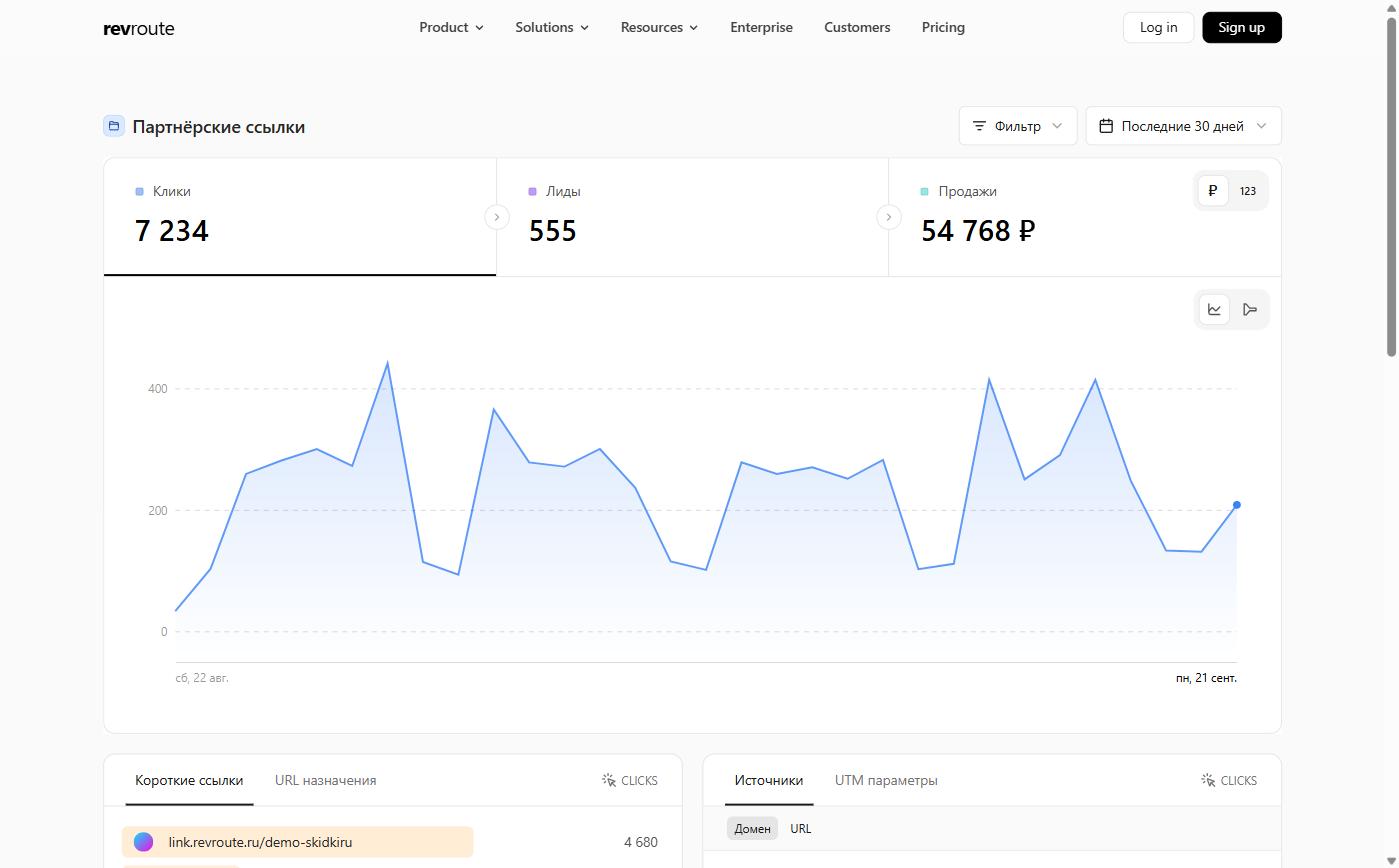
RevRoute immediately creates a public page for your link’s analytics and automatically copies the link to your clipboard. Here’s an example .
Creating a shared analytics dashboard for a link folder
There are two ways to enable a public analytics dashboard for a given link folder:
Option 1: On the folders list, open the folder’s ⋮ menu and select Share analytics.

Option 2: Same as for a short link: on the analytics page, apply a filter by the folder — the Share button will appear in the toolbar.
Then, inside the same Share dashboard modal, toggle the Enable public sharing switch to ON.
Sharing settings
The following settings are available for both short links and link folders.
Show conversion analytics
If you enable the Conversion analytics toggle, the shared dashboard will also include your lead and sales analytics.
Here’s how the dashboard looks with conversion analytics enabled:
With Conversion analytics turned off, the public dashboard shows clicks only.
Setting a password
You can also set a password for your public analytics dashboard to further secure the page. To do that, in the same Share dashboard modal, toggle the Password protection switch to ON, set a password in the field that appears, and click Save changes.
Then, when someone visits the public analytics dashboard, they will be prompted to enter the password in order to view the page.
Search engine indexing
If you want to enable search engine indexing for your public analytics dashboard, toggle the Search engine indexing switch to ON and click Save changes.
This will make the page more discoverable by search engines like Google.
Otherwise, public analytics dashboards are served with a noindex meta tag by default, which tells search engines not to index the page.
html <meta name="robots" content="noindex, nofollow" />
How to disable a public analytics dashboard
Follow the same steps as the “Creating a shared analytics dashboard for a short link” section above, but toggle the Enable public sharing switch to OFF.
RevRoute will automatically disable the public analytics page for the given link. You will still be able to view the analytics for the link on your RevRoute dashboard, but the public page will no longer be accessible.
Warning: By disabling a public analytics dashboard for a given link, your existing dashboard link will break and you’ll have to create a new one – which will have a different URL. This action is irreversible.