Managing your partners with groups
This feature is only available on Business plans and above .
Partner groups help you organize your program so it runs more efficiently. You can segment partners by rewards, discounts, performance, location, and more, making it easier to tailor incentives and track results.
What types of partner groups can I create?
Here are some examples of partner groups you can create on RevRoute:
By persona
- Agencies – Marketing or creative agencies promoting your product for their clients.
- Content creators – Bloggers, podcasters, or YouTubers producing relevant content.
- Media publishers – Websites, magazines, or networks with aligned audiences.
By vertical
- Students – University clubs, campus ambassadors, or student-led initiatives.
- Finance – Partners in banking, fintech, or investment sectors.
- Tech – Developers, SaaS providers, or technology-focused communities.
By performance tier
- Rising stars – New partners showing strong growth potential.
- Top performers – Consistently exceeding sales or referral targets.
- Elite partners – Highest earners driving significant revenue and strategic wins.
Where can I view my partner groups?
In your partner program menu, open Partners → Groups. The table shows how many partners each group has and the clicks, leads, conversions, revenue, and commissions they drive.
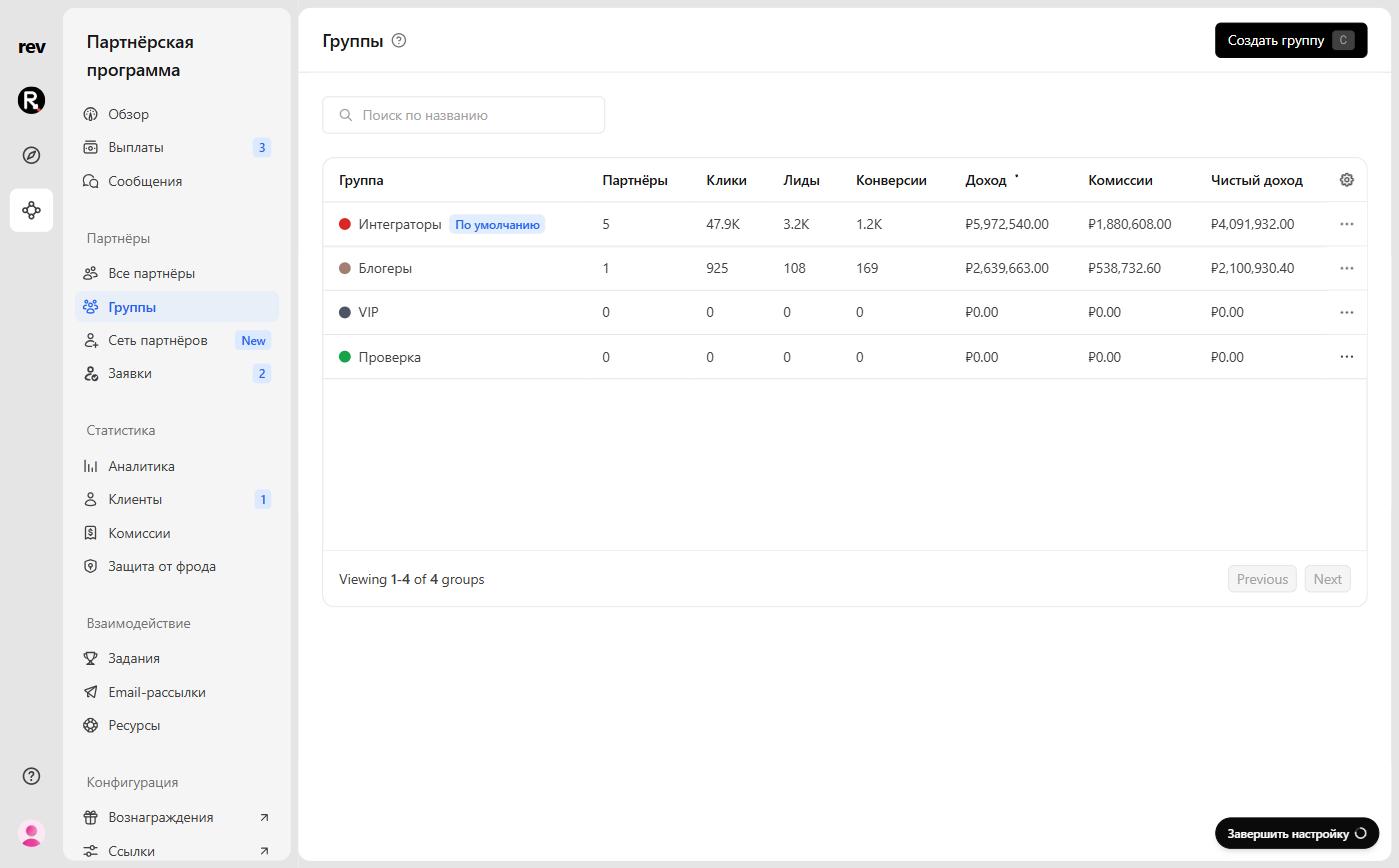
What is the default partner group?
Your program always has a group labelled Default — in the screenshot above it’s “Интеграторы”. It can be renamed at any time.
You cannot delete your default partner group. This group will also be the group that your partners will be reassigned to whenever you delete another partner group.
Creating a group
To create a group, click Create group in the top right corner or press C on your keyboard.
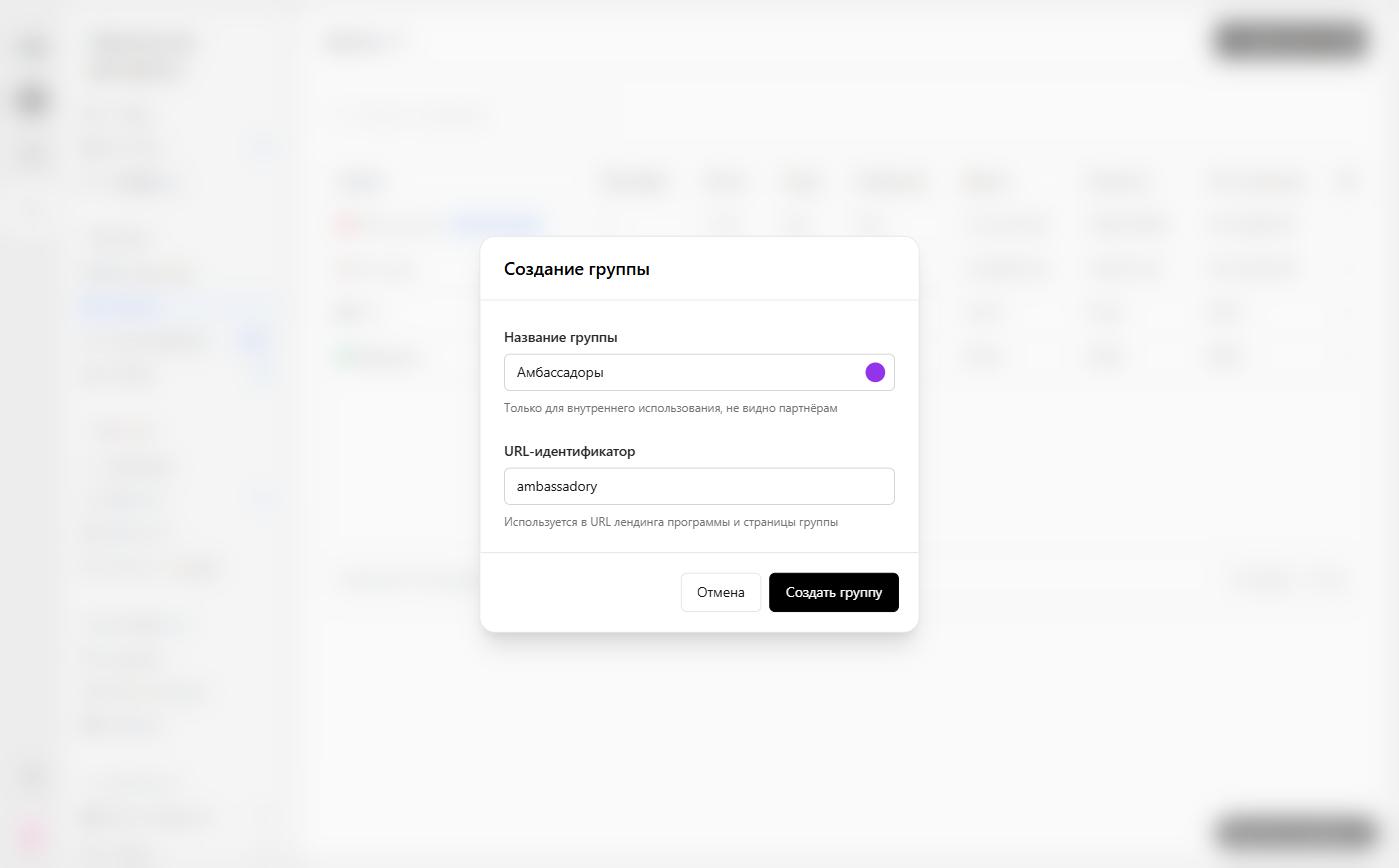
| Field | Description |
|---|---|
| Group name | Add a name to your group to help easily identify it later. Pick the group color with the dot on the right of the field. This name is for internal use only and is never visible to your partners. |
| URL identifier | Filled in automatically from the name. Each partner group uses a unique application landing page, which you can share with partners you want to automatically add to that group when they apply. Anyone you share the application link with can see it. |
Once the group is created, its non-editable Group ID appears in the group settings — you’ll use it to embed the RevRoute referral dashboard in your app.
Group rewards
Every partner group can have one of each of the following:
| Reward type | Description |
|---|---|
| Click-based (pay-per-click) | Rewarding partners for driving clicks to your product – similar to how Google Ads’ pay-per-click works. |
| Lead-based (pay-per-lead) | A more effective alternative to pay-per-click, where you reward partners for leads generated (e.g. demo requests, free trial signups, etc.) |
| Sale-based (pay-per-sale) | This is the most common reward type, where you reward partners for driving sales to your product either via a rev-share or fixed-price commission. |
Rewards live on the group page’s Rewards tab.
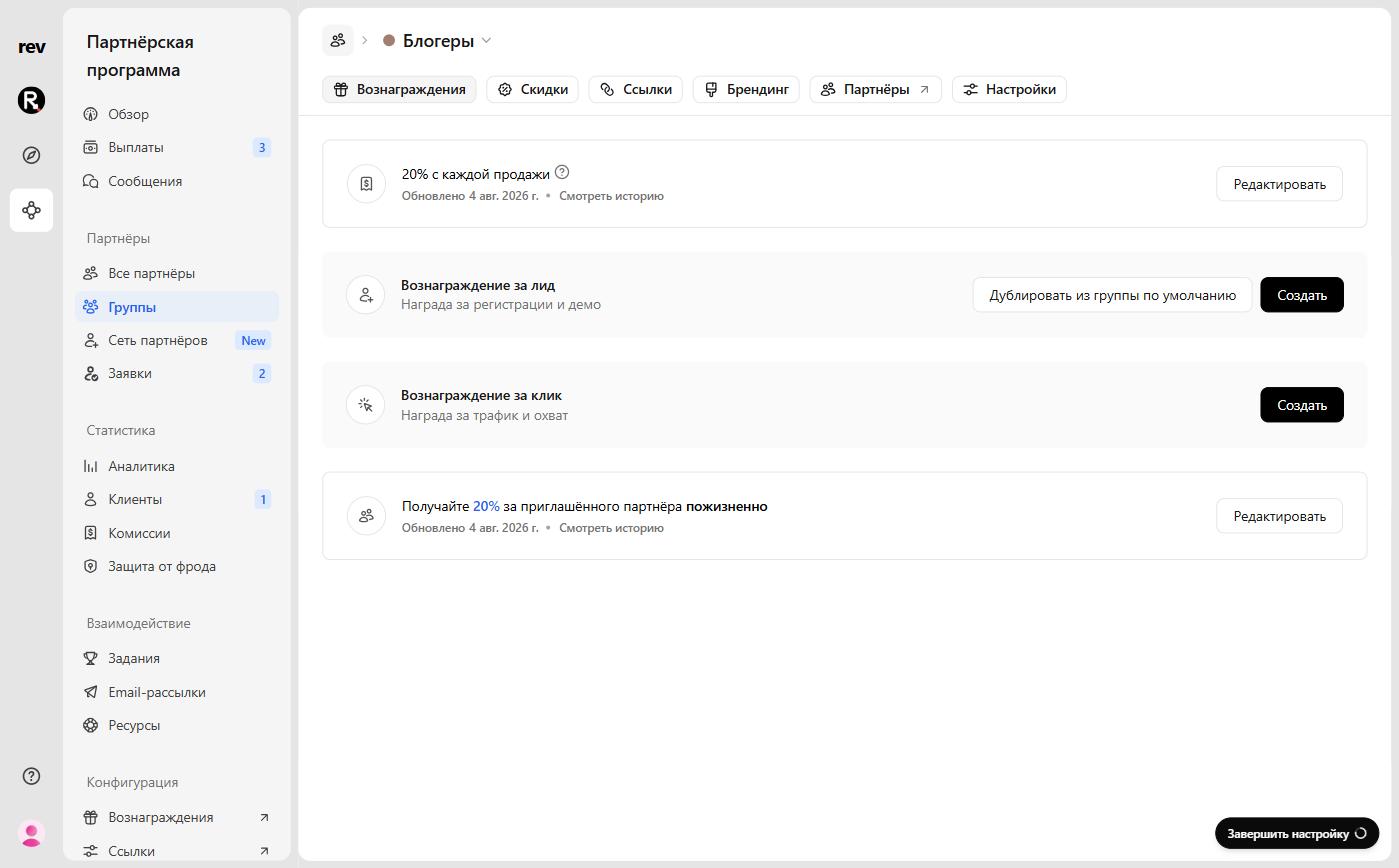
To create a reward, click Create on any of the reward types. Learn more about creating rewards here.
If you want to reuse a reward from your default group, click Duplicate from default group to copy over the parameters and save time.
Group discounts
You can also create dual-sided incentives for your affiliate/referral programs, which give special discounts to customers who sign up via a referral link. Some examples include:
- 25% discount for the first 12 months
- 30% lifetime discount
- ₽5,000 one-off discount
This can drive powerful word-of-mouth growth as partners are more likely to share their link if it gives their audience/user base additional discounts, and on the other hand, their users are more likely to click on their links as well if they’re getting a special deal.
You can create only one discount per group. To create a discount, open the group page’s Discounts tab and click Create.
Learn more about creating discounts here.
Group settings
Each group has individual settings on the group page’s Settings tab.
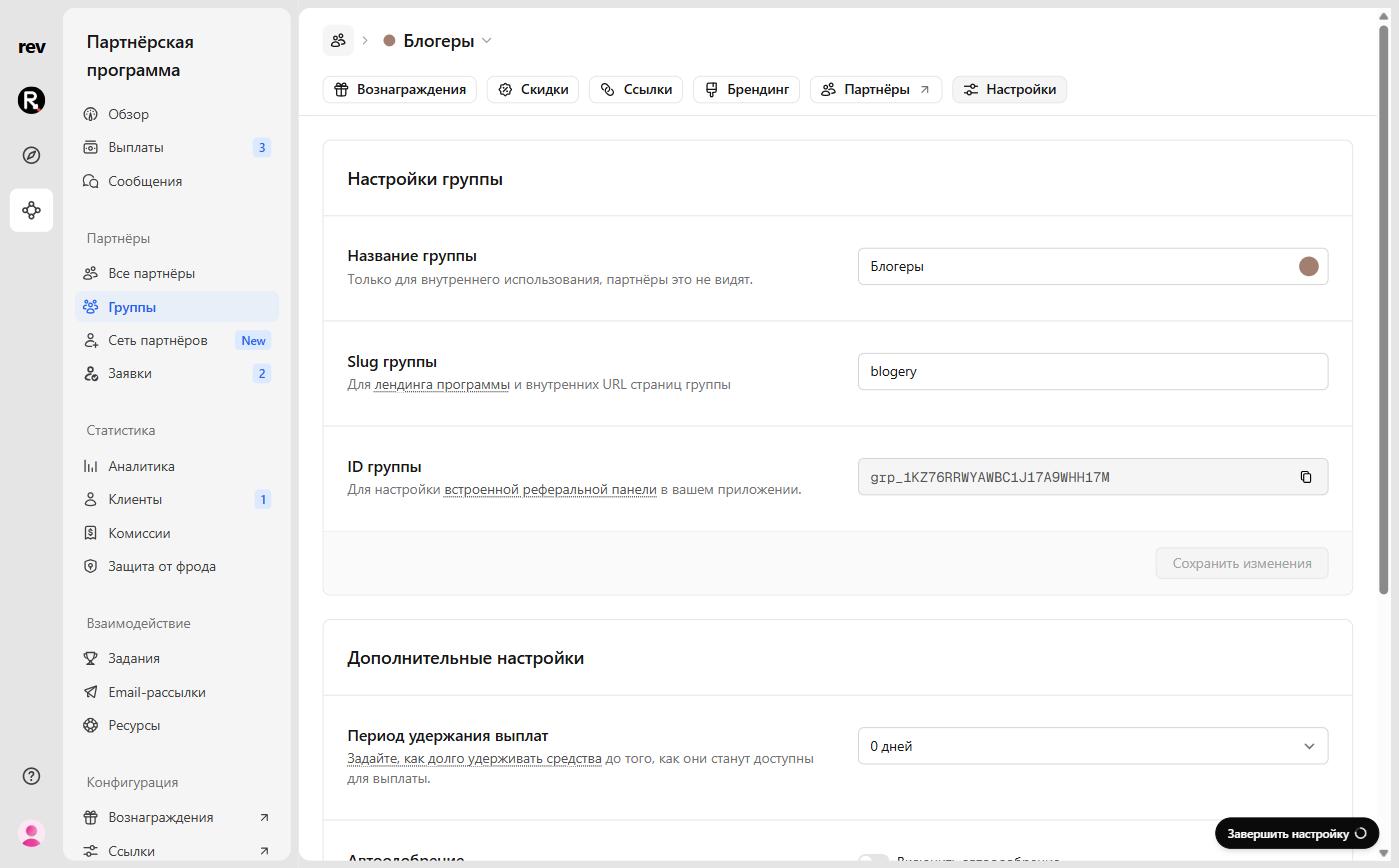
Group name
The name of the partner group can be changed at any time. It’s for internal use only and is never visible to your partners.
Group slug
This is the same URL identifier you set when creating the group. By default, it auto-generates from the group name, but you’re able to change this at any time. For program landing pages and internal group page URLs.
Group ID
When setting up the RevRoute embedded referral dashboard, you’ll use this group ID. The ID cannot be changed.
Payout holding period
Specify how long your commissions will be held in “pending” status before becoming eligible for payout: 0, 7, 14, 30 (recommended), 60, or 90 days. Learn more.
Auto-approve
Enable or disable auto-approving new applicants to this group. Learn more.
Group move rules
Automatically move partners into this group when they meet specific criteria. This is useful when you want partners to earn higher rewards as they progress in your program, without needing to manage groups manually.
To set up a rule, click Add rule, pick a metric in the If partner row — the Move partner to row already points to the current group — and click Save changes.
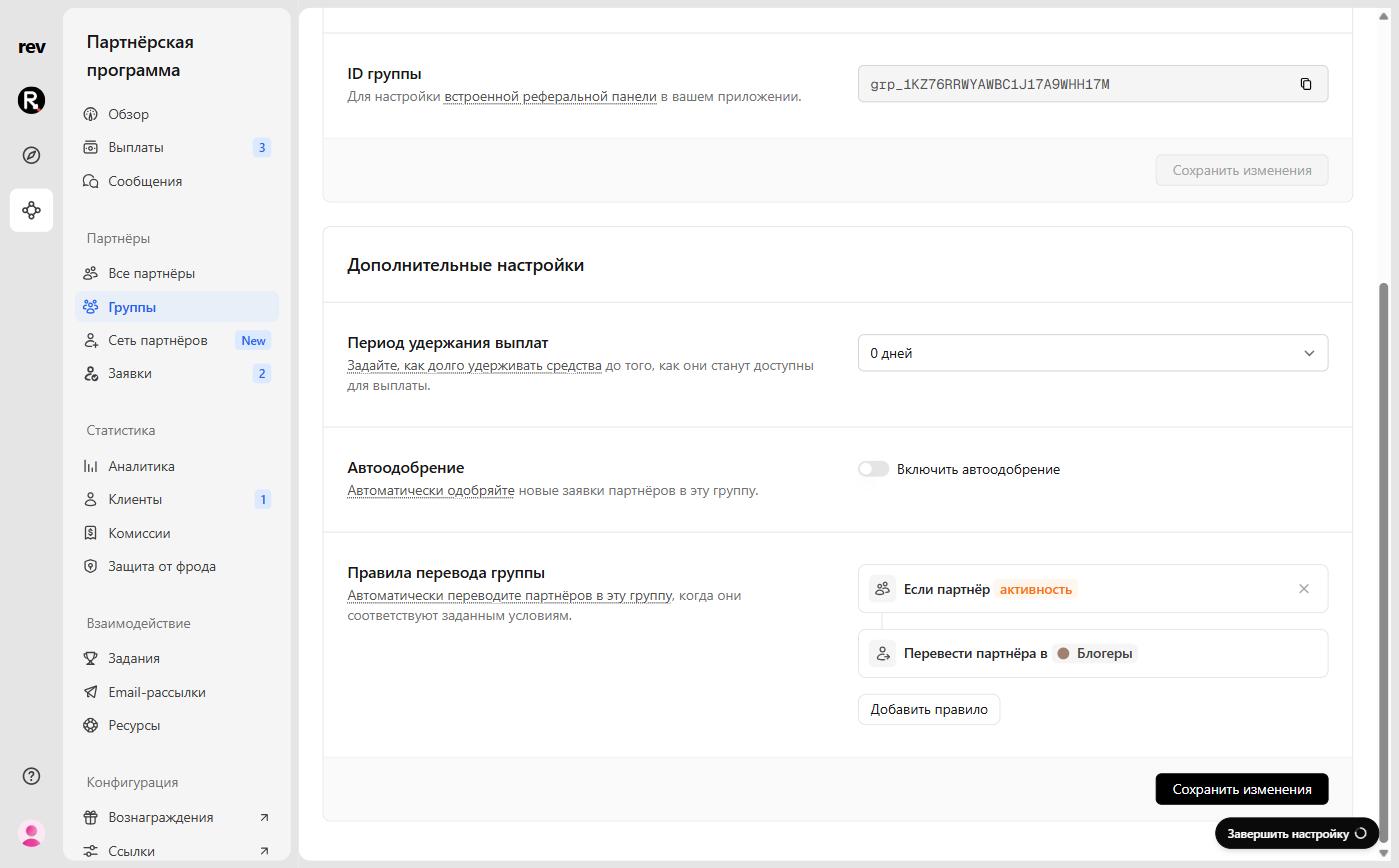
You can move partners based on performance metrics like total leads, conversions, revenue, or commissions. Multiple rules can be combined so only partners who meet your exact requirements are moved into the group.
Example: Move partners to the VIP group once their total commissions reach ₽10,000.
Group move rules are only available on the Advanced plan and above .
Adding partners to a group
There are many ways to add partners to a group, depending on whether they’re already enrolled or haven’t joined your program yet.
Inviting partners to apply
After your group is created, when you share the unique application URL, all new applicants who applied through that page will be assigned to that group. The assigned group shows in the Group column of the applications table.
Approving applications
When reviewing a new application, the assigned group is shown in the application’s Group block. To pick a different group before approving, click Change next to it.
Adding multiple partners to a group
When viewing all your partners , you can use the multi-select function to add one or many partners at a time to any group.
Simply click the checkbox beside their name and click Change group to move them to your desired partner group.

Moving partners between groups
There are a few ways to move partners between groups:
Via the partner profile page
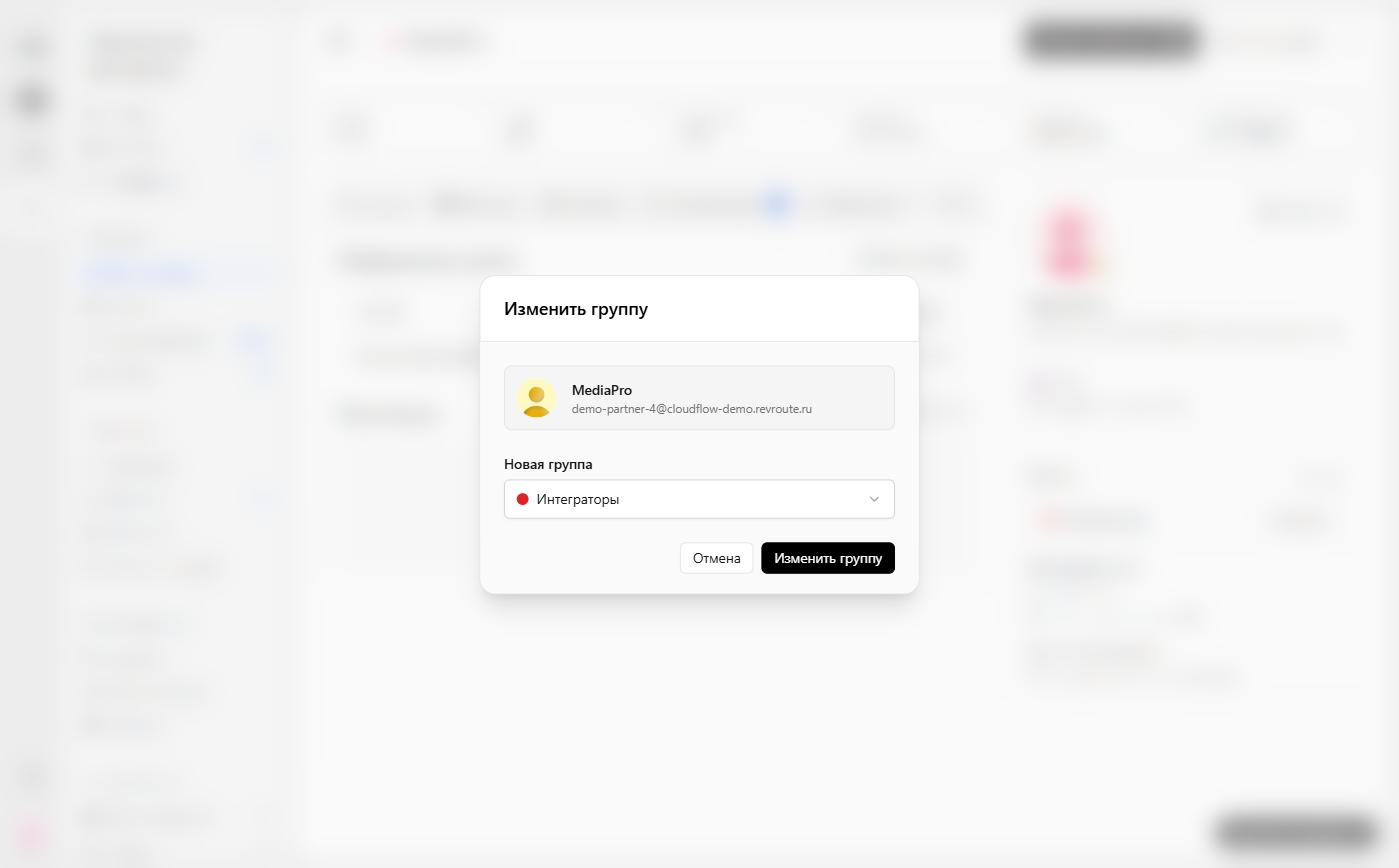
On the partner profile page, click Change in the Group block, select the New group, and confirm with Change group.
Via the partner table
As mentioned above, you can also use the multi-select function in the partners table : select the checkboxes and click Change group.
Via group move rules
You can also automatically move partners to a new group based on their performance metrics — see group move rules.
Partner notification emails
When partners are moved to another group, they receive an email informing them of any reward and bounty changes associated with the move.
Group move logs
For transparency and auditability, we also keep a history of all group moves for each partner – both from manual moves and via group move rules. Open it with the History link in the Group block of the partner profile page.
This gives you a complete history of a given partner’s group membership changes, which can affect their rewards, discounts, and referral links.
How many partner groups can I create?
All RevRoute Partners customers can create partner groups, with the number allowed based on your plan.
| Plan | Partner groups |
|---|---|
| Business | Up to 3 groups (including Default group) |
| Advanced | Unlimited groups |
| Enterprise | Unlimited groups |