Sending marketing and transactional emails to your partners
This feature is only available on Advanced plans and above .
On RevRoute, you can send marketing and transactional emails to your partners to boost partner engagement and increase conversions.
In this guide, we’ll learn how to set up your email domain on RevRoute and start sending emails to your partners. Without a verified domain, you can’t fill in the From field in the campaign editor, so start there.
Sending partner emails with your own domain (e.g. partners.acme.com) is not
only good for branding but will also drastically improve deliverability and
help avoid the dreaded spam folder.
Email domain setup
Email domains are connected in your workspace settings: Settings → Domains, Email domains tab — app.revroute.ru/settings/domains/email .
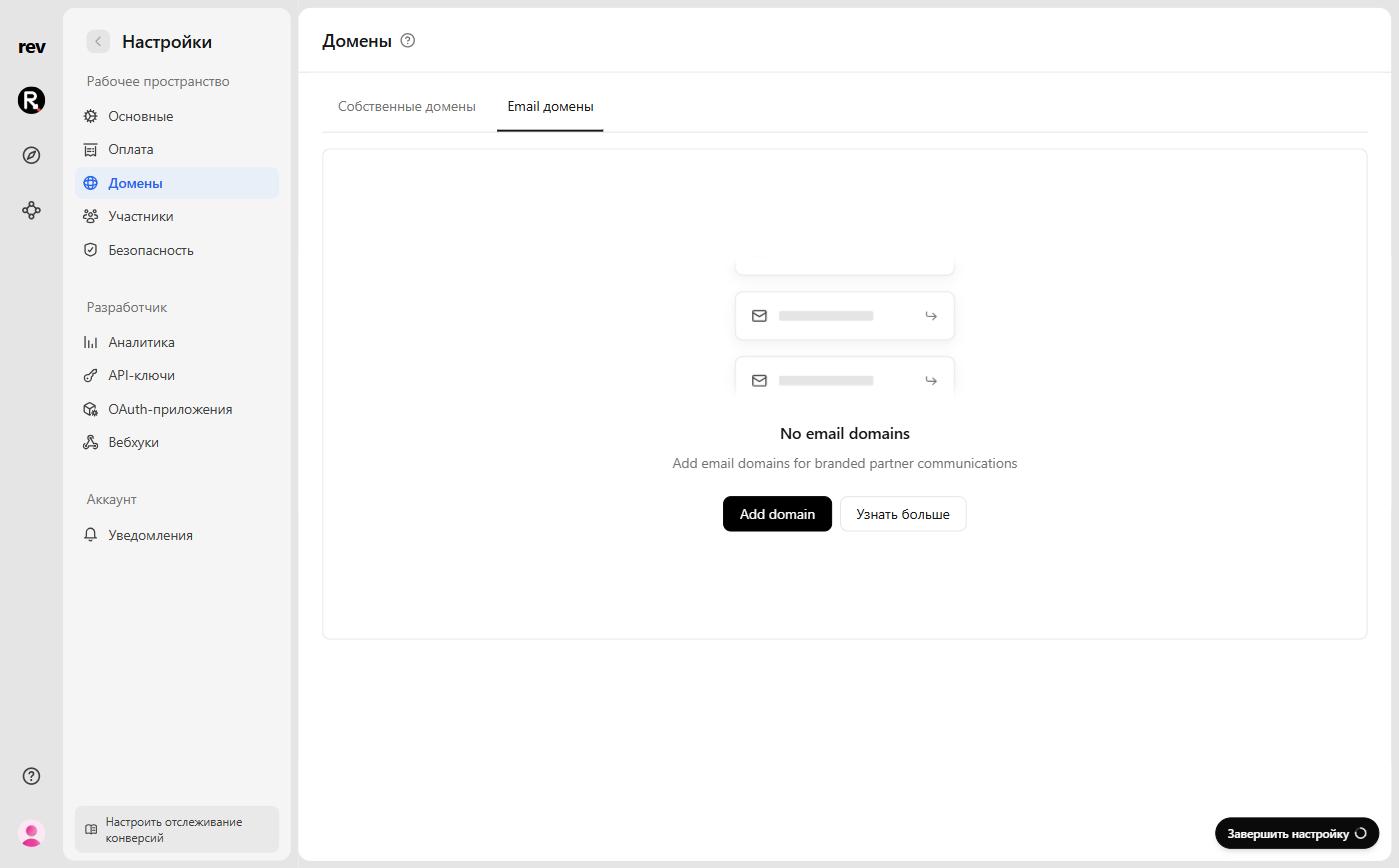
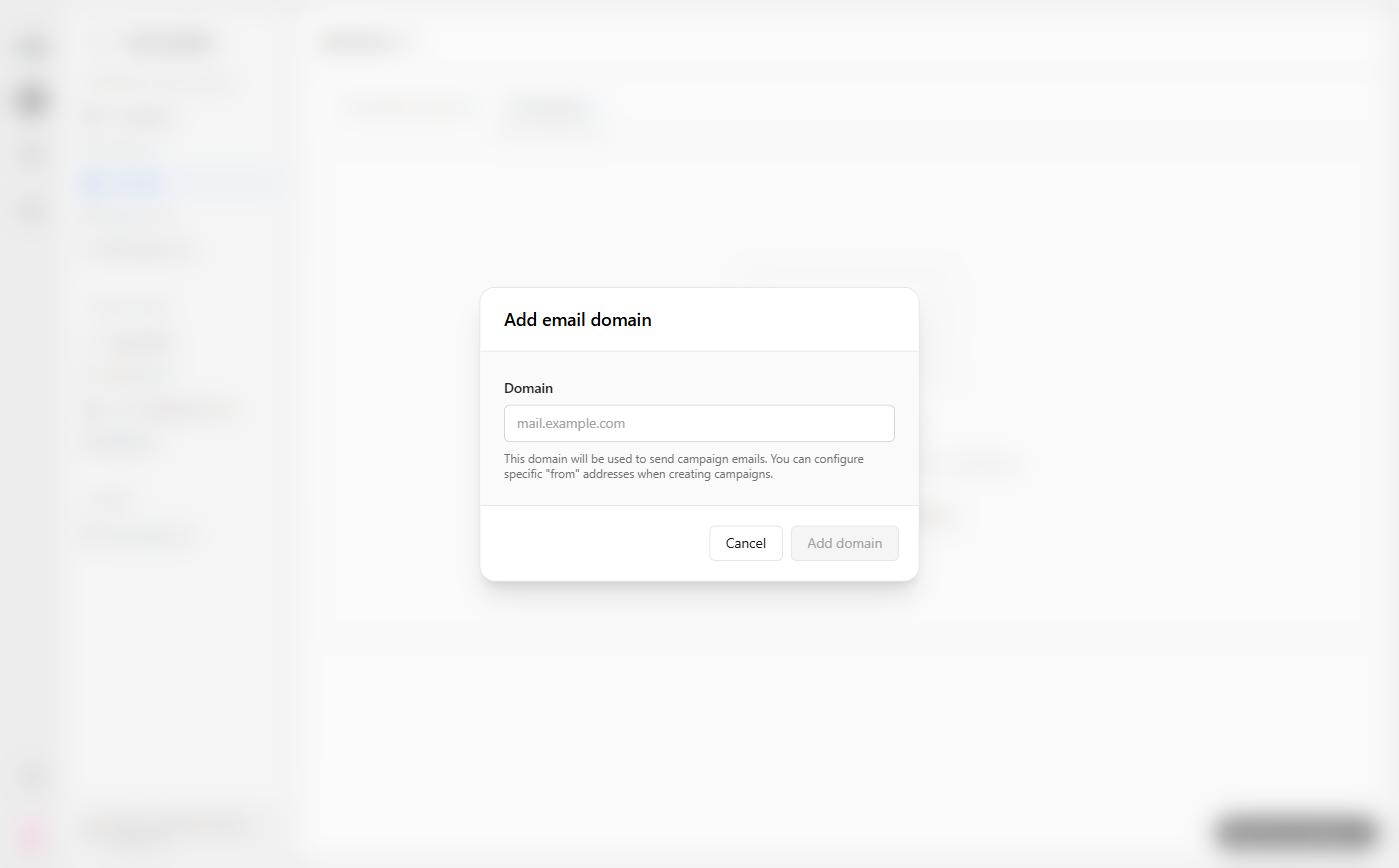
Click Add domain and enter the domain you want to send emails from. We recommend using a subdomain (e.g. partners.acme.com) to improve trust and deliverability. Specific “from” addresses are set later, when you create a campaign.
Once the domain is added, RevRoute shows the DNS records to create with your domain’s DNS provider, along with the verification status of each one. A separate DMARC (Recommended) block contains a recommended _dmarc TXT record — we strongly recommend adding it to help prevent email spoofing.
When all records are verified, the domain status changes to Verified, and you’re ready to send partner emails.
Until the domain is verified, you can prepare campaigns as drafts, but the From field in the editor stays unavailable, so you can’t send or schedule a campaign.
Warming up your email domain
“Warming up” your domain means gradually increasing your email-sending volume to build trust and improve deliverability. The goal is to send consistently without sudden spikes that might look suspicious to inbox providers.
Any time you start using a new domain or expect a large increase in sending volume, you should warm up your domain. A thoughtful warm-up plan helps prevent greylisting, throttling, and spam filtering, while building a solid sender reputation.
Keep an eye on your bounce rate — the Bounced metric in the Metrics panel. It should stay below 4%. If it rises above that, slow down your sending and review the cause.
Example warm-up plan:
- Add your custom domain and start sending transactional emails to warm it up.
- After 2–3 days, send a small marketing campaign to your smallest group (e.g., “VIP Group”), then a slightly larger one (“Silver Group”).
- Once your domain is fully warmed up, you can send marketing campaigns regularly to all groups (e.g., “Default Group”).
Where to find email campaigns
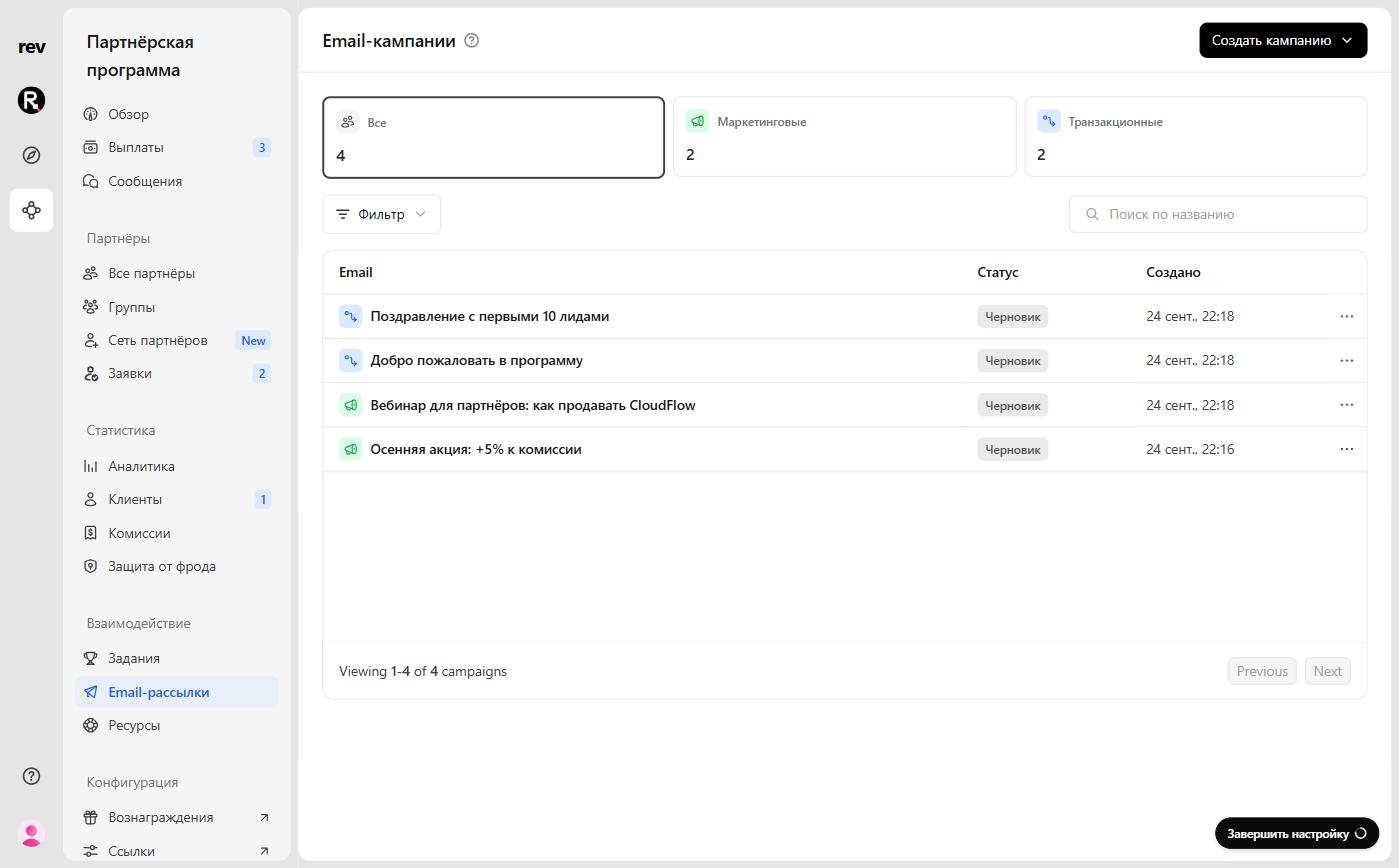
In your program menu, open Email Campaigns under Engagement. At the top of the page are the All, Marketing, and Transactional counters — click one to filter the list. Below are a filter by status and type, a search by name, and the campaigns table with each campaign’s status and creation date.
| Status | What it means |
|---|---|
| Draft | The campaign hasn’t been sent or published yet |
| Scheduled | The marketing email will go out at the selected date and time |
| Sending | The marketing email is being sent to partners — sending happens in batches |
| Sent | The marketing email has been sent |
| Canceled | The marketing email was canceled before or during sending |
| Active | The transactional email is published and goes out as soon as a partner meets the condition |
| Paused | The transactional email is paused and isn’t sent to new recipients |
Creating a new campaign
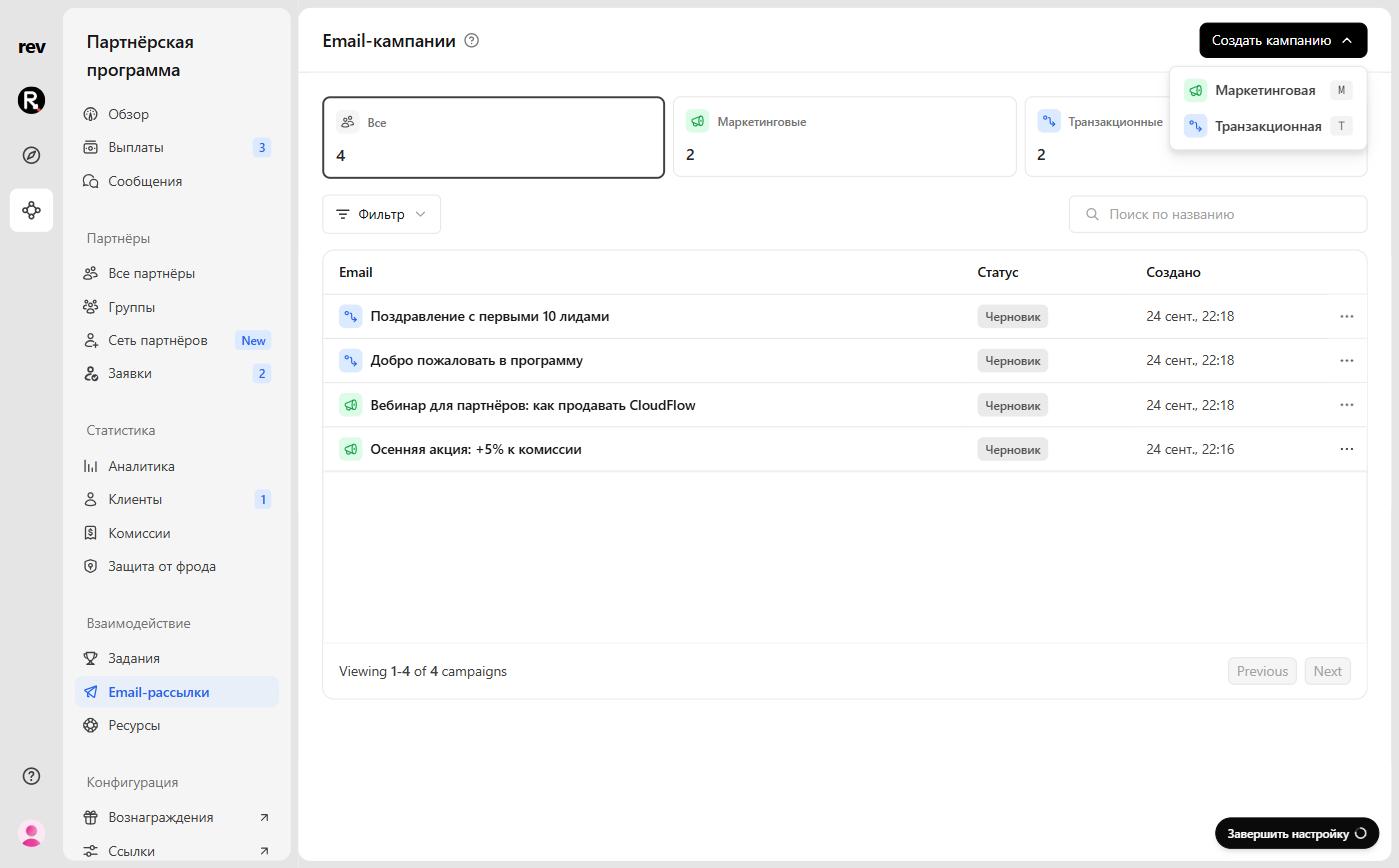
Click Create campaign in the top-right corner and select the type of email you want to send: Marketing or Transactional. RevRoute creates a draft and opens the editor.
Marketing
Marketing emails are one-off messages you send manually. They’re great for announcements, product updates, and promotions.
Examples:
- “Introducing our newest feature”
- “Black Friday / Cyber Monday promotion”
- “Check out our latest blog post or promo video”
Transactional
Transactional emails are automated messages triggered by specific partner actions — like joining your program, reaching a milestone, or staying enrolled for a certain period.
Examples:
- “Welcome to the program! Here’s how to start earning.”
- “Congrats on your first conversion — here’s how to reach your next 10.”
- “You’ve crossed 100,000 ₽ in commissions! You’re now among our top earners.”
Email builder
Both Marketing and Transactional emails include:
- Name — the internal name of your campaign;
- From — the sender address: you enter the mailbox name, and the domain is filled in from your verified email domain;
- To — partner groups: All groups by default, or click Edit to choose specific ones;
- Subject — the subject line of the email;
- Preview — the short text shown next to or below the subject line in the recipient’s inbox; add the row using the Preview text button to the right of the subject;
- the email body — below the formatting toolbar, up to the “End of email” marker.
Drafts are saved automatically as you type. When you edit a scheduled or paused campaign, an Unsaved changes bar appears at the bottom with Save changes and Discard buttons.
Marketing fields
In the When field, pick the send date and time from the calendar, or type them in words — e.g. “in 2 hours”. This is helpful when planning email campaigns for the future.
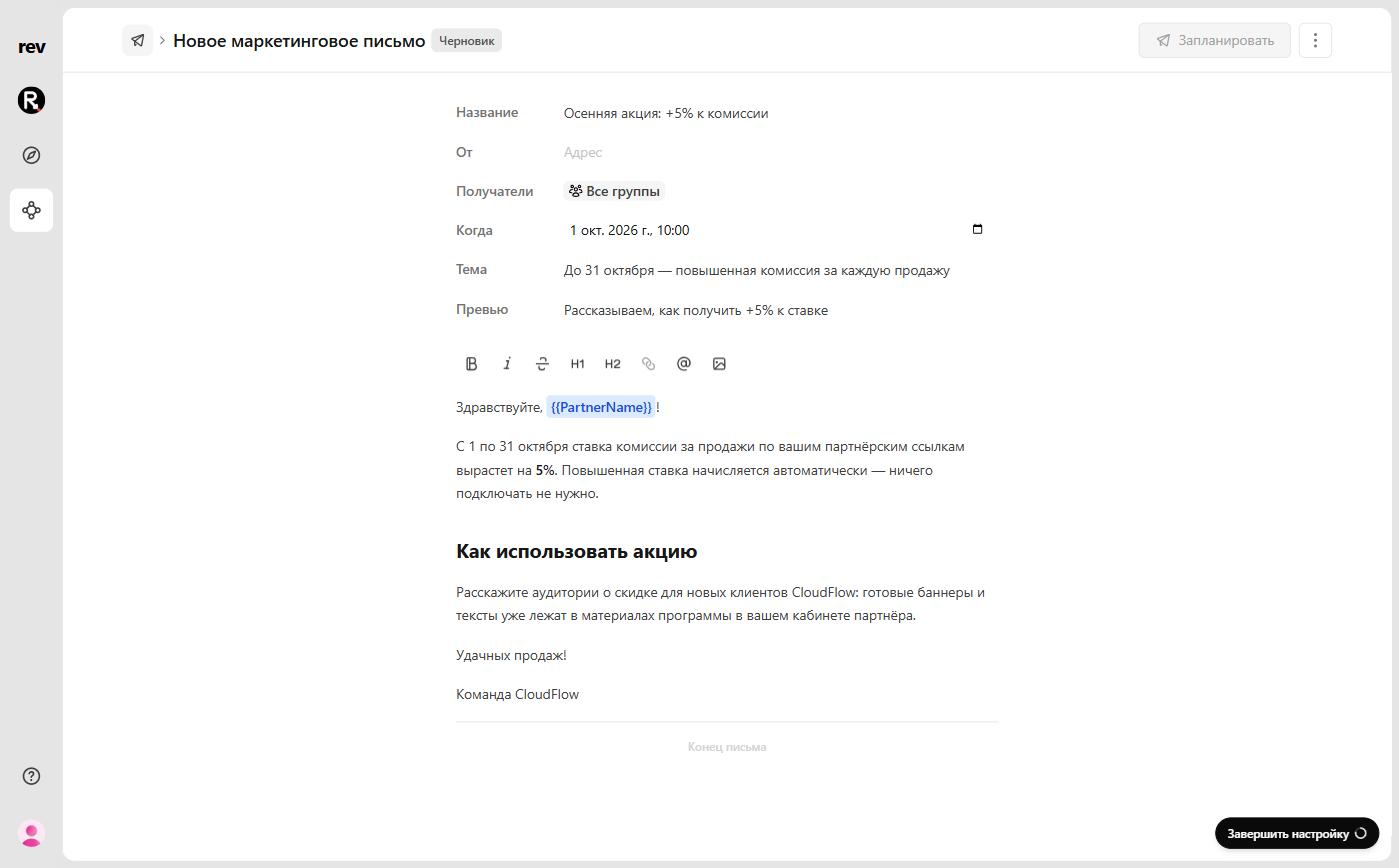
The button in the top-right corner reads Send — or Schedule if the selected date is in the future. Before sending, RevRoute shows how many partners will receive the email and asks you to confirm. Until all required fields are filled in, the button is disabled, and its tooltip explains what’s missing.
To cancel a scheduled campaign, click Cancel — the email won’t go out at the scheduled time. You can also cancel a campaign that’s already sending, but emails go out in batches, so a few more may be sent before it stops. Canceling can’t be undone.
Transactional fields
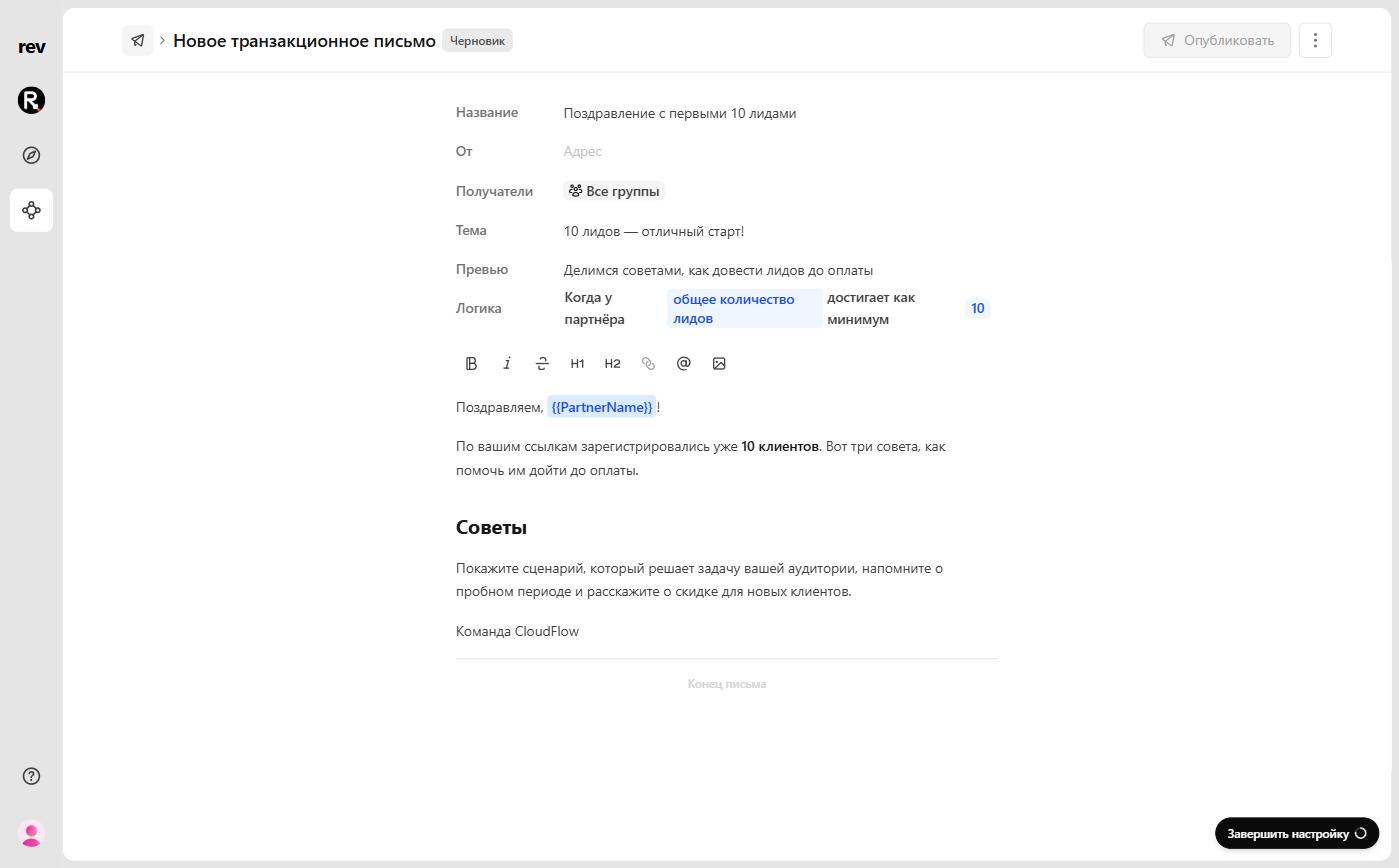
Instead of a date, transactional campaigns have a Logic field — the condition that triggers the email. For example: “When partner joins the program” or “When partner’s total leads reaches at least 10”.
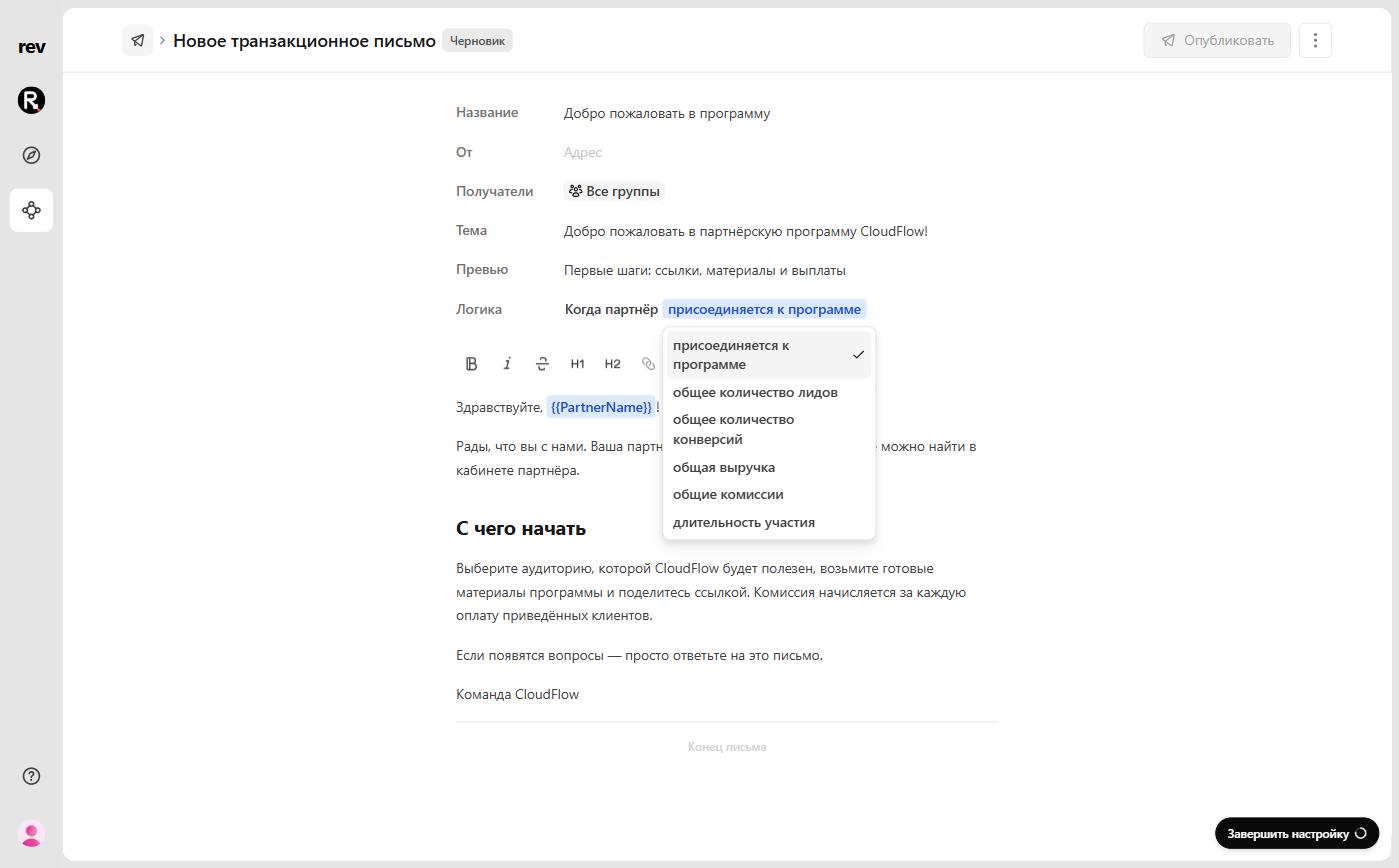
For every condition except joining the program, a threshold appears next to it — a number, an amount, or, for enrollment duration, a period from the list.
| Condition | When the email is sent |
|---|---|
| Joins the program | A partner enrolls in your program |
| Total leads | A partner reaches a specific number of leads |
| Total conversions | A partner reaches a specific number of conversions |
| Total revenue | A partner’s revenue reaches a specific amount |
| Total commissions | A partner’s commissions reach a specific amount |
| Enrollment duration | A partner has been enrolled for 1, 3, 7, 14, or 30 days |
To launch the campaign, click Publish and confirm: as soon as a partner from the selected groups meets the condition, they receive the email. You can Pause an active campaign and Resume it later. While a campaign is active, its recipients and logic can’t be changed — pause it first.
Formatting
Above the email body is the formatting toolbar: bold, italic, strikethrough, H1 and H2 headings, link, partner variable, and image.
The @ button inserts a partner variable — PartnerName or PartnerEmail. In the editor it shows as {{PartnerName}}, and each partner sees their own details in the email.
You can also use Markdown-style syntax for bold text, italics, and headings: **bold text**, *italic*, # or ## at the start of a line.
Email previews
Before launching a campaign, you can send a test version to yourself or teammates for review. Click ⋮ in the top-right corner of the editor and select Send preview. In the Send preview email dialog, enter the email addresses separated by commas. You can send a preview once the campaign has a subject and a body.
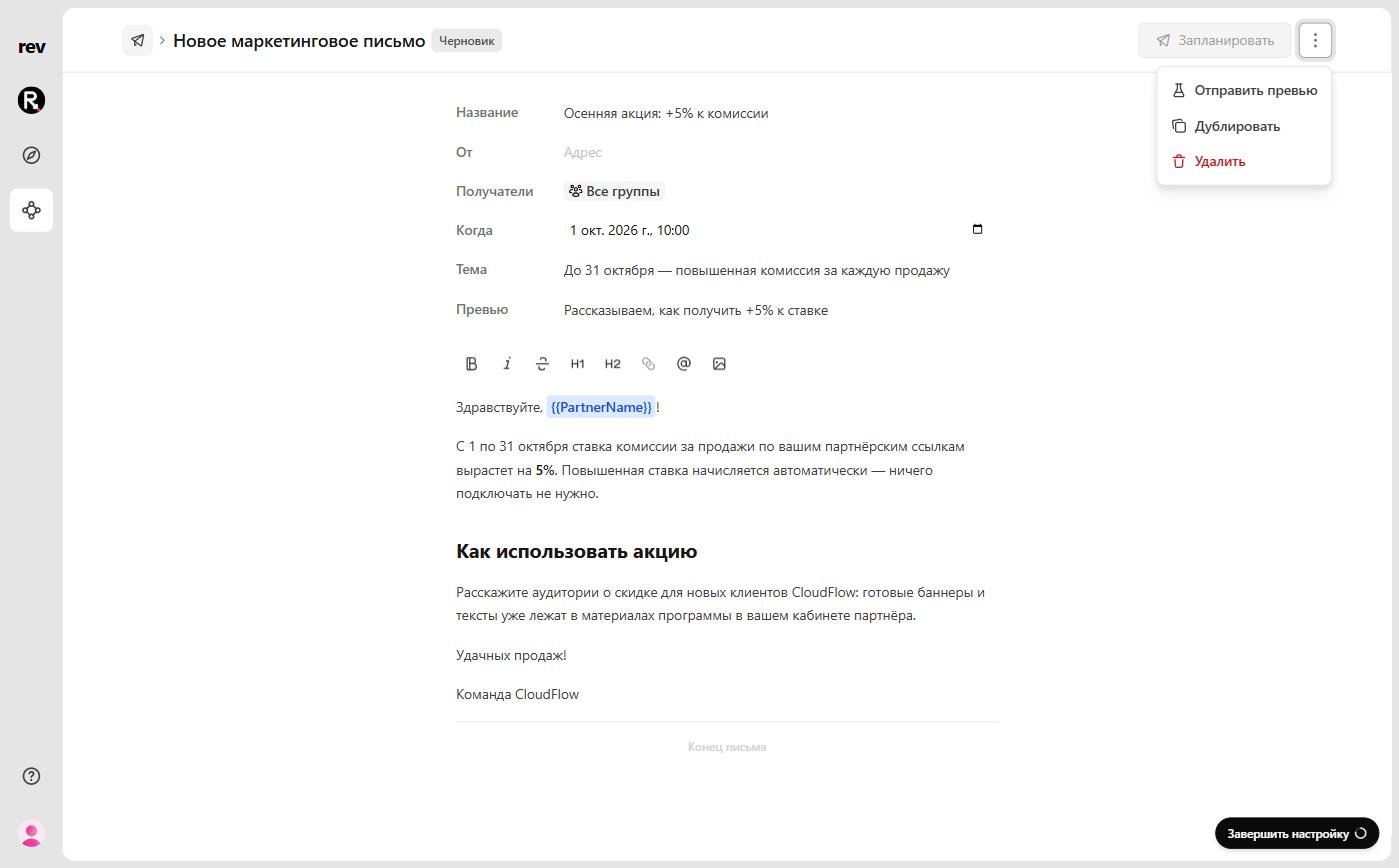
From the same menu, you can Duplicate the campaign — the copy opens in the editor — or Delete it. To delete, type confirm delete campaign.
Campaign metrics
Once a marketing campaign has been sent or a transactional one has been published, the Metrics panel opens on the right side of the editor, showing how many emails were Delivered, Opened, and Bounced. Below is a list of events by partner with a search by name or email, so you can see which partners opened the email.
Partner replies
When a partner replies to any email you send through RevRoute, their reply goes to your program’s support email address. You can view or update that address on your Resources page, in the Help and support section.
This means that even if you change your sending domain later, all partner replies will continue to arrive in the same inbox.