Real-time events stream
This feature is only available on RevRoute’s Business plan and above.
At RevRoute, every click, lead, and sale is recorded in real time.
These events surface in an aggregated form on the analytics dashboard, which gives you a powerful summary of your audience.
But that is still an aggregated view of your data. What if you want to see a chronological stream of events and export them for further analysis?
This is where RevRoute’s real-time events stream comes in.
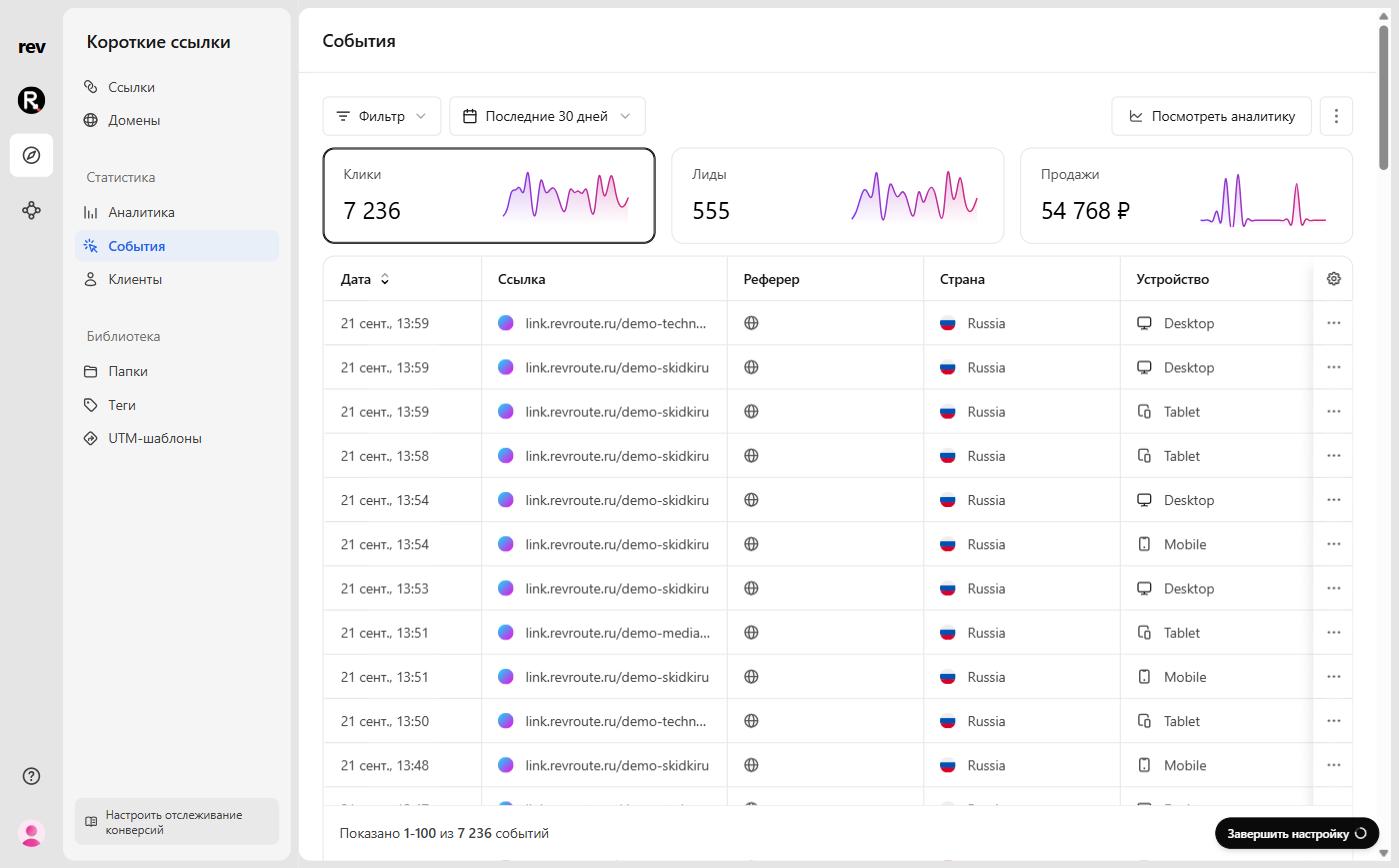
It is a detailed feed of all events across your entire workspace: above the table are the Clicks, Leads, and Sales cards, and below is the list of events with date, link, referrer, country, and device.
Where can I access it?
The events stream lives under Statistics → Events in your workspace sidebar. You can also jump straight to the events from the analytics dashboard:
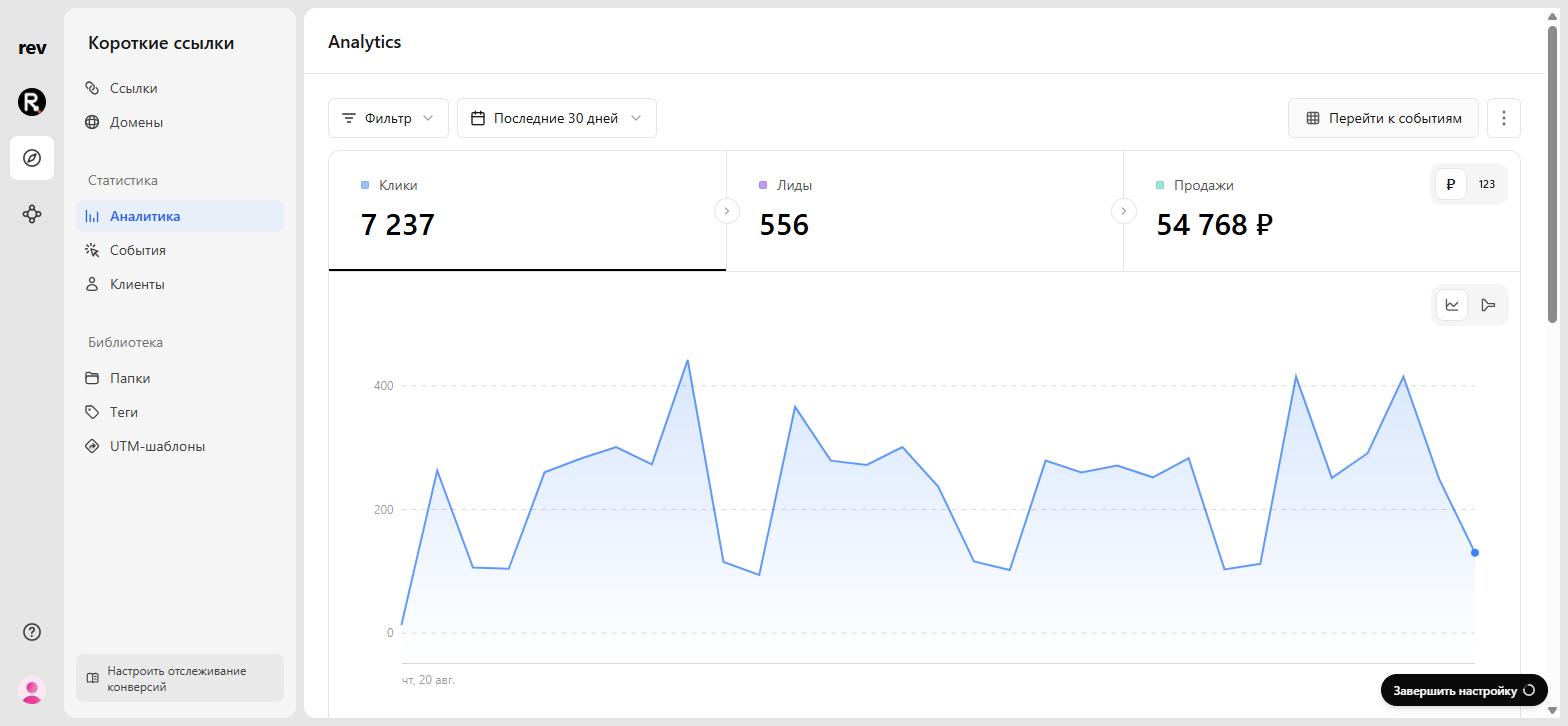
From the events page, you can get back to the aggregated view via the View analytics button.
The events stream is real-time by default — every recorded event shows up in the table immediately.
Customizing your events table
You can customize the table to only show the columns you are interested in — click the gear icon above the table:
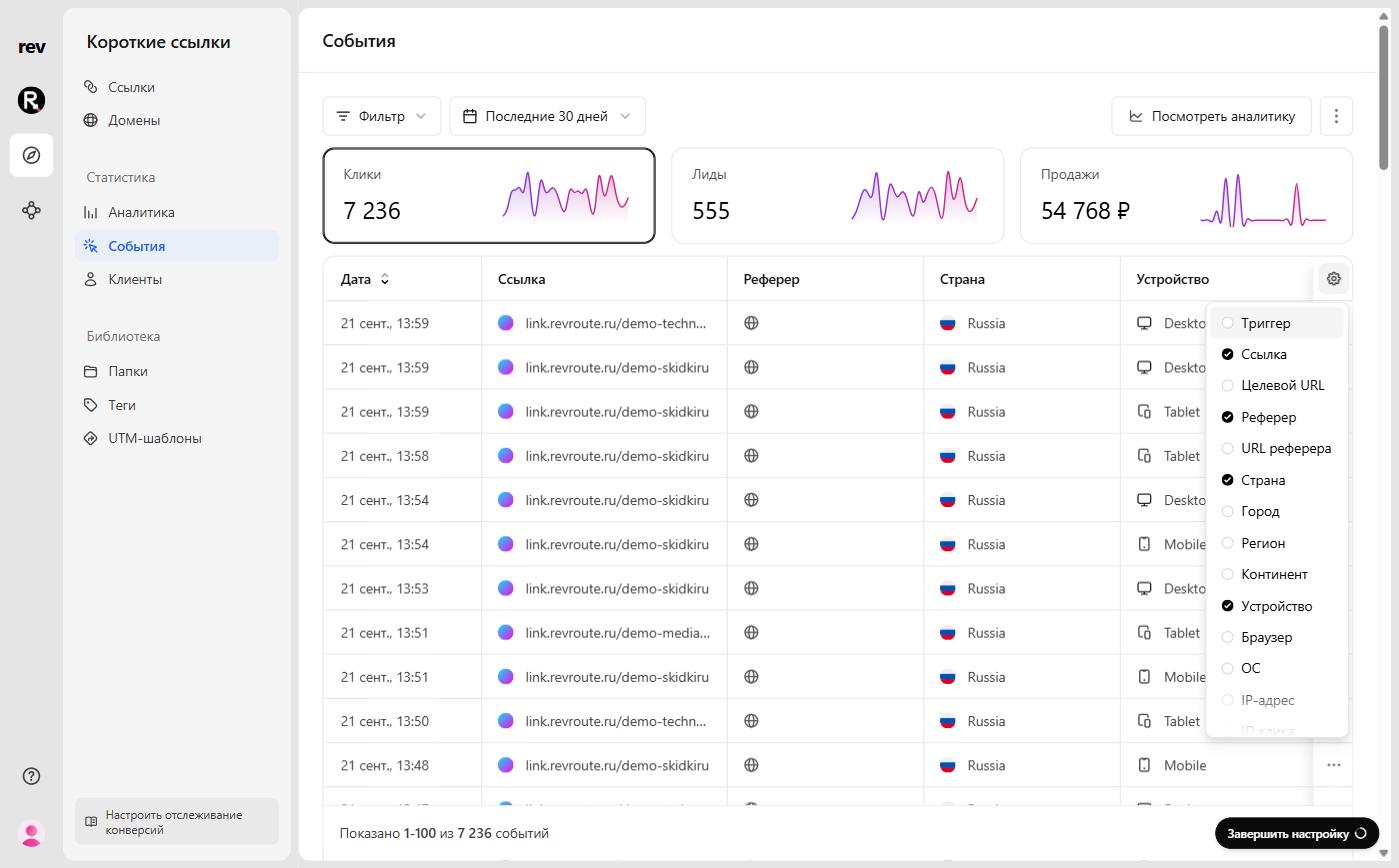
Here are the columns you can choose from:
- Trigger — how the event happened: a link click or a QR code scan
- Link — the short link the event happened on
- Destination URL — the address the link pointed to
- Referrer — the source of the visit
- Referrer URL — the full address of the referring page
- Country — the country the event originated from
- City — the city the event originated from
- Region — the region the event originated from
- Continent — the continent the event originated from
- Device — the device used to trigger the event
- Browser — the browser used to trigger the event
- OS — the operating system of the user
- IP address — the IP address of the event (may be hidden depending on the region)
- Click ID — the unique identifier of the click event
Filtering and exporting events
Filters on the events page work the same way as on the analytics dashboard: click the Filter button and pick your conditions — folder, tag, domain, country, device, and more.
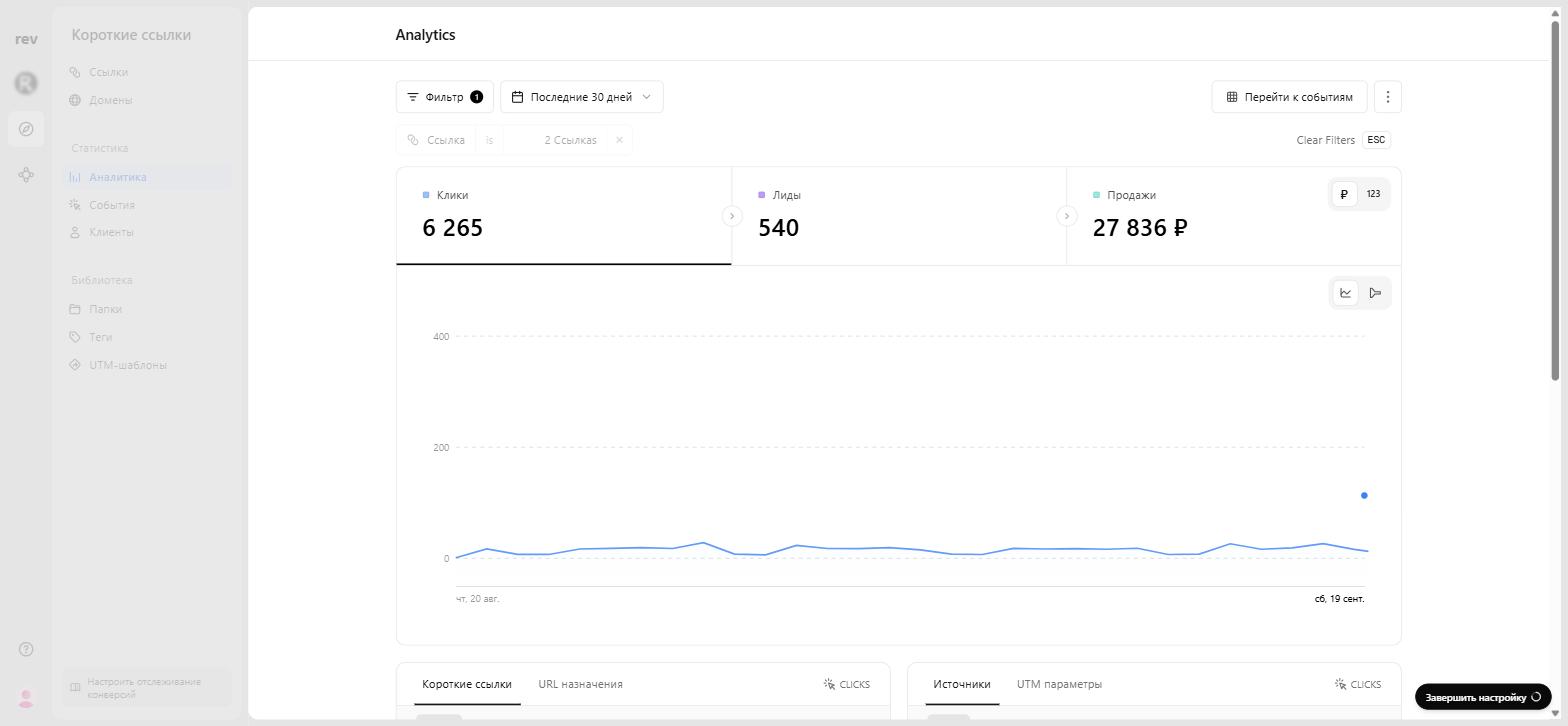
Once you’ve filtered the events to your liking, you can export them by clicking the ⋮ button and selecting Download CSV.
