How to export links from RevRoute
In your RevRoute workspace, you can export your links to a CSV file. This is useful if you want to analyze the data locally or share them with an external stakeholder.
To export your links, follow these steps:
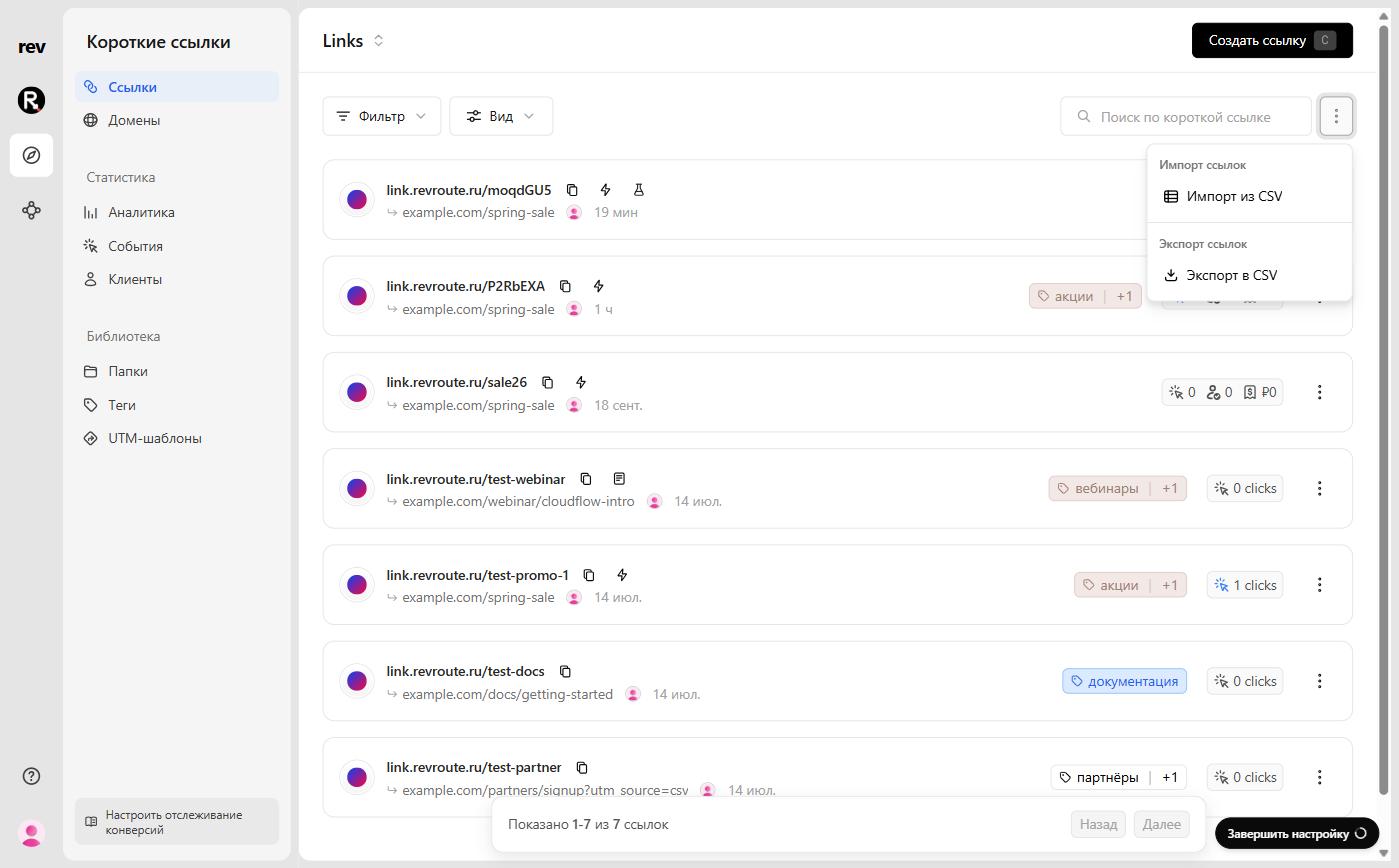
Open the Export links modal
In your RevRoute workspace, navigate to the Links page.
Then, click on the ⋮ button next to the search bar to open the more options dropdown menu. Select Export links → Export to CSV.
Select the date range
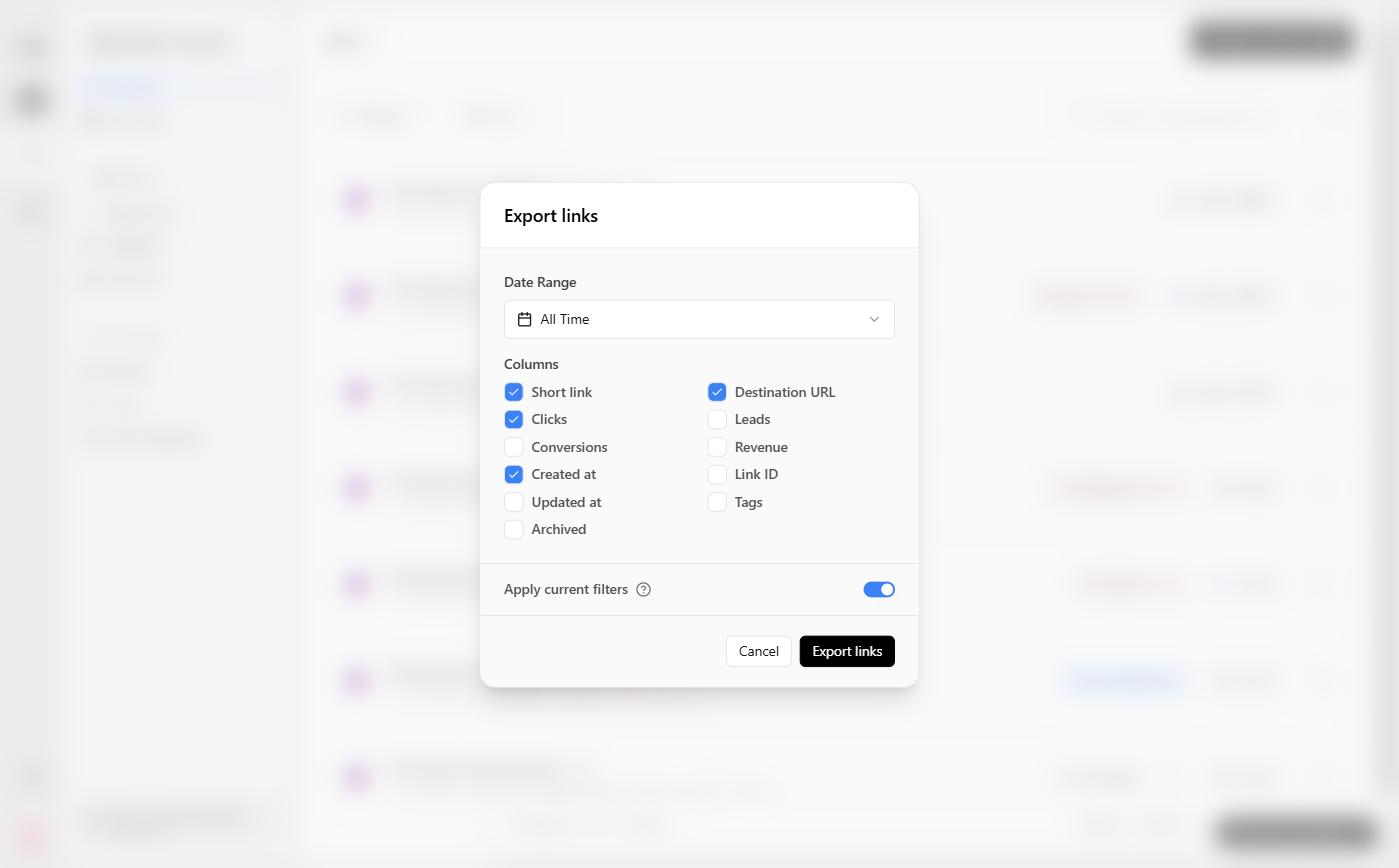
In the Export links modal, choose the Date Range for the links you want to export. By default, All Time is selected — RevRoute will export all links.
Select the columns to export
RevRoute will export the following columns by default:
- Short link
- Destination URL
- Clicks
- Created at
You can change the set of columns under the Columns section — Leads, Conversions, Revenue, Link ID, Updated at, Tags, and Archived are also available.
Apply current filters
Optionally, enable the Apply current filters toggle to export only the links that match the current dashboard filters. If the toggle is off, all links will be exported.
Download the data
Once you have selected the date range and columns to export, click on Export links.
After a few seconds, the CSV file will be downloaded to your computer.