Эта функция доступна только на тарифных планах Business и выше .
Группы партнеров помогают организовать вашу программу для более эффективной работы. Вы можете сегментировать партнеров по вознаграждениям, скидкам, эффективности, местоположению и другим параметрам, что упрощает настройку стимулов и отслеживание результатов.
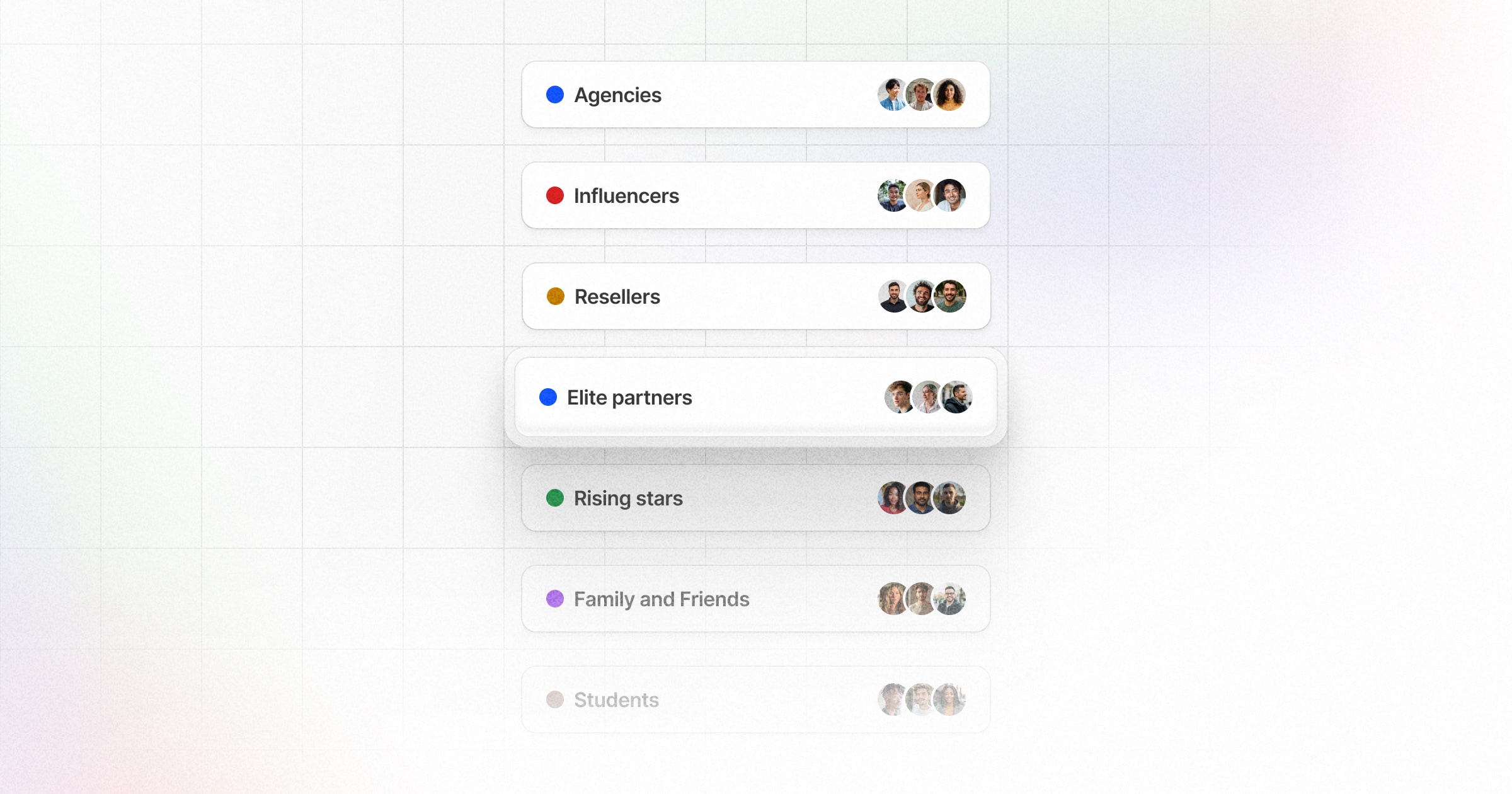
Какие типы групп партнеров можно создать?
Вот несколько примеров групп партнеров, которые можно создать в Revroute:
По типу
- Агентства — маркетинговые или креативные агентства, продвигающие ваш продукт для своих клиентов.
- Создатели контента — блогеры, подкастеры или YouTube-авторы, создающие релевантный контент.
- Медиа-издатели — веб-сайты, журналы или сети с подходящей аудиторией.
По вертикали
- Студенты — университетские клубы, кампусные амбассадоры или студенческие инициативы.
- Финансы — партнеры в сфере банкинга, финтеха или инвестиций.
- Технологии — разработчики, SaaS-провайдеры или технологические сообщества.
По уровню эффективности
- Восходящие звезды — новые партнеры с высоким потенциалом роста.
- Лучшие исполнители — стабильно превышающие цели по продажам или рефералам.
- Элитные партнеры — самые высокооплачиваемые, приносящие значительную выручку и стратегические победы.
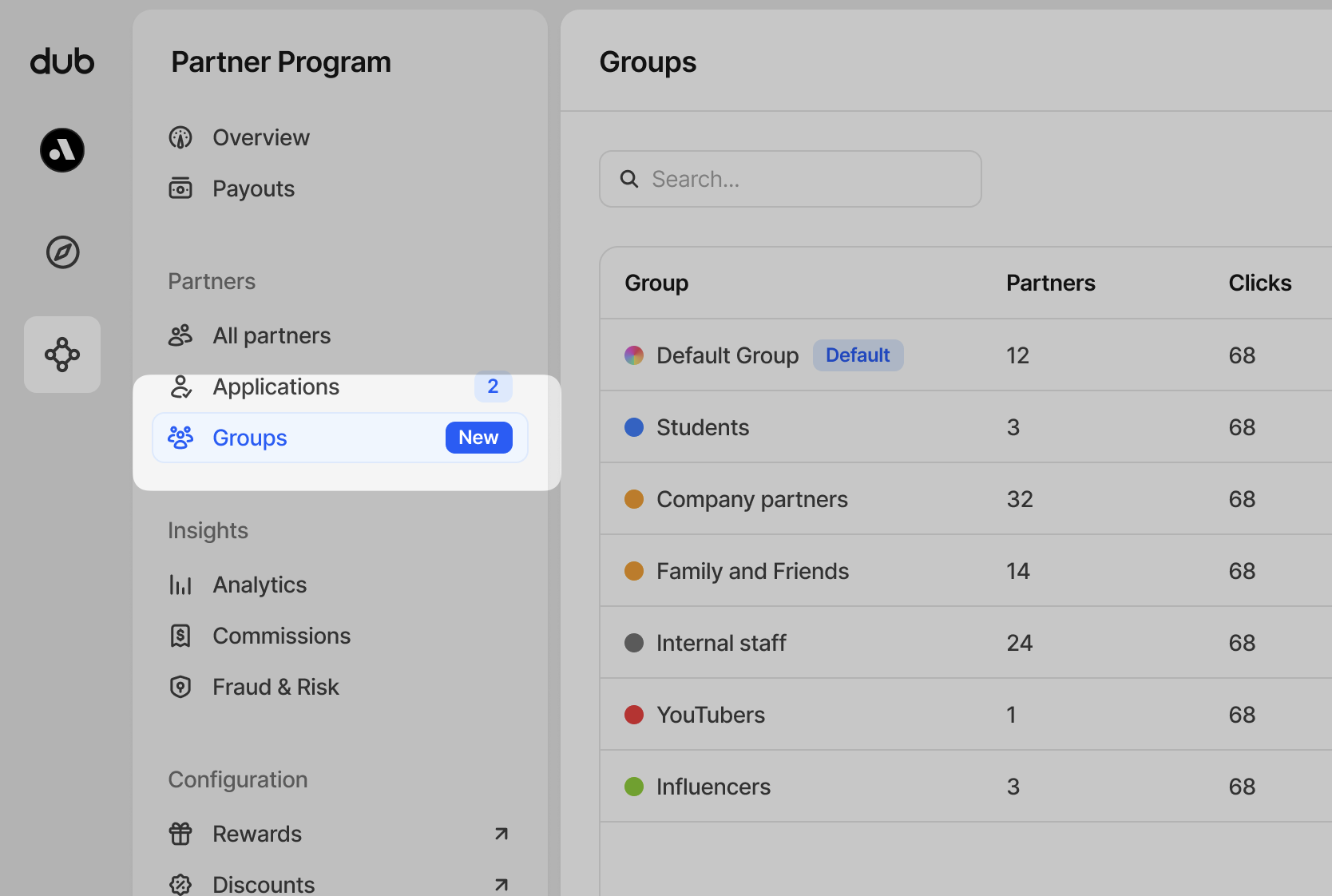
Где можно просмотреть группы партнеров?
В меню Partner Program нажмите Groups в разделе Partners, чтобы просмотреть ваши группы партнеров
Что такое группа партнеров по умолчанию?
В вашей программе всегда будет группа с пометкой Default Group, которую можно переименовать в любое время.
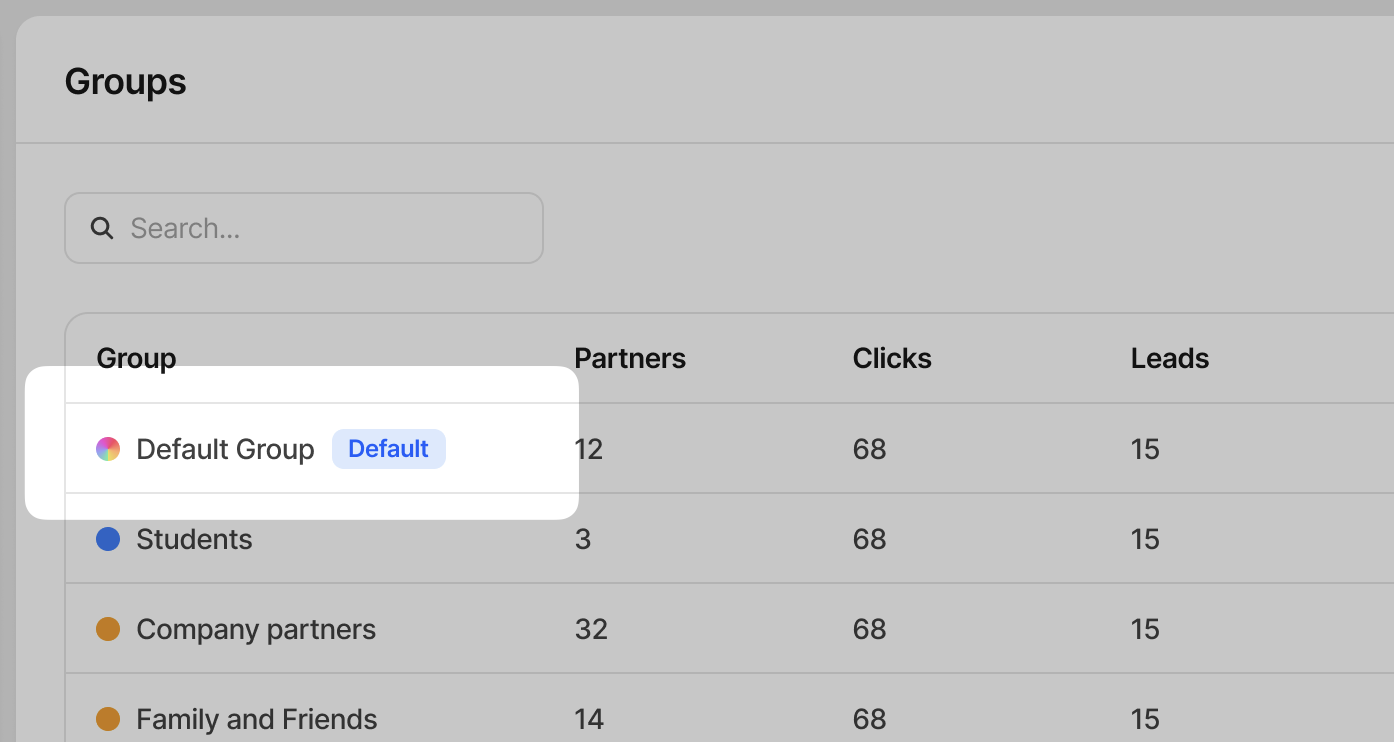
Вы не можете удалить группу партнеров по умолчанию. В эту группу также будут переназначены ваши партнеры при удалении другой группы партнеров.
Создание группы
Чтобы создать группу, нажмите Create group в правом верхнем углу или нажмите C на клавиатуре.
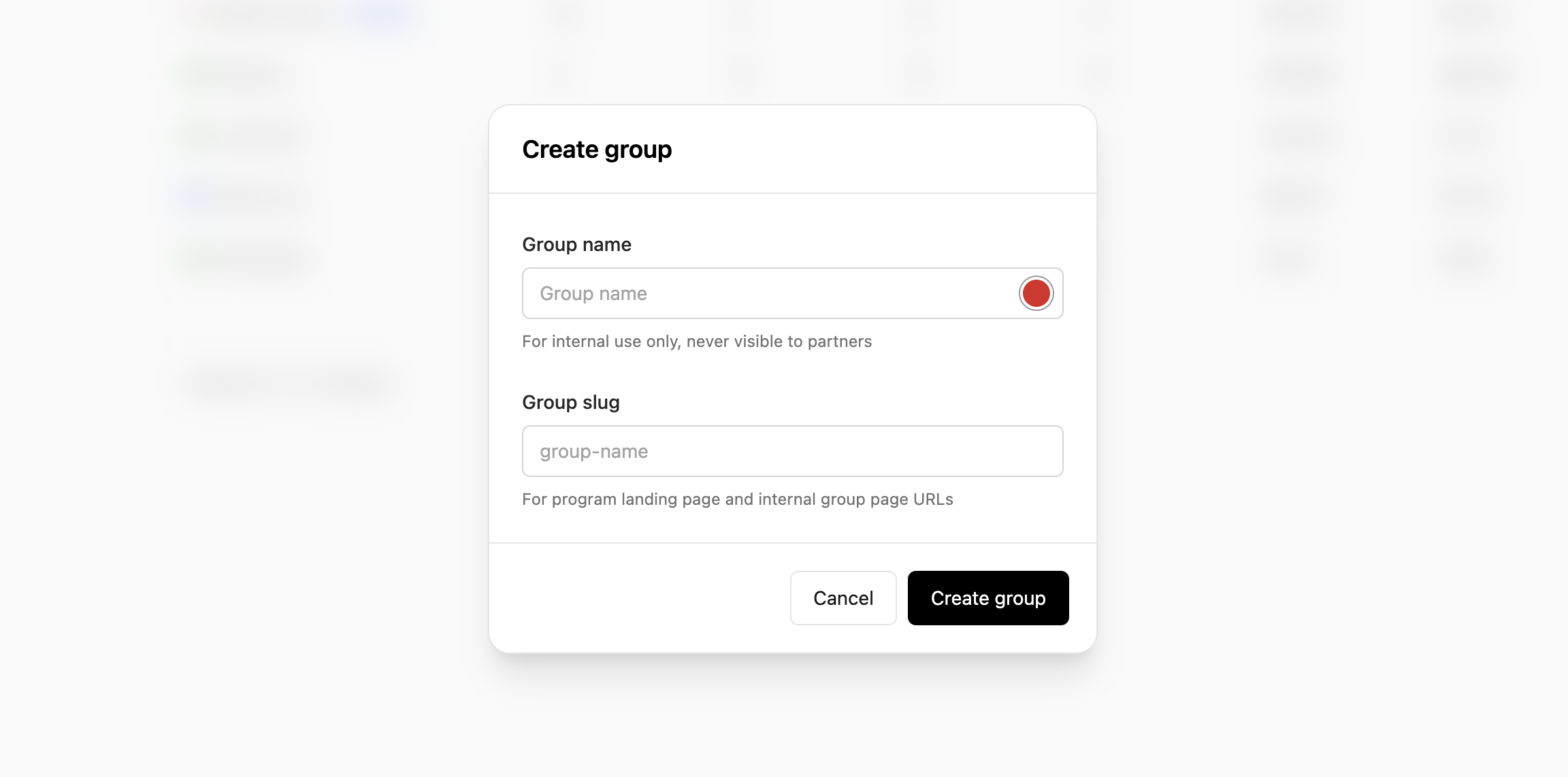
| Поле | Описание |
|---|---|
| Group name | Добавьте название группы для удобной идентификации. Это название используется только для внутренних целей и никогда не видно вашим партнерам. |
| Group color | Задайте цвет группы с помощью простого выбора цвета. |
| Group slug | Каждая группа партнеров использует уникальную целевую страницу заявки, которую вы можете использовать для передачи партнерам, чтобы автоматически добавить их в эту группу при подаче заявки. Это название используется как для внутренних, так и для внешних целей, поэтому все, кому вы передадите ссылку на заявку, смогут видеть указанный slug. |
| Group ID | Этот нередактируемый элемент используется для встраивания white-label реферальной панели Revroute в ваше приложение. Подробнее. |
Вознаграждения группы
Каждая группа партнеров может иметь по одному вознаграждению каждого из следующих типов:
| Тип вознаграждения | Описание |
|---|---|
| За клик (pay-per-click) | Вознаграждение партнеров за привлечение кликов на ваш продукт — аналогично модели pay-per-click в Google Ads. |
| За лид (pay-per-lead) | Более эффективная альтернатива pay-per-click, где вы вознаграждаете партнеров за привлеченных лидов (например, запросы на демо, регистрации на бесплатный пробный период и т.д.) |
| За продажу (pay-per-sale) | Самый распространенный тип вознаграждения, где вы вознаграждаете партнеров за продажи вашего продукта через долю от выручки или фиксированную комиссию. |
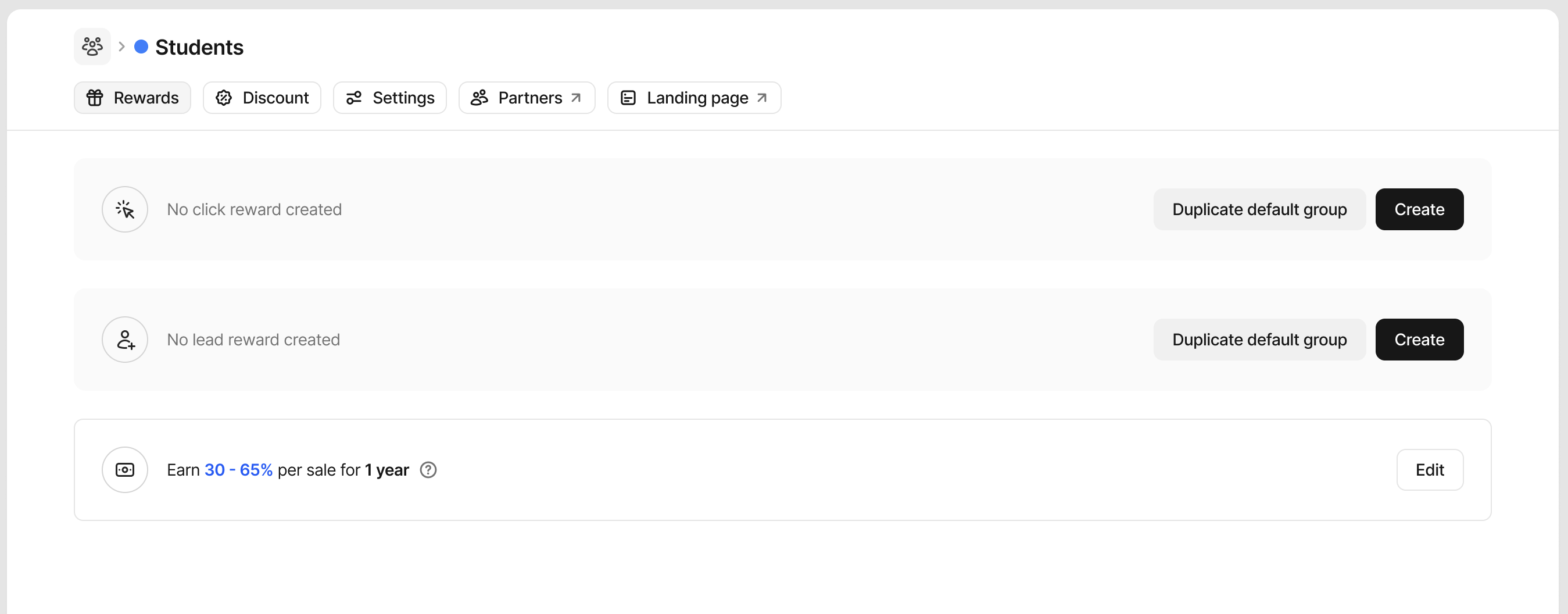
Чтобы создать вознаграждение, нажмите Create на любом из типов вознаграждений. Подробнее о создании вознаграждений.
Если вы хотите продублировать вознаграждения группы по умолчанию на другие группы, нажмите Duplicate default group, чтобы скопировать параметры и сэкономить время.
Скидки группы
Вы также можете создать двусторонние стимулы для ваших партнерских/реферальных программ, которые предоставляют специальные скидки клиентам, зарегистрировавшимся по реферальной ссылке. Некоторые примеры:
- Скидка 25% на первые 12 месяцев
- Пожизненная скидка 30%
- Разовая скидка $50
Это может стимулировать мощный рост через «сарафанное радио», поскольку партнеры с большей вероятностью будут делиться своей ссылкой, если она дает их аудитории дополнительные скидки, а с другой стороны, их пользователи с большей вероятностью будут переходить по ссылкам, если получат специальное предложение.
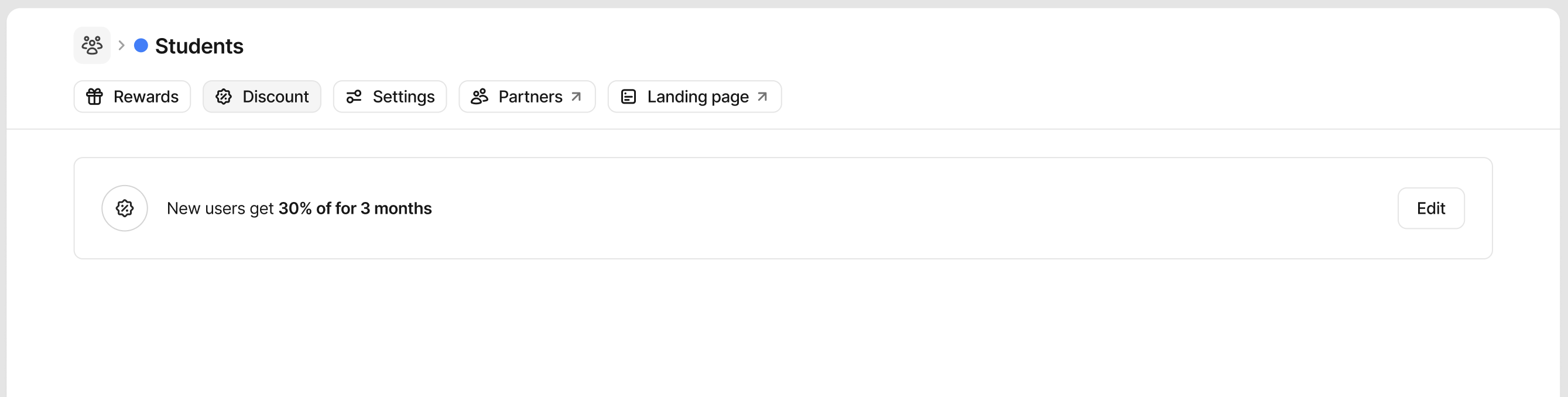
Вы можете создать только одну скидку на группу. Чтобы создать скидку, нажмите Create на блоке скидки.
Подробнее о создании скидок.
Настройки группы
Каждая группа имеет индивидуальные настройки, позволяющие изменить название и дополнительные параметры.
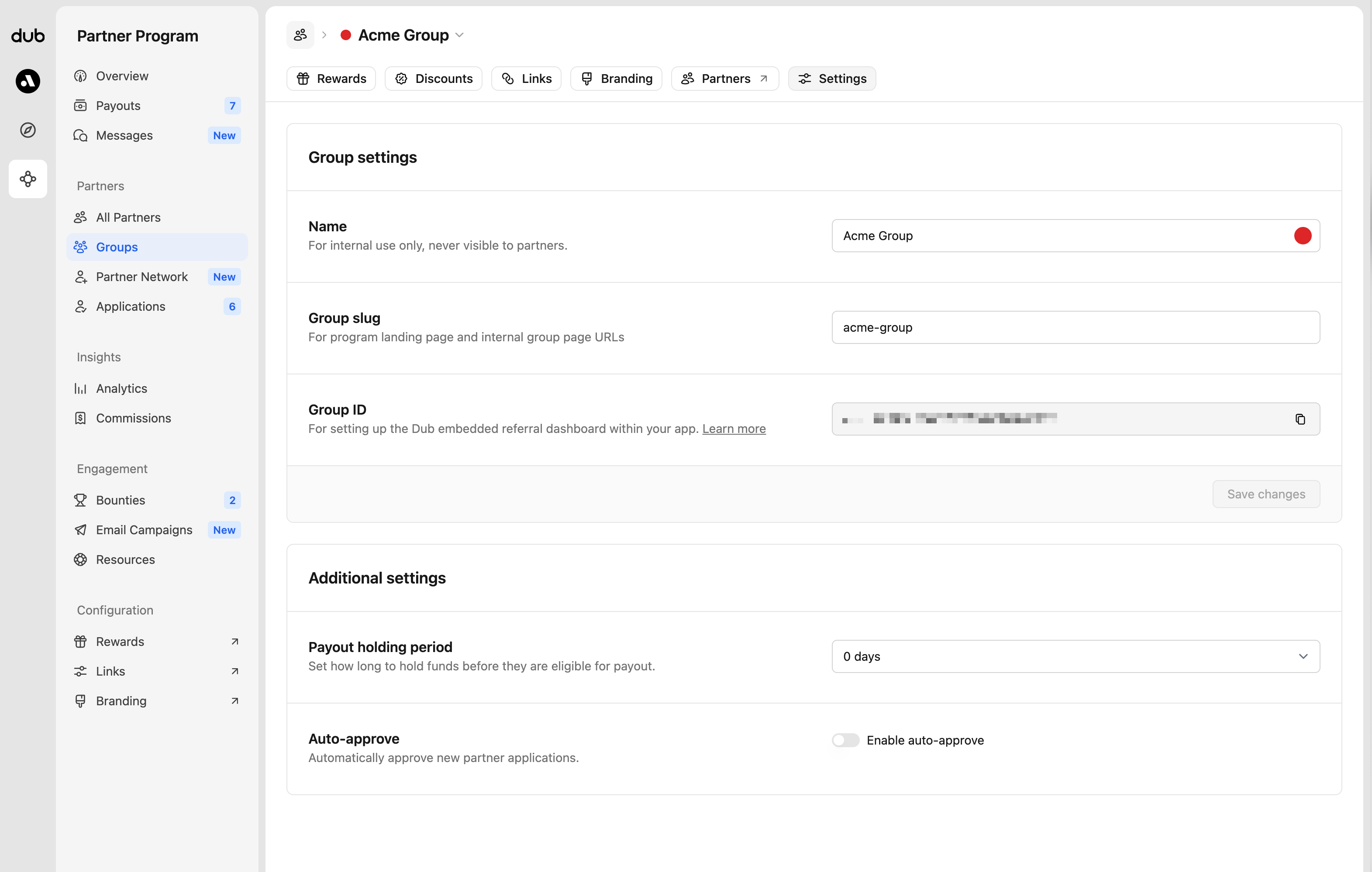
Название группы
Название группы партнеров можно изменить в любое время. Оно используется только для внутренних целей и никогда не видно вашим партнерам.
Slug группы
По умолчанию slug группы генерируется автоматически на основе названия группы, но вы можете изменить его в любое время. Используется для целевых страниц программы и внутренних URL страниц группы.
ID группы
При настройке встроенной реферальной панели Revroute вы будете использовать этот ID группы. ID изменить нельзя.
Период удержания выплат
Укажите, как долго ваши комиссии будут находиться в статусе «ожидание» перед тем, как станут доступны для выплаты. Подробнее.
Автоматическое одобрение
Включите или отключите автоматическое одобрение новых заявителей в этой группе. Подробнее.
Правила перемещения между группами
Автоматическое перемещение партнеров в выбранную группу при достижении определенных критериев. Это полезно, когда вы хотите, чтобы партнеры получали более высокие вознаграждения по мере прогресса в вашей программе без необходимости ручного управления группами.
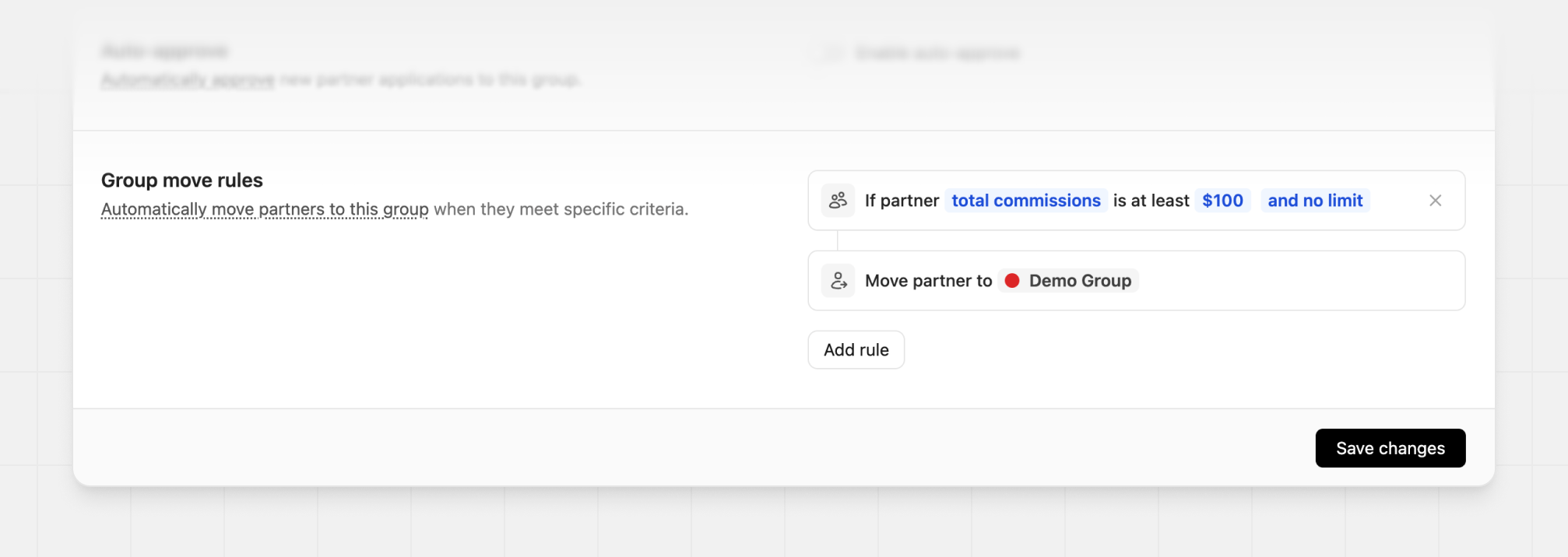
Вы можете перемещать партнеров на основе метрик эффективности, таких как общее количество лидов, конверсий, выручка или комиссии. Можно комбинировать несколько условий, чтобы перемещать только тех партнеров, которые соответствуют вашим точным требованиям.
Пример: Переместить партнеров в VIP Group, когда их общие комиссии достигнут $100.
Правила перемещения между группами доступны только на тарифном плане Advanced и выше .
Добавление партнеров в группу
Существует множество способов добавить партнеров в группу в зависимости от того, уже ли они зарегистрированы или еще не присоединились к вашей программе.
Приглашение партнеров подать заявку
После создания группы, когда вы делитесь уникальным URL заявки, все новые заявители, подавшие заявку через эту страницу, будут назначены в эту группу.
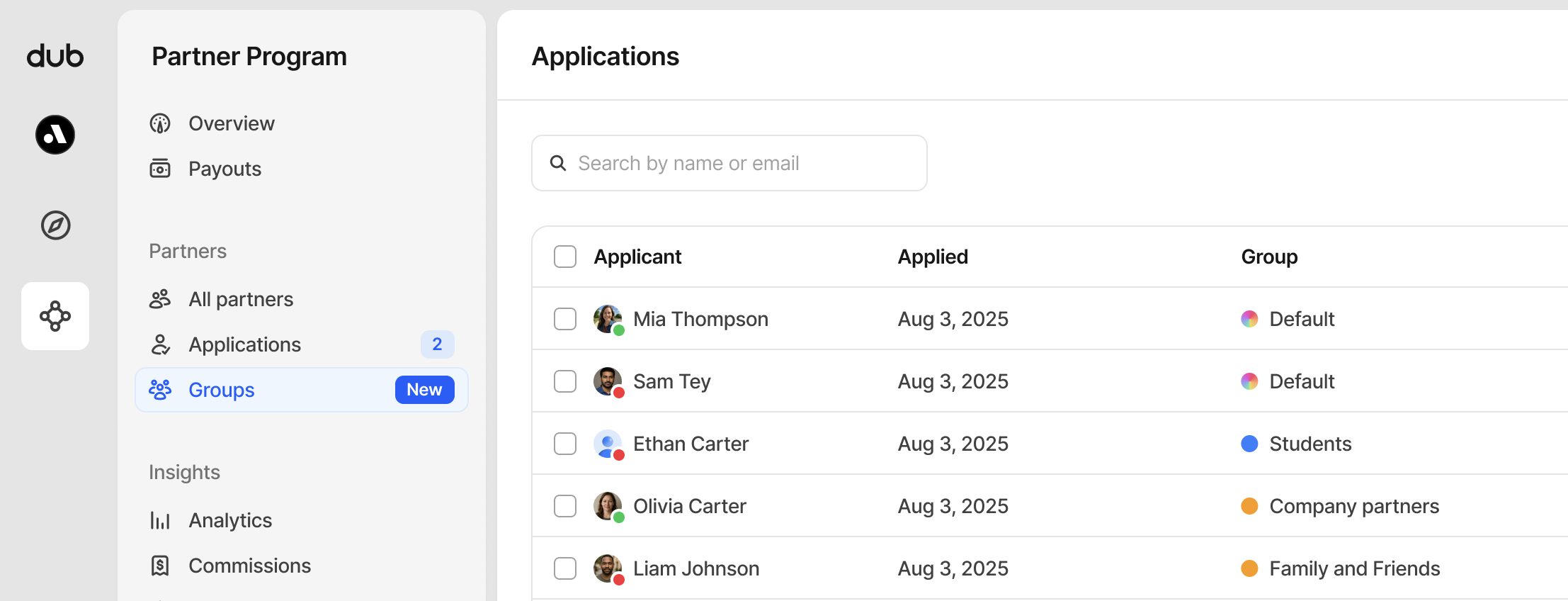
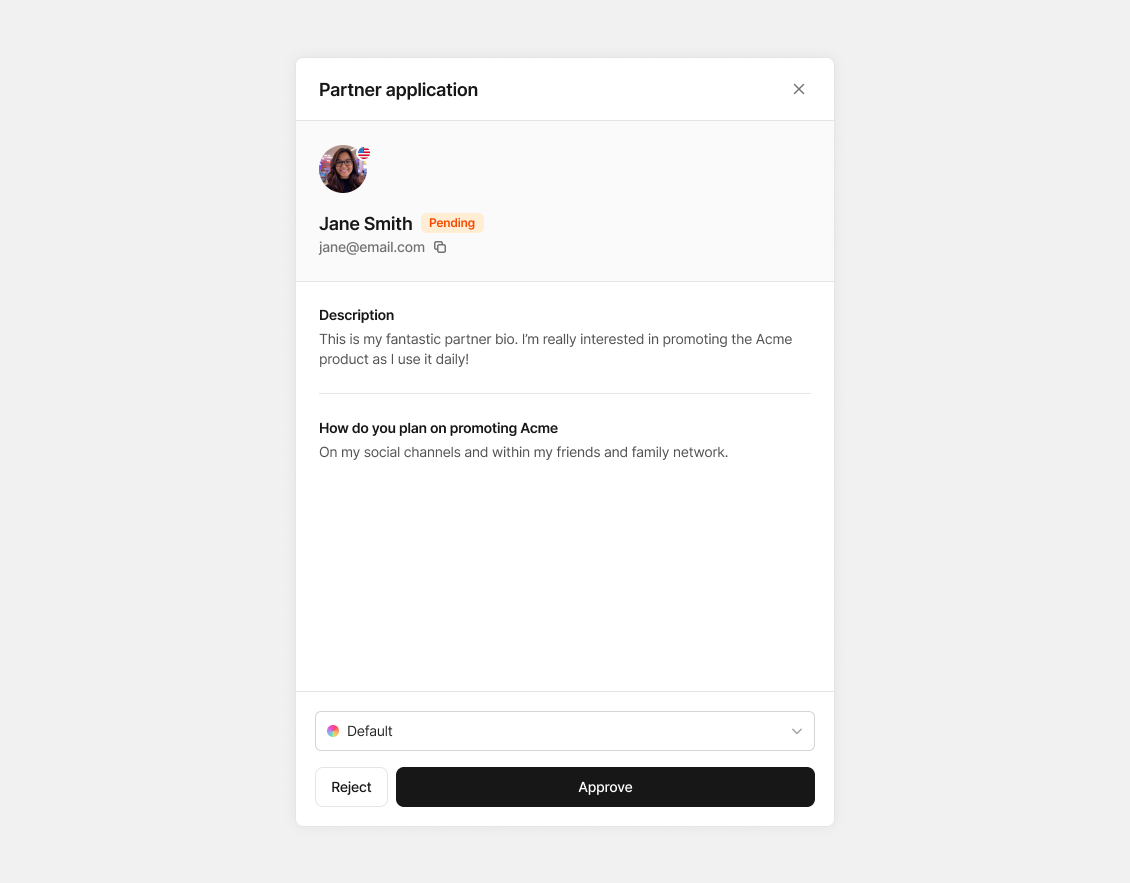
Одобрение заявок
При рассмотрении новых заявок вам будет предложено подтвердить назначенную группу, и вы также можете изменить назначенную группу при необходимости.
Добавление нескольких партнеров в группу
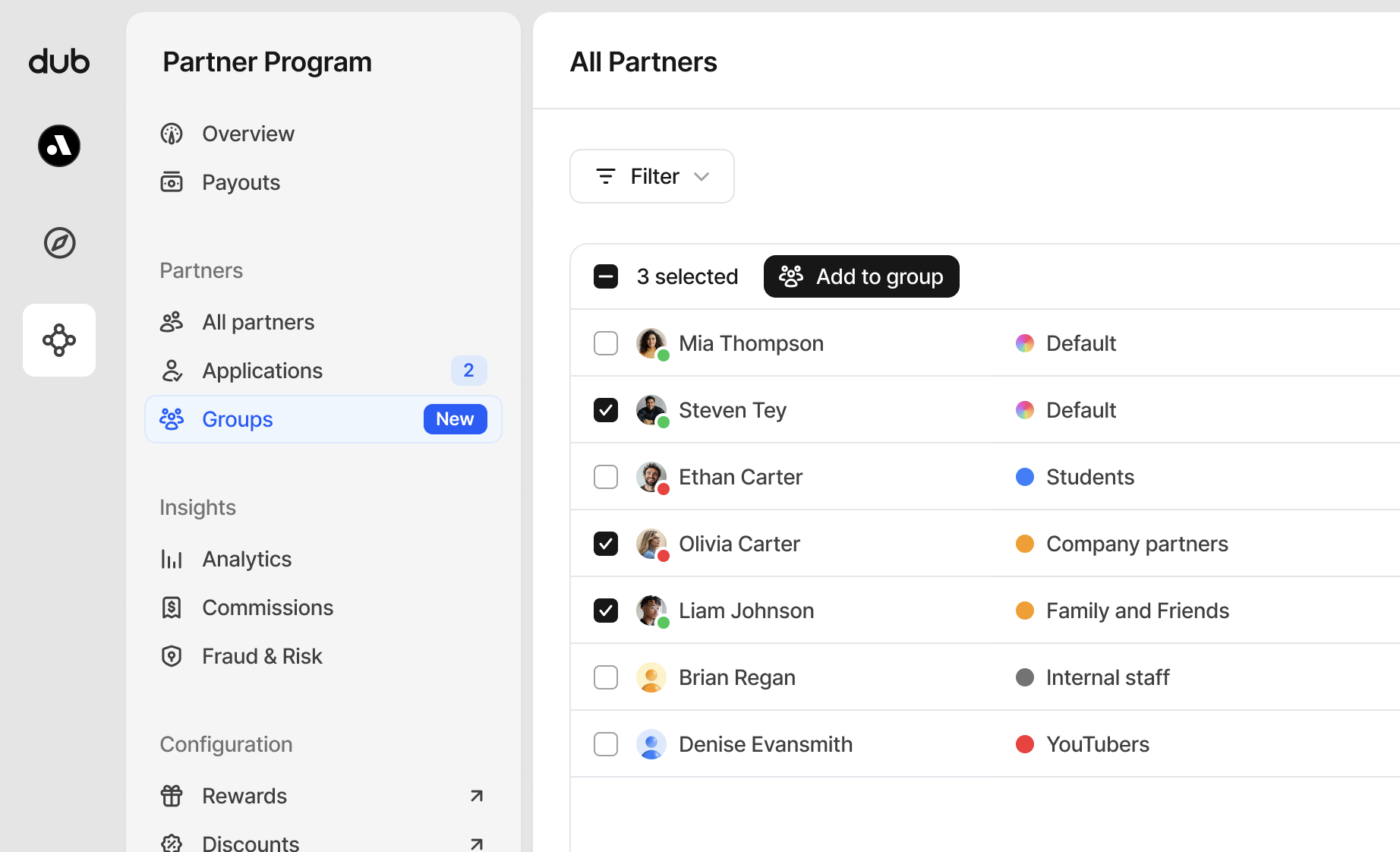
При просмотре всех ваших партнеров вы можете использовать функцию множественного выбора для добавления одного или нескольких партнеров одновременно в любую группу.
Просто установите флажок рядом с их именем и нажмите Add to group, чтобы переместить их в нужную группу партнеров.
Перемещение партнеров между группами
Существует несколько способов перемещения партнеров между группами:
Через страницу профиля партнера
Вы можете переместить партнера в новую группу со страницы профиля партнера:

При изменении группы партнера вы можете включить опцию keep partner in selected group, чтобы игнорировать любые правила перемещения между группами. Эта настройка также доступна в расширенных настройках партнера.

Через таблицу партнеров
Как упоминалось выше, вы также можете использовать функцию множественного выбора в таблице партнеров для перемещения одного или нескольких партнеров одновременно в любую группу.
Просто установите флажок рядом с их именем и нажмите Add to group, чтобы переместить их в нужную группу партнеров.
Через правила перемещения между группами
Вы также можете автоматически перемещать партнеров в новую группу на основе их метрик эффективности. Это полезно, когда вы хотите, чтобы партнеры получали более высокие вознаграждения по мере прогресса в вашей программе без необходимости ручного управления группами.
Партнеры, у которых включена опция игнорирования правил перемещения между группами, останутся в своей текущей группе и не будут затронуты правилами перемещения.
Уведомления партнеров по электронной почте
При перемещении партнеров в другую группу они получат письмо, подобное приведенному ниже, информирующее их о любых изменениях в вознаграждениях и бонусных заданиях, связанных с перемещением.

Журнал перемещений между группами
Для прозрачности и аудита мы также ведем историю всех перемещений между группами для каждого партнера — как ручных, так и через правила перемещения:

Это дает вам полную историю изменений членства партнера в группах, что может влиять на их вознаграждения, скидки и реферальные ссылки.
Сколько групп партнеров можно создать?
Все клиенты Revroute Partners могут создавать группы партнеров, количество которых зависит от тарифного плана.
| Тарифный план | Группы партнеров |
|---|---|
| Business | До 3 групп (включая группу по умолчанию) |
| Advanced | Неограниченное количество групп |
| Enterprise | Неограниченное количество групп |